CADWorx 24 – Advanced Plant Design & Professional Piping Engineering Software
Summary
The Name That Keeps Appearing In Every Serious Piping Discussion
You ask colleagues what plant design software they use. The answers vary. But one name keeps appearing in conversations about serious piping work. CADWorx. Not the old version. CADWorx 24. This is the release that changed how piping engineers think about their work. CADWorx runs inside AutoCAD. If you know AutoCAD commands, you already know half of CADWorx. The other half is piping specific. Spec driven design. Intelligent components that know they are pipes, not just lines.
Automatic connection logic that understands that a flange connects to a gasket connects to another flange. Version 24 specifically improved the spec editor. It added better collision detection. It made isometric extraction faster. The software is built for plant designers who need to produce construction ready drawings, not just pretty 3D models.
What Your IT Department Needs To Know
Your IT department controls what software installs on your work computer. You need their approval before downloading CADWorx 24. Here is what to tell them. The software requires a 64 bit version of Windows 10 or 11. It will not run on Windows 7. It will not run on 32 bit Windows. The computer needs an Intel Core i7 or AMD Ryzen 7 processor. Plant models become large quickly.
A modest processing unit will struggle. RAM is the most critical resource. 16 GB is the absolute minimum for small projects. 32 GB is required for medium plants. 64 GB is recommended for large facilities with thousands of components. The graphics card needs to be workstation grade. NVIDIA Quadro or AMD Radeon Pro. Gaming cards work but may have driver compatibility issues. Storage is another consideration.
The software itself needs 30 GB. Your project files will need much more. An SSD is mandatory. A mechanical hard drive will make the software unusably slow. Tell your IT department these requirements before they approve the installation.
What A Piping Engineer Actually Sees On Screen
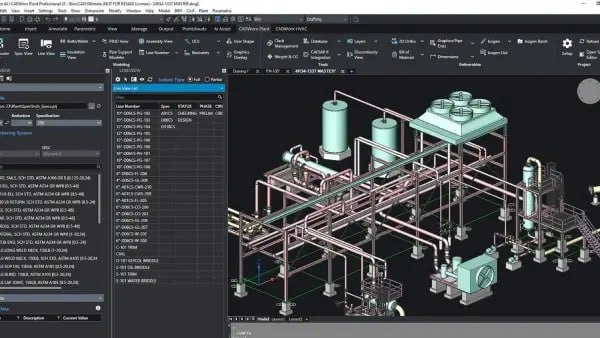
You launch CADWorx 24 for the first time. The interface looks familiar because it is AutoCAD. The ribbon has new tabs. CADWorx Piping. CADWorx Equipment. CADWorx Structure. CADWorx Isogen. You click the Piping tab. You see spec selection. This is where you choose which pipe specifications you will use. 150 pound flanges. Schedule 40 pipe. Standard elbows. You select your spec. You click the line number tool. You type a line number like 1001 P 01 2 inch. You click where to start the pipe.
You move your mouse. A pipe follows your cursor. You click again. The pipe is placed. You click the elbow tool. You select the elbow from your spec. You place it at the end of the pipe. You click the pipe tool again. You start from the elbow. The new pipe automatically connects. This feels like magic if you are coming from basic CAD where pipes are just lines.
Can You Place Your First Pipe And Fitting
Set a timer for three minutes. Open CADWorx. Your goal is to place a pipe, add an elbow, and continue the pipe. Start with a blank drawing. Create a new spec or load an existing one. Select the line number tool and start your first pipe run. Click the elbow tool and select a standard ninety degree elbow from your spec. Place it at the end of your pipe. Select the pipe tool again and start from the open end of the elbow.
Draw the pipe in a new direction. Check that the elbow automatically connected to both pipes. Check that the spec remained consistent across all three components. If you completed this in under three minutes, CADWorx passes the basic usability test. If you struggled, watch the built in tutorials. Most experienced AutoCAD users complete this test in under two minutes on their first attempt.
Honest Problems Users Complain About
No software is perfect. Users complain about specific issues with CADWorx. The first complaint is the spec editor. It is powerful but complicated. Creating a new spec from scratch takes time. You need to understand piping specifications deeply. The second complaint is performance on very large models. When your plant model exceeds ten thousand components, navigation slows down.
Zooming and panning become less responsive. The third complaint is the price. CADWorx is not cheap. Small engineering firms may find the cost challenging. The fourth complaint is the learning curve for non AutoCAD users. If you come from SolidWorks or Revit, the AutoCAD interface feels outdated.
The fifth complaint is collision detection. It works well but requires manual setup. You must tell the software which component types to check against which other component types. These complaints are real. But users consistently say the benefits outweigh the problems.
Problems You Did Not Know Could Be Solved
You have been living with certain problems for so long that you stopped noticing them. CADWorx solves problems you did not even know could be solved. Problem one is specification consistency. In basic CAD, you draw a pipe. You draw a flange. You have no way to ensure they match. CADWorx uses specs. The software only lets you place components that belong together. Problem two is isometric extraction.
Your current software produces isometrics that require manual cleanup. CADWorx produces isometrics that are construction ready. Dimensions are correct. Bill of materials matches the model. Weld points are marked. Problem three is component intelligence. A valve in CADWorx knows it is a valve.
It knows it has an actuator. It knows the actuator needs clearance. The software checks clearance automatically. Problem four is line number tracking. Every component knows what line number it belongs to. Change a line number on the pipe. All fittings on that line update automatically.
What Makes Or Breaks A Plant Design Software
You have modeled the entire pipe run. Every fitting. Every support. Every valve. Now you need the isometric drawing for construction. This is the moment that separates good plant design software from bad software. In CADWorx, you select the pipe run. You click the Isogen tool. A dialog box appears. You choose your isometric style. You choose paper size. You click OK. Within seconds, the isometric appears. Dimensions are placed automatically. The bill of materials is populated automatically. Weld numbers are assigned automatically.
Support locations are marked. You look at the isometric. It looks exactly like the isometrics your fabricators expect. You do not need to add dimensions manually. You do not need to create the BOM manually. You do not need to explain to the fabricator that the drawing is not complete. The isometric extraction moment either brings joy or frustration. With CADWorx, it brings joy.
How CADWorx 24 Plays With Revit, Navisworks, And Sprinkler
Your plant design does not exist in isolation. You need to coordinate with structural engineers using Revit. You need to share models with construction teams using Navisworks. You need to check clashes with fire protection designers. CADWorx exports to industry standard formats. The most important is IFC. This is the open format for building information modeling. Revit imports IFC. Navisworks imports IFC. Almost every construction coordination tool imports IFC. CADWorx also exports NWC files directly for Navisworks.
This preserves the component intelligence. Fire protection designers using Sprinkler CAD can receive your models in DWG format. The reverse is also true. You can import models from Revit and Navisworks. You can use them as references while you design your piping. If a structural beam moves in Revit, you import the updated model and check your clashes again. CADWorx does not force you to work in isolation.
What CADWorx 24 Users Still Love And What They Ignore
Ask someone who has used CADWorx for eight months. They will tell you what they still love and what they have learned to ignore. They still love spec driven design. Once you work with specs, you cannot go back to drawing pipes as lines. They still love isometric extraction. The time savings never get old. They still love the component intelligence. Valves that know they are valves. Supports that know they attach to pipes. They have learned to ignore the spec editor complexity. They use the built in specs instead of creating their own.
They have learned to ignore the occasional slow down on large models. They break large models into smaller files. They have learned to ignore the price. The software pays for itself in time savings within the first few large projects. They have learned to ignore the AutoCAD interface. They customized the ribbon to show only the tools they use daily. The love outweighs the ignore.
Three Questions That Tell You If This Software Is For You
You do not need to guess whether CADWorx is right for you. Answer three questions honestly. Question one. Do you design piping systems with more than fifty components per project? If yes, continue. If no, a simpler tool may work. Question two. Do you produce isometric drawings for construction or fabrication? If yes, continue. If no, the main benefit of CADWorx is lost on you.
Question three. Does your team already use AutoCAD or are they willing to learn it? If yes, it is an excellent choice. If no, consider a standalone plant design package. If you answered yes to all three questions, you should download the trial today. If you answered no to any question, consider your specific needs carefully. It is powerful. But power without need is wasted money. Most piping engineers answer yes to all three questions. That is why CADWorx is the industry standard.
FAQ
Q1: What is CADWorx 24 used for?
CADWorx is used for 3D plant design and piping engineering. It creates intelligent piping models, generates isometric drawings, and produces construction documentation.
Q2: Does CADWorx 24 require AutoCAD?
Yes. CADWorx runs inside AutoCAD. You need a licensed copy of AutoCAD to use CADWorx.
Q3: What file formats does CADWorx 24 import and export?
It imports DWG, DXF, IFC, and various point cloud formats. It exports IFC, NWC for Navisworks, PDF, and DWG.
Q4: Is there a free trial of CADWorx 24?
Contact Hexagon (the developer) for trial availability. Trials are typically offered to qualified engineering firms.
Q5: What are the system requirements for CADWorx 24?
64 bit Windows 10 or 11, Intel Core i7 or AMD Ryzen 7, 32 GB RAM minimum, workstation graphics card, SSD storage.
Q6: Does CADWorx 24 work with Revit?
Yes. CADWorx exports IFC files that Revit imports. You can coordinate between piping designers using CADWorx and structural designers using Revit.
Q7: Can CADWorx 24 generate isometric drawings automatically?
Yes. The Isogen tool extracts isometric drawings directly from the 3D model with dimensions and BOM automatically generated.
Q8: What is spec driven design in CADWorx?
Spec driven design means you define pipe specifications once. The software only lets you place components that match your spec, ensuring consistency.