Mush3D 3.0 The Complete Guide to A Powerful Animated Cache Sculpting and Simulation Software
Summary
Mush3D is a major update to the standalone shot finishing tool designed for sculpting and simulating animated geometry caches. In simple words, this software lets you sculpt directly on animated meshes. Traditional sculpting tools like ZBrush or Mudbox work only on static models. You cannot take an animated character and paint fixes directly onto the moving mesh. Mush3D solves this problem completely.
This software handles file formats like Alembic and FBX. These are standard formats for animated geometry in visual effects and game production. When an animator finishes a shot, the mesh cache is exported. Mush3D allows you to open that cache and start sculpting on every frame of the animation. Fix a deformation issue on frame 42, and the fix stays consistent across all frames. This is revolutionary for production pipelines.
Who should use Mush3D 3.0?
Character artists who work on high end games and visual effects films. Technical directors who need to clean up problematic deformations without going back to the rig. Simulation artists who want to add soft tissue motion to existing animation caches. Machine learning engineers who need clean, enriched animation data for training deformation systems. The software bridges the gap between animation and final pixel perfect polish.
Why is Mush3D famous in professional circles?
Because it solves a problem no other tool solves efficiently. In a typical production, a character animator delivers a shot. The deformation might have issues. The elbow collapses strangely. The shoulder deforms unnaturally. The face loses volume in certain expressions. Traditionally, you would go back to the rigger, adjust the rig, and reanimate. This takes days or weeks. With it, you open the cache, sculpt the fix directly on the animation, and deliver the corrected shot in hours. This speed and efficiency is why studios are adopting Mush3D 3.0 rapidly.
What Features Actually Do in Production
Instead of just listing features, let me explain what each major feature of Mush3D 3.0 actually does in a real workflow and how it benefits different users.
1. The Pose Trainer Deformer
This is the flagship feature of Mush3D 3.0. The Pose Trainer automatically generates corrective shapes and normal maps from a small set of reference poses. Here is how it works in production. You have a character with a facial rig. When the character smiles, the cheeks do not lift enough. The volume is wrong. Instead of rebuilding the rig, you take three poses – neutral, half smile, full smile.
You sculpt the correct shape for each pose using Mush3D sculpting tools. Then you train the Pose Trainer. The software learns the correction pattern. Now when the animation plays, the Pose Trainer applies the correct volume and shape to every smile frame automatically. For a beginner, this means you do not need to learn complex facial rigging. For a production studio, this means faster fixes and consistent quality across hundreds of shots.
2. The Tetrahedral Deformation Solver
This feature provides realistic secondary motion for character soft tissues and muscles. When a character moves, muscles and fat should jiggle and react. Traditional rigs struggle with this. The Tetrahedral Solver works by converting your mesh surface into tetrahedrons – 3D shapes that fill the volume inside the character. Then you paint masks where you want soft tissue simulation.
The solver calculates how those internal volumes deform based on the animation. The result is believable muscle bounce, belly jiggle, and cheek motion that feels physically accurate. For a character artist, this adds a layer of realism that is otherwise very difficult to achieve. For a simulation artist, this is a fast way to add secondary motion without complex cloth or soft body setups.
3. Multi Resolution Sculpting on Animated Caches
This is the core workflow of Mush3D. Traditional sculpting works at one resolution. If you need fine details, you subdivide. With animated caches, subdivision is tricky because the mesh topology is constant but the vertex positions change every frame. It solves this by reconstructing subdivision levels from the cached animation. You can work at a low resolution for broad shape changes and switch to high resolution for fine details. All edits are stored on a shared layer across the entire mesh stack.
This means you can sculpt a fix on a low resolution version of the mesh, switch to high resolution, and the fix propagates up. For a production artist, this means you can work efficiently without waiting for slow high resolution updates. For a technical director, this means clean, non destructive workflows.
4. The Simulation and Transfer Deformers
It includes tools for transferring deformation from one mesh to another. This is useful for facial 4D transfer. Imagine you have a high quality facial animation captured from a live actor. That animation works perfectly on the actor’s face scan. But you need it on a different character face. It can transfer the deformation while preserving the target character’s volume and silhouette.
The Pose Trainer enhances this further by learning character specific corrections. The result is expressive animation that looks natural on any character. This is valuable for visual effects where multiple characters need the same performance.
First Steps with Mush3D 3.0
If you are new to this software, this section will help you get started quickly. The software is powerful but the learning curve is manageable.
- First Time Setup: Download Mush3D 3.0 from the official website. The software is standalone, meaning it does not require Maya, Blender, or any other host application. Installation is straightforward on Windows. Launch the software. You will need a license. There are different pricing options, including subscription and perpetual. Check the official website for current pricing. Once licensed, you are ready to load your first cache.
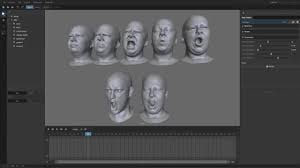
- Interface Understanding: The interface of this software is designed for efficiency. The main viewport shows your animated mesh. You can scrub through time using the timeline at the bottom. The left panel contains your sculpting brushes and tools. The right panel contains deformers and simulation settings. The top menu handles file import and export. Spend some time just exploring. Load a simple animated cache and play with the navigation controls. Orbit, pan, and zoom work like other 3D software. The interface feels familiar to anyone who has used sculpting or modeling tools.
- Starting Workflow: Here is a simple first project to learn the basics. Load an Alembic cache of a character doing a simple motion like waving an arm. Scrub through the timeline and find a frame where the deformation looks wrong. Maybe the shoulder collapses inward. Select the Grab brush. Set a medium radius. Sculpt the shoulder back to a natural shape. Now scrub through the timeline. You will see that it automatically interpolates your sculpt across adjacent frames. The fix is not just on one frame. The software applies your correction intelligently across the animation. This is the magic of this powerful software. Next, try the Pose Trainer. Pick three key poses from the animation. Sculpt corrections for each pose. Train the deformer. Apply it to the whole animation. See how the corrections improve every frame.
- Common Mistakes Beginners Make: One common mistake is trying to fix every frame individually. Do not do this. It is designed to work across time. Sculpt on key frames and let the software interpolate. Another mistake is working at too high resolution. Start at a lower subdivision level for broad shape changes. Switch to high resolution only for fine details. A third mistake is ignoring the simulation features. The Tetrahedral Solver is not just for muscles. You can use it for cloth, fat, skin motion, and more. Experiment with paint masks and watch how the simulation adds life to your animation. A fourth mistake is not saving versions. Mush3D supports non destructive workflows. Save different versions of your cache as you work. You can always go back.
How Professionals Use Mush3D 3.0 in Real Production
Let me share real world examples of how different professionals are using Mush3D 3.0 in their daily work.
Character Artists in Visual Effects
A character artist at a major VFX studio receives an animated shot of a digital double. The shot is approved for animation but the deformation has issues. When the character raises an arm, the shoulder bulges unnaturally. The artist opens the Alembic cache in Mush3D. At the problem frame, the artist sculpts the shoulder back to a natural shape.
The artist then uses the Pose Trainer to learn the correction pattern across the range of motion. The deformer is applied. The entire shot is fixed in under an hour. Previously, this fix would require going back to the rigging department, adjusting skin weights, and reanimating. That process would take two to three days. Mush3D saved the studio days of work.
Game Cinematic Artists
A game studio is producing a cinematic trailer. The main character has a complex facial animation. The animator delivered the shot but some expressions lack volume. The smile looks flat. The frown does not crease correctly. The cinematic artist imports the FBX cache into it. Using the multi-resolution sculpting tools, the artist adds volume to the smile and detail to the frown creases.
The Pose Trainer learns these corrections. When applied to the full animation, every smile and frown looks better. The artist also adds a Tetrahedral Solver to the cheeks so they jiggle slightly during fast dialogue. The final cinematic has a level of polish that would be impossible with traditional tools.
Technical Directors in Production Pipelines
A technical director manages a pipeline for a television series. The show uses multiple characters with the same rig but different facial shapes. The animation is retargeted from a single performance. Some characters look great. Others have deformation issues because their facial shapes are different. The technical director uses Mush3D to create correction caches.
For each character, a small set of reference poses is sculpted. The Pose Trainer learns character specific corrections. These corrections are applied automatically in the pipeline. Every character now looks good with the same animation. The technical director saved weeks of manual fix work.
Simulation Artists for Soft Tissue
A simulation artist is working on a creature with large muscle masses. When the creature runs, the muscles should bounce and slide naturally. The existing animation has the motion but no secondary dynamics. The artist opens the cache in Mush3D. The artist paints masks over the muscle areas. The Tetrahedral Solver is activated. The artist adjusts parameters for stiffness and damping.
The simulation runs. Now the muscles bounce and slide realistically with every step. The artist also adds dynamic wrinkles on the skin surface. The creature now feels alive and physical. All of this was done on the existing animation cache without changing the original rig or animation.
Machine Learning Engineers
An ML engineer is training a real time deformation system for a video game. The training data needs clean, consistent animation caches. The engineer uses it to clean up the source animation. Deformation artifacts are sculpted away. Pose Trainer corrections are applied. The resulting caches are rich and accurate. The ML model trains faster and produces better results because the input data is high quality. It has become a standard tool in ML deformation pipelines.
Performance Discussion
It is a GPU accelerated application. This means it uses your graphics card for heavy calculations. Performance is generally excellent, but let me discuss what you can expect.
- Speed of Sculpting Operations: When you sculpt on an animated cache, it must update the mesh across multiple frames. The software is optimized for this. Small brushes on high resolution meshes feel responsive. Large brushes on low resolution meshes are very fast. The multi resolution system helps greatly. You can sculpt broad shapes at low resolution where updates are instant. Then switch to high resolution only for fine details.
- Stability for Heavy Projects: It is built for production work. The software handles large Alembic and FBX caches without crashing. Users report loading caches with thousands of frames and millions of polygons. The Tetrahedral Solver can be heavy. Converting a mesh to tetrahedrons takes time and memory. Once converted, the simulation runs efficiently. The Pose Trainer uses machine learning algorithms.
- RAM and GPU Usage: It uses RAM primarily for storing the animated cache. A cache with 10,000 frames and one million vertices might use several gigabytes of RAM. 16 GB of RAM is the minimum recommended. 32 GB or more is better for heavy production work. GPU usage depends on your operations. Sculpting uses GPU for real time mesh updates. Simulation uses GPU for physics calculations. A dedicated graphics card with 4 GB of VRAM is recommended. 8 GB or more is ideal for high resolution meshes. Integrated graphics are not recommended. The software will run but performance will suffer.
- Workflow Smoothness: The overall workflow in Mush3D is smooth. Timeline scrubbing is responsive even on heavy caches. Brush strokes are consistent. The Pose Trainer training progress is clear. Simulation results are visible immediately. The interface does not lag or stutter during normal use. There is a reason why professional studios have adopted Mush3D. The software feels polished and production ready.
- Comparison to Non GPU Solutions: Without GPU acceleration, tasks like mesh subdivision and simulation would be much slower. It leverages modern hardware effectively. If you are upgrading your workstation for it, prioritize GPU and RAM. A fast CPU helps with file I O and training, but GPU is the most important component for sculpting and simulation.
How Mush3D 3.0 Compares to Other Tools
You have options when it comes to animation polish and deformation tools. Let me compare Mush3D 3.0 to the main alternatives.
Maya with Blend Shapes
Maya is the industry standard for animation. You can create blend shapes to fix deformation issues. The problem is that blend shapes are static. They work on poses but not on continuous animation. To fix a sliding shoulder across a range of motion, you would need many blend shapes. This is time consuming to create and manage. Mush3D’s Pose Trainer automates this process. You sculpt a few poses and the software learns the correction for the entire animation. For complex fixes, Mush3D is much faster.
ZBrush for Static Sculpting
ZBrush is the best tool for static high resolution sculpting. But it cannot work on animated caches. If you have an animated character, you cannot open the animation in ZBrush and sculpt fixes on every frame. You would need to export every frame as a separate model, sculpt each one, and reassemble. This is impractical for any production. Mush3D was built specifically for animated caches. If you work with animation, this is the right tool.
Houdini for Simulation
Houdini has powerful simulation tools. You can simulate soft bodies, cloth, and muscles. But setting up a simulation takes time. You need to build a simulation rig, adjust parameters, and cache results. For adding secondary motion to existing animation, Houdini is powerful but heavy. Its Tetrahedral Solver is faster to set up. Paint masks, adjust a few parameters, and simulate. For quick soft tissue fixes, this is more efficient. For complex simulation with collisions and constraints, Houdini is still better.
Blender with Shape Keys
Blender is free and has shape keys. Like Maya blend shapes, shape keys work on poses. You can create corrective shape keys for deformation issues. But managing many shape keys across many animations is difficult. Its Pose Trainer provides a more automated solution. Blender also lacks the Tetrahedral Solver and multi-resolution sculpting on animated caches. For professional production work, it offers features not available in Blender.
Why Mush3D 3.0 Wins in Its Niche: No other tool combines pose based correction learning, soft tissue simulation, and multi resolution sculpting on animated caches in one package. Mush3D fills a specific gap in the production pipeline. If you regularly work with animated geometry caches and need to polish deformations, add secondary motion, or prepare data for machine learning, this is the best tool available.
FAQ
Q1: What exactly is Mush3D 3.0 used for?
It is used for sculpting and simulating directly on animated geometry caches like Alembic and FBX files. It allows artists to fix deformation issues, add soft tissue motion, and polish character animation without going back to the original rig.
Q2: Do I need Maya or Blender to use Mush3D 3.0?
No. It is a standalone application. It does not require any host software. You import your animated cache, do your work, and export the modified cache. This independence is one of its key advantages.
Q3: What file formats does Mush3D 3.0 support?
It primarily supports Alembic (.abc) and FBX (.fbx) files. These are standard formats for animated geometry in visual effects and game production.
Q4: Is Mush3D 3.0 difficult for beginners to learn?
The basic workflow of loading a cache and sculpting fixes is easy to learn in a few hours. Advanced features like the Pose Trainer and Tetrahedral Solver take more practice. Most artists become comfortable within two to four weeks of regular use.
Q5: What hardware do I need for Mush3D 3.0?
A modern Windows PC with a dedicated NVIDIA or AMD graphics card is recommended. 16 GB of RAM is the minimum. 32 GB or more is better for heavy production work. Integrated graphics are not recommended.
Q6: Can Mush3D 3.0 handle very long animations with thousands of frames?
Yes. Users report loading caches with thousands of frames without problems. Performance depends on your hardware. More RAM helps with longer animations.
Q7: How does the Pose Trainer work?
You sculpt corrections on a small set of reference poses. The Pose Trainer learns the pattern of these corrections using machine learning algorithms. Then it applies the learned corrections across the entire animation automatically.
Q8: Is the Tetrahedral Solver only for muscles?
No. You can use it for fat, skin motion, cloth like behavior, and any soft tissue. Paint masks on the areas you want to simulate and adjust parameters for the desired behavior.
Q9: Can I use Mush3D 3.0 for machine learning data preparation?
Yes. Many teams use Mush3D to clean and enrich animation caches before using them to train machine learning deformation systems. The software is designed with ML pipelines in mind.
Q10: Where can I buy Mush3D 3.0?
Purchase directly from the official Mush3D website or contact us. There are different pricing options including subscription and perpetual licenses. Always buy licensed software. Do not use cracked or pirated versions.