Skelion Pro 5.5.5 -Plugin for SketchUp – Advanced PV System Layout and Energy Simulation
Summary
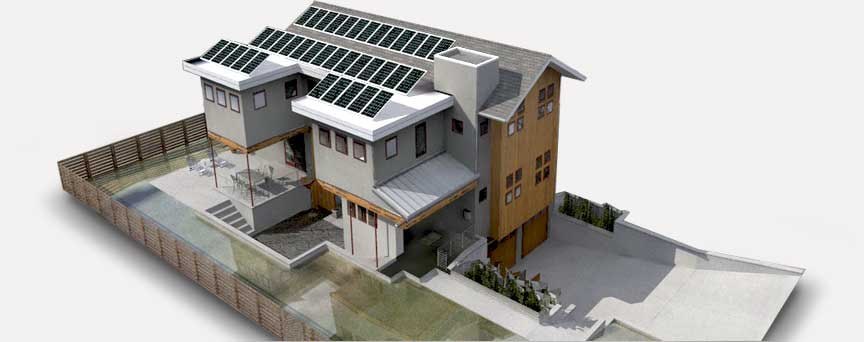
Skelion Pro 5.5.5 is a specialized plugin for SketchUp that enables solar designers, engineers, and architects to insert solar panels, model photovoltaic systems, and perform solar energy simulations directly within the SketchUp environment. Unlike manual design methods that require hours of tedious panel placement and separate energy calculation tools, Skelion automates panel layout, integrates real location data, and connects to industry-standard simulation tools like PVSYST, PVWATTS, and PVGIS.
The plugin is designed for residential rooftop installations, ground-mount power plants, and commercial solar projects. It supports both photovoltaic (PV) and thermal solar systems, as well as advanced configurations including bifacial modules and single-axis or dual-axis tracking systems. Users can import terrain data, work with curved roofs, and generate professional presentations and proposals directly from their 3D models.
Key Features
1. Automatic Solar Panel Layout
It automatically inserts solar panels into defined surfaces such as roofs or ground areas. This eliminates hours of manual panel placement and adjustment, allowing designers to focus on system optimization rather than repetitive drafting.
2. Real Location-Based Analysis
Input your location using Google Earth integration or manually define coordinates. The plugin calculates solar radiation using TMY (Typical Meteorological Year) and PVGIS data for accurate energy simulations. This ensures that energy production estimates reflect real-world conditions at the specific site.
3. Bifacial and Tracking Systems
It supports tracking arrays and bifacial modules, making it ideal for large-scale plant designs. Single-axis and dual-axis tracking systems can be modeled, with movement visualization and shading loss calculations to optimize energy yields.
4. Export to Simulation Tools
Export your solar designs to professional simulation tools including PVSYST, PVWATTS, and SAM (System Advisor Model). This enables detailed energy analysis, loss calculations, and professional report generation for client proposals and engineering documentation.
5. Custom Module Database
Customize the module database with your own or branded PV modules. Adjust panel dimensions, efficiency ratings, temperature coefficients, and other component characteristics. Create custom 3D components and insert them directly into your model.
6. Financial and Environmental Estimation
It provides financial return estimations including ROI, payback time, and environmental impact calculations including CO2 savings. These features are valuable for client presentations and investor proposals.
7. Minimal Shading Criteria
Solar obstructions can be projected over the roof using two different criteria: distance-height ratio or solstice shadow. This helps determine which areas of the roof meet minimum shading requirements for viable solar production.
8. Shading Losses Calculation
Using TMY hourly meteorological data, it calculates the percentage of solar energy available for each panel, taking into account near shadings from nearby buildings, trees, or terrain features.
9. Curved Roof Support
Unlike many solar design tools that only work with flat or simple pitched roofs, it can insert solar panels on curved roofs. This expands the range of architectural styles that can accommodate solar systems.
10. Ground Mount Power Plants
Import 3D mesh terrain data and insert solar components directly onto the terrain. This is essential for large-scale ground-mount solar farms where topography affects panel placement and shading.
What’s New in Skelion Pro
- Version 5.5.5 includes improved compatibility with the latest SketchUp versions.
- Enhanced TMY data processing for more accurate shading loss calculations.
- Updated PVGIS and PVWATTS integration for current solar radiation models.
- Expanded module database with additional manufacturer panels.
- Bug fixes for curved roof panel placement and terrain mesh import.
- Performance improvements for large ground-mount plant designs.
System Requirements
To run Skelion Pro effectively, your system should meet the following specifications.
Minimum Requirements:
-
SketchUp Version: SketchUp Make 2017 or newer; SketchUp Pro 2017 or newer
-
Operating System: Windows 10 or Windows 11 (64-bit); macOS 10.14 or newer
-
Processor: 2.0 GHz or faster
-
RAM: 4 GB minimum (8 GB recommended for complex ground-mount plants)
-
Storage: 200 MB free space for plugin
-
Internet: Required for Google Earth integration and PVGIS/PVWATTS data
Installation Guide
Follow these steps to install Skelion Pro on your system.
-
Download the Plugin: Obtain the Skelion Pro installer from the official Skelion website or authorized reseller.
-
Try Before You Buy: A 15-day trial of Skelion Pro is available, offering full Pro edition features including shading losses, PVSYST export, ground mount plants, curved roofs, and tracking systems.
-
Verify SketchUp Version: Ensure your SketchUp version is compatible (2017 or newer).
-
Close SketchUp: Close any open instances of SketchUp before installation.
-
Run the Installer: Double-click the downloaded file. Follow the installation wizard.
-
Launch SketchUp: Open SketchUp. Skelion should appear in the Extensions menu or as a toolbar.
-
Activate License: Enter your license key. For trial users, no activation is required during the trial period.
-
Configure Settings: Set default panel types, location preferences, and energy calculation parameters.
How to Use Skelion Pro
Step 1: Create or Import Your 3D Model
Build your building or terrain model in SketchUp, or import an existing model. For ground-mount plants, import 3D mesh terrain data.
Step 2: Set Your Location
Use Google Earth integration to position your model accurately, or manually enter latitude and longitude coordinates. The plugin uses this data for solar radiation calculations.
Step 3: Define Solar Panel Type
Select panels from the built-in database or add custom modules with your own dimensions and specifications. For bifacial or tracking systems, select the appropriate component type.
Step 4: Insert Solar Panels
Select the roof face or ground area where panels should be placed. It automatically generates the optimal panel layout. For curved roofs, the plugin adapts panel placement to the surface curvature.
Step 5: Analyze Shading
Use the Minimal Shading Criteria tool to project obstructions and determine viable installation areas. Run Shading Losses calculation using TMY hourly data to see energy loss percentages per panel.
Step 6: Simulate Energy Production
Link to PVWATTS or PVGIS to generate an energy production report. For more detailed analysis, export the 3D model to PVSYST.
Step 7: Generate Reports
Create financial reports including ROI and payback time. Calculate CO2 savings for environmental impact statements. Generate professional presentations and proposals directly from your model.
Step 8: Visualize Array Series
Use the paint tool to apply color textures representing different electrical strings. This helps with inverter assignment and system balancing.
Best Use Cases
| Use Case | Application | Key Benefit |
|---|---|---|
| Residential Rooftop Solar | Single-family homes, multi-unit buildings | Automatic panel layout, shading analysis, PVWATTS reports |
| Commercial Rooftop Systems | Office buildings, warehouses, retail | Large flat roof optimization, structural load considerations |
| Ground-Mount Power Plants | Solar farms, utility-scale installations | Terrain mesh import, tracking systems, PVSYST export |
| Curved Roof Architecture | Modern buildings, stadiums, canopies | Unique panel placement on non-planar surfaces |
| Bifacial Module Projects | Ground-mount with reflective surfaces | Energy yield optimization for bifacial technology |
| Academic and Training | Student projects, solar design courses | Learning tool, no prior experience required |
Advantages and Limitations
Advantages:
- It dramatically reduces solar design time by automating panel layout on roofs and ground areas.
- The integration with Google Earth allows precise geographic positioning. TMY-based shading loss calculations provide accurate energy estimates.
- The plugin supports advanced technologies including bifacial modules and tracking systems.
- Export to PVSYST, PVWATTS, and SAM enables professional-grade energy analysis. Custom module database allows using specific manufacturer panels.
- Curved roof support expands design possibilities beyond standard architecture. Ground-mount terrain import enables large-scale solar farm design.
- The 15-day Pro trial allows full feature testing before purchase.
Limitations:
- It requires SketchUp (paid or free version) to function.
- The Pro edition features (shading losses, PVSYST export, ground mounts, curved roofs, tracking) require a paid license after the 15-day trial.
- The free version has limited functionality. Internet connection is required for Google Earth and PVGIS/PVWATTS data.
- TMY data for some remote locations may have limited accuracy.
- Large ground-mount plants with thousands of panels may impact SketchUp performance on lower-spec hardware.
Alternatives to Skelion Pro
| Software | Best For | Key Difference from Skelion |
|---|---|---|
| PVSYST | Full solar system design | Standalone software, more detailed analysis, no SketchUp integration |
| Helioscope | Commercial solar design | Web-based, subscription, different workflow |
| PVSol | 3D solar design | Standalone or SketchUp plugin, different pricing model |
| PVCase | Utility-scale solar | Large plant focus, more expensive, different interface |
| SketchUp native tools | Manual panel placement | Free but extremely time-consuming, no energy calculations |
| Google Earth Pro | Site visualization | Free but no solar design tools |
Frequently Asked Questions
Q1. What is Skelion Pro?
It is a plugin for SketchUp that allows users to insert solar panels, model photovoltaic systems, and perform solar energy simulations directly within SketchUp.
Q2. Do I need SketchUp to use Skelion?
Yes. It is a plugin that runs inside SketchUp. You need SketchUp Make (free) or SketchUp Pro (paid) installed.
Q3. What is the difference between the free and Pro versions?
The free version includes basic solar panel insertion. The Pro edition adds minimal shading criteria, shading losses calculation, PVSYST export, PVWATTS and PVGIS integration, ground mount power plants, curved roofs, array series visualization, dome components reporting, and tracking/backtracking visualization.
Q4. Is there a trial available?
Yes. A 15-day trial for Skelion Pro is available with all Pro features enabled.
Q5. What solar technologies does Skelion support?
It supports photovoltaic (PV) panels, thermal solar systems, bifacial modules, single-axis tracking, and dual-axis tracking systems.
Q6. Can Skelion export to PVSYST?
Yes. The Pro edition allows exporting your 3D model directly to PVSYST for detailed energy analysis and loss calculations.
Q7. Does Skelion work with curved roofs?
Yes. It can insert solar panels on curved roof surfaces, expanding design possibilities for modern architecture.
Q8. What is the shading losses feature?
Using TMY hourly meteorological data, itcalculates the percentage of solar energy available for each panel, taking into account near shadings from nearby buildings, trees, or terrain features.
Q9. Can I use my own solar panel specifications?
Yes. It includes a customizable module database where you can add your own PV panels with specific dimensions, efficiency, and other characteristics.
Q10. What are the system requirements for Skelion Pro?
It requires SketchUp 2017 or newer, Windows 10/11 or macOS 10.14+, 4GB RAM minimum (8GB+ recommended), and an internet connection for Google Earth and PVGIS/PVWATTS data.
Final Thoughts
Skelion Pro 5.5.5 is an essential tool for solar designers, architects, and engineers who use SketchUp. By integrating solar panel layout, shading analysis, and energy simulation directly into the SketchUp environment, it eliminates the need to switch between multiple applications or manually place panels one by one.
The software delivers value across different user types. For the residential solar designer, automatic panel layout and PVWATTS reports accelerate proposal generation. For the utility-scale engineer, terrain import and PVSYST export enable accurate ground-mount plant design. For the architect, curved roof support and array series visualization integrate solar seamlessly into building design. For the student, the 15-day Pro trial provides hands-on learning without upfront investment.