Planworks Tables for Revit (2027.1.2.0) Import Excel to Revit – Professional Beginner’s Guide
Summary
Planworks Tables for Revit 2027.1.2.0 is a specialized plugin that helps Revit users create, edit, and manage tables, schedules, and Excel links directly inside Revit. If you are new to Revit, you will quickly discover that creating professional-looking tables, room finish schedules, door schedules, window schedules, equipment lists is surprisingly difficult with native Revit tools. You need to create a schedule, add parameters, format columns, adjust fonts, and hope the output looks presentable.
Planworks Tables for Revit solves this problem. It allows you to import tables directly from Excel into Revit as native Revit tables that look professional and update automatically when source data changes. For a beginner, this means you can focus on entering accurate data in a familiar spreadsheet environment, and the plugin handles the Revit formatting.
Beginners choose Planworks Tables for Revit because it dramatically reduces the learning curve for Revit documentation. Instead of wrestling with Revit’s schedule formatting quirks, you work in Excel, a tool you already know and the plugin brings your data into Revit looking polished and professional.
First Impression
When you first install Planworks Tables, the experience is surprisingly simple. The installer runs quickly. Once installed, a new tab appears in the Revit ribbon labeled “Planworks Tables” with three primary buttons: New Table, Manage Links, and Options.
The first thing you notice is the clean interface. There are no overwhelming toolbars or dozens of cryptic icons. Just what you need. Clicking New Table opens a dialog that asks you to select an Excel file, choose a worksheet or named range, and specify insertion settings.
The Options menu is equally straightforward. You can set default table styles, choose font settings, configure unit handling, and define update behavior. Most beginners can accept the defaults and start working immediately.
What makes a strong first impression is the instant feedback. You import an Excel table, click OK, and within seconds a fully formatted Revit table appears at your cursor position. No complex configuration, no trial and error formatting, no frustration. The developers clearly prioritized reducing friction for new users.
Main Editing Workspace
Unlike complex Revit plugins that add dozens of new dialog boxes and settings, Planworks Tables extends Revit’s native table editing environment. After you import a table, it behaves like any other Revit schedule or drafting view.
The main workspace is the Revit sheet or drafting view where you place the table. You can: resize columns by dragging column dividers, adjust row heights manually or automatically, change fonts, colors, and borders using Revit’s native formatting tools, and add or remove rows.
If you need to edit the actual data, you have two options: double-click the Revit table to edit cells directly, or open the linked Excel file, edit there, and click Update Links in the Planworks Tables tab. This flexibility is valuable for beginners because you can stay within Revit for small edits but switch to Excel for large data changes.
The Update Links feature is particularly useful. Every time you open the Revit project, Planworks Tables checks if the source Excel file has changed. If changes exist, you receive a notification and can update the Revit table with the click of a button. This ensures your Revit documentation stays synchronized with source data without manual re-entry.
Important Settings
Before you start creating tables, adjust a few key settings.
Default Table Style: It sets the baseline appearance for all new tables. You can choose from several presets including Minimal, Professional, Construction, and Structural. Each preset defines font family, text size, cell padding, border thickness, and header styling. If none of the presets match your office standards, you can create custom styles and save them as templates.
Unit Handling: It determines how Planworks Tables interprets numbers from Excel. Revit projects typically use either millimeters or inches. The software automatically converts units based on the Revit project settings, but you can override this behavior in the Options menu. This prevents the common mistake of importing a table in inches into a metric project.
Update Behavior: It controls what happens when source Excel files change. You can set the software to automatically update Revit tables when the Revit project opens, prompt you for confirmation before updating, or require manual updates only. For beginners, prompting is safest you control when updates occur.
Link Management: It tracks all Excel files linked to the Revit project. The Manage Links dialog shows file paths, last modified dates, and connection status. You can relink broken connections, change source files, and remove obsolete links.
The Core Workflow: How Bidirectional Linkage Works
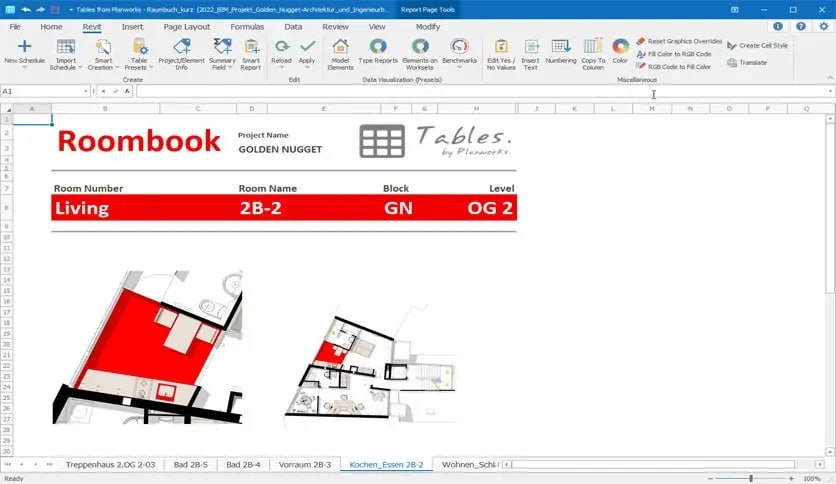
- The Spreadsheet View: Opening Tables launches an Excel-like worksheet window natively inside Revit.
- Dynamic Modification: Adjusting cell data or running formulas dynamically cues updates for the linked BIM model.
- Instant Re-import: Clicking the update or apply options writes the data variations directly into the Revit element parameter fields with a single click.
Daily Usage Experience
In daily practice, Planworks Tables becomes an essential part of your Revit workflow. A typical day might involve these tasks:
Morning: Importing Room Finish Schedules
The interior designer emails an updated room finish schedule in Excel. You open the Revit project, go to the Planworks Tables tab, click New Table, select the Excel file, and choose the appropriate worksheet. The software imports the table as a formatted Revit table. You place it on the appropriate sheet. Total time: under two minutes.
Midday: Updating Door Schedules
The project manager approves a revised door hardware schedule. Instead of manually updating 47 door rows in Revit, you open the Excel file, make the changes, save it, and return to Revit. The Update Links button shows a notification. One click, and all 47 rows update instantly.
Afternoon: Coordinating with Structural Engineer
The structural engineer sends a column schedule in Excel. You import it, place it on a structural sheet, and continue working. Later, the engineer sends revisions. The Update Links feature shows the changes. You review and accept, and the structural sheet updates within seconds.
End of Day: Exporting for Client Review
The client requests a Microsoft Excel version of the window schedule for review. Using Planworks Tables, you export the Revit table back to Excel, preserving all formatting and email it to the client.
Preparing and Formatting Your Excel Document
- Include Element IDs: If updating existing model elements, you must have a dedicated column containing the exact Revit Element IDs so the plugin knows which elements to modify.
- Header Matching: Match Excel column headers precisely to the target Revit Parameter names (e.g., Comments, Mark, Length, Type Comments).
- Raw Values Only: Avoid placing decorative symbols inside structural numeric fields (use
4500instead of4,500 mm).
- Flatten formatting: Clean up complex cell merges within the data block to keep rows aligned with element structures.
Performance During Projects
Planworks Tables is lightweight and does not significantly impact Revit performance. The software only loads when you use its features. Importing and updating tables occurs in seconds, even for tables with hundreds of rows.
Small Projects (under 10 tables, under 50 rows each) — Performance is instantaneous. Tables import in under 3 seconds. Updates happen in under 2 seconds.
Medium Projects (10-30 tables, 50-200 rows each) — The software remains responsive. Initial import takes 5-10 seconds depending on table complexity. The Update Links feature checks all linked files simultaneously, which may take 10-15 seconds. This is a one-time operation when you open the project.
Large Projects (30+ tables, 200+ rows each) — Performance remains acceptable but slower. Initial import of a complex table with merged cells, formulas, and custom formatting may take 15-30 seconds. The Update Links check against 30+ Excel files may take 20-30 seconds upon project opening.
Stability is excellent. The software has been tested with Revit 2026 and works reliably. The Update Links feature properly detects file changes. Table creation does not corrupt Revit projects.
Helpful Tips
Tip 1: Use Named Ranges in Excel
Instead of selecting entire worksheets, define named ranges in Excel (e.g., “RoomSchedule,” “DoorHardware”). When importing, Planworks Tables automatically detects named ranges, making selection faster and reducing the chance of importing extra rows or columns.
Tip 2: Save Table Styles as Templates
If your office has specific formatting requirements (specific font, specific cell padding, specific border styles), create a table style template. Once saved, you can apply it to all new tables with one click.
Tip 3: Keep Excel Files in the Project Folder
Store linked Excel files in the same folder as the Revit project. If you move Excel files to different locations, the Manage Links dialog allows you to relink them, but keeping everything in one folder prevents broken links entirely.
Tip 4: Use Update Links Before Printing
Before printing a drawing set, run Update Links. This ensures all tables reflect the latest Excel data. The software shows which tables updated, providing an audit trail for quality assurance.
Tip 5: Export to Excel for Client Review
Client wants an editable Excel version? Use the export function to convert Revit tables back to Excel. This preserves formatting, making the client’s review easier.
Tip 6: Test Updates in a Copy First
If you are making large changes to source Excel files and are unsure how they will affect the Revit table, test the update in a copy of the Revit project first. Copy the project file, update the linked Excel file, open the copy, and verify results before updating the live project.
Better Alternatives
| Software | Key Features | Price | Best For |
|---|---|---|---|
| Revit Native Schedules | Built-in, no extra cost | Free (with Revit) | Simple schedules, Revit-only teams |
| Planworks Tables | Excel import/export, live links, table styles | Moderate | Beginners, collaborative teams |
| DiRoots TableGen | Excel to schedules, Google Sheets support | Free/Premium | Excel users, cloud collaboration |
| Ideate BIMLink | Excel-based Revit data editing | Expensive | Large firms, power users |
| Manual copy-paste | None | Free | One-time, very small tables |
Why Choose Planworks Tables Over Alternatives?
Tables for Revit is specifically designed for beginners and teams that need Excel-Revit integration but do not want to manage complex data mapping. Unlike Ideate BIMLink, which requires understanding Revit parameter relationships, Planworks Tables works with simple Excel ranges. Unlike DiRoots TableGen, which imports Excel as schedule views, Planworks Tables creates native Revit tables that behave like other Revit drafting elements.
The pricing is moderate compared to other Revit plugins. A single-user annual subscription costs approximately 150−200, which is significantly less than Ideate BIMLink (500+/year) but more than free alternatives.
For a beginner, the learning curve is the deciding factor. Planworks Tables takes minutes to learn. Other solutions require hours of training.
Step-by-Step Guide to Importing Excel to Revit
- Click the Import Schedule command.
- To target specific schedule styles, toggle the drop-down menu arrow next to the button to select Key Schedules or Material Takeoffs.
Common Pitfalls & Troubleshooting Tips
- Calculated Parameters Breakage: Planworks Tables cannot directly pull built-in Revit calculated/combined parameters via standard imports. Instead, use the integrated Add calculated parameters command in Tables to write native Excel array logic (such as
XLOOKUP,FILTER, or math formulas) over your rows.
- Read-Only Parameters: Certain parameters within Revit are system-controlled (e.g., Volume, Area properties governed by geometry). If a cell change fails to push back into Revit, verify that the parameter is edit-accessible inside the properties palette.
- Data Typo Mismatches: Ensure your text-based variables and number string inputs align with Revit’s field expectations. Typing text into a Length parameter field will cause the import process to throw a validation error.
Closing Opinion
Planworks Tables for Revit 2027.1.2.0 is an excellent investment for any Revit user who regularly works with schedules, tables, and lists. For beginners, it removes the frustration of Revit’s schedule formatting and replaces it with the familiar environment of Excel. For teams, it enables collaboration between Revit users and non-Revit stakeholders who prefer spreadsheets.
The software’s greatest strength is its simplicity. There are no complex data mapping interfaces, no cryptic configuration files, no weeks of training. You import an Excel file, click OK, and a Revit table appears. That is it.
For beginners just starting with Revit, start with native Revit schedules. Learn how they work. When you encounter frustration and you will download the Planworks Tables trial. Import one Excel table. See how effortless it can be. You will not go back to manual Revit scheduling again.