Opencartis Spatial Manager for AutoCAD Professional 10.5.1 Build 17951 (Advanced Import/Export Spatial Data with Background Maps)
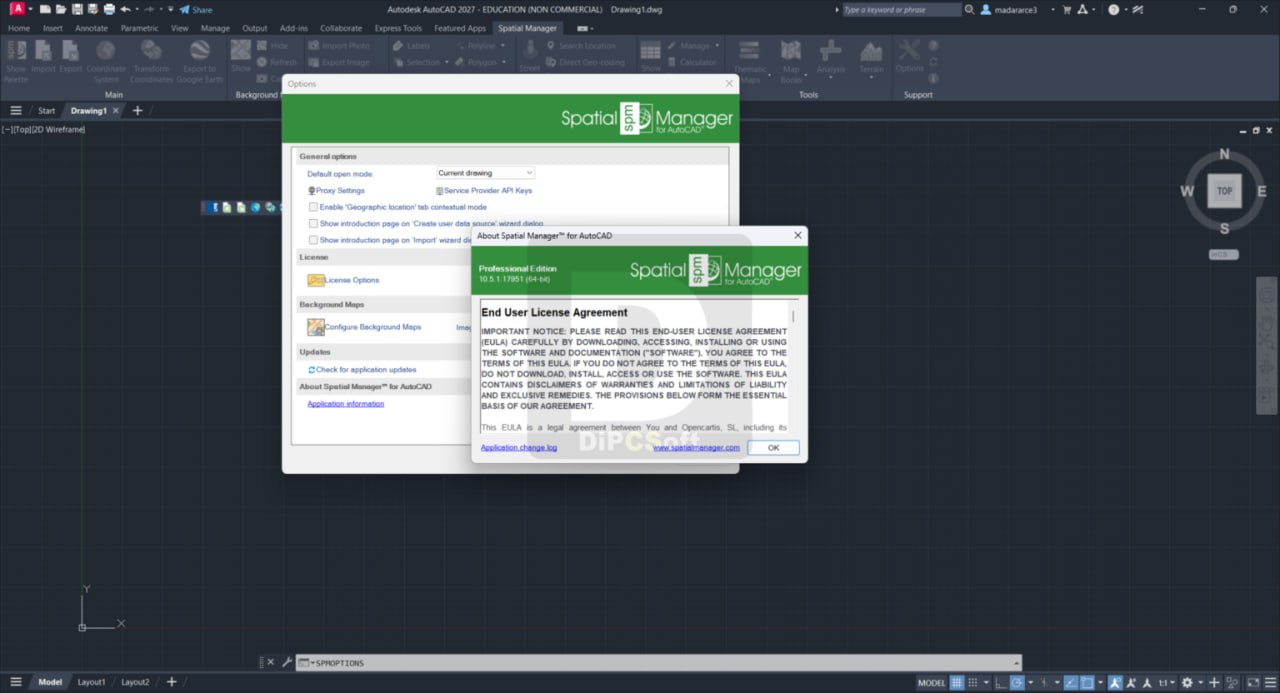
Download the Opencartis Spatial Manager for AutoCAD Professional 10.5.1 Build 17951 (Advanced Import/Export Spatial Data with Background Maps) from this link…

Summary
Spatial Manager for AutoCAD is a powerful AutoCAD plug-in designed for users who need to import, export, transform, and manage data in a simple, fast, and inexpensive way. Unlike standard AutoCAD which has limited geospatial capabilities, this lightweight application runs inside AutoCAD and provides functionalities not typically found in the platform, including background maps, coordinate transformations, terrain modeling, and data management.
The software is compatible with AutoCAD, AutoCAD Map 3D, AutoCAD Civil 3D, and AutoCAD Architecture for versions 2013 through 2027 (Windows only). It supports a wide range of spatial data formats including Esri Shapefile (SHP), KML/KMZ, GeoJSON, GPX, LiDAR (LAS/LAZ), PostGIS, Microsoft SQL Server Spatial, MySQL, and many others. Background maps can be displayed from providers such as Google Maps, OpenStreetMap, Bing, MapBox, and Ordnance Survey.
Key Features
1. Import Spatial Data into AutoCAD
Imports spatial data into new or existing AutoCAD drawings as AutoCAD objects and Extended Entity Data (EED/XDATA). The powerful wizard allows batch import, automatic layering, fill of polygons, blocks according to data values and mapped attributes, labeling, elevation, thickness, and spatial filters.
2. Export Spatial Data from AutoCAD
Export objects from the drawing to spatial files or databases, saving their Extended Entity Data as alphanumeric data tables. Options include exporting coordinates, length or area, object layer, handle and elevation, attributes, block reference names and properties, and text properties.
3. Coordinate Transformation
Calculate geometric transformations of objects during import and export processes. Choose appropriate coordinate systems from a complete CRS catalog or from a list of recently used CRSs.
4. Background Maps
Choose from dynamic background maps from providers including Google Maps, OpenStreetMap, Bing, MapBox, and Ordnance Survey. Configure your own maps from TMS, WMS/OGC API Maps, WMTS/OGC API Tiles servers, or connect to Cloud Optimized GeoTIFF (COG) sources. Map images update automatically when drawing view changes.
5. Publishing to Google Earth
Export all or part of objects in visible layers and their data to KML or KMZ files in a one-click operation. Current layer organization and properties are considered when creating the resulting Google Earth file.
6. Thematic Maps
Visualize objects by coloring them depending on their field values. Create categorized thematics by fixed field values or graduated thematics by ranges. Select from predefined color styles or create custom ones.
7. Data Management
Manage alphanumeric data attached to objects. Design and edit the structure used to store data in AutoCAD. Modify data values in the application palette. Select objects by queries or according to attached tables.
8. Spatial Analysis
Perform spatial analysis operations on vector entities and attached data, generating new objects from such operations. Operations can be performed on combinations of tables, layers, or drawing objects.
9. Drawing Tools
Perform actions directly on the drawing including labeling object data as texts, intelligent view changes, and advanced selection of drawing objects.
10. Image Tools
Efficiently manage work with raster images. Import and export raster images, generate georeferenced files, and load photographs by locating them on the map with GPS information.
11. Geometry Tools (New in V10)
Suite of geometry tools designed to edit, transform, and optimize vector elements including polylines, polygons, and other geometries. Enable advanced operations such as simplifying shapes, generating polygons from point sets, joining or splitting elements, and converting between geometry types.
12. Location Tools
Location and geo-coding tools help add reference elements and enhanced data to existing objects. Get locations from unreferenced addresses using built-in Bing, Google, and OpenStreetMap data providers.
13. Google Street View Integration
Dynamic image browser on any geo-referenced drawing or map. The Street View palette displays street and road maps where images are available. Street View images load from selected drawing points.
14. Terrain Wizard
Create terrains and related objects including 3D points and contours from 3D data or from online elevation services. Customize contours (2D or 3D with parametric labeling) and choose advanced options in 3D creation processes.
15. Map Books (New in V10)
Create atlas-like layouts automatically within AutoCAD. Use a customizable grid to divide selected objects or areas into structured sections. Ideal for large areas, this feature helps organize and print multi-page maps with consistent viewports, titles, and layouts.
What’s New in Spatial Manager
- Version 10.5.1 Build 17951 includes compatibility with AutoCAD 2027.
- Enhanced Google Street View integration.
- Improved Map Books functionality for atlas-like layouts.
- Expanded background maps providers and options.
- Enhanced data management with improved alphanumeric data handling.
- Updated geometry tools suite. Performance improvements and bug fixes.
System Requirements
To run Spatial Manager for AutoCAD Professional 10.5.1 effectively, your system should meet the following specifications.
Minimum Requirements:
-
Operating System: Windows 7, Windows 8, Windows 8.1, Windows 10, or Windows 11 (64-bit)
-
Processor: 1 GHz or faster (2.4 GHz recommended)
-
RAM: 2 GB minimum (4 GB or more recommended)
-
Storage: 1 GB free hard disk space
-
AutoCAD: AutoCAD, AutoCAD Map 3D, AutoCAD Civil 3D, or AutoCAD Architecture versions 2013 through 2027
Note: AutoCAD LT is not a compatible application due to its intrinsic limitations. Spatial Manager Desktop can be used to import/export via DXF files for AutoCAD LT users.
Installation Guide
Follow these steps to install Spatial Manager for AutoCAD Professional 10.5.1.
-
Download the Installer: Obtain the official Spatial Manager for AutoCAD installer from the Opencartis website or authorized reseller.
- Try Before You Buy: A free trial version is available.
-
Close AutoCAD: Close all instances of AutoCAD before installation.
-
Run as Administrator: Right-click the installer and select “Run as Administrator.”
-
Select AutoCAD Version: Choose the compatible AutoCAD versions you want to install the plug-in for.
-
Follow the Setup Wizard: Complete license acceptance, installation directory selection, and component configuration.
-
Launch AutoCAD: Open AutoCAD. The Spatial Manager ribbon tab appears.
-
Activate License: Enter your perpetual license key. No periodic fees required.
-
Configure Data Providers: Set up connections to spatial files, databases, and background map services as needed.
How to Use Spatial Manager for AutoCAD
Step 1: Import Spatial Data
Click the Import command. Select source data provider (SHP, KML, PostGIS, etc.). Choose import parameters including coordinate system, layering, and attribute mapping. Data imports as AutoCAD objects with extended data.
Step 2: Display Background Maps
Select a background map provider (Google Maps, OpenStreetMap, Bing). The map displays in your drawing and updates automatically when zooming or panning.
Step 3: Create Thematic Maps
Select objects. Choose a field to base the thematic on. Select categorized or graduated styling. Objects are colored automatically based on field values.
Step 4: Export Spatial Data
Select objects to export. Choose target data provider. Set coordinate transformation if needed. Objects export to spatial files or databases with their extended data preserved.
Step 5: Create Terrain Model
Use Terrain Wizard. Import 3D data points or use elevation services. Generate 3D terrain, contours, or both. Customize contour labeling and 3D visualization.
Step 6: Publish to Google Earth
Click the Google Earth export command. Select visible layers to export. One-click generation of KML/KMZ file. Open directly in Google Earth.
Best Use Cases
| Use Case | Application | Key Benefit |
|---|---|---|
| Civil Engineering | Terrain modeling, contour generation | Import survey data, create 3D terrain |
| Land Development | Coordinate transformation, map books | Large area mapping, multi-page layouts |
| Environmental Planning | Thematic maps, spatial analysis | Visualize data by field values |
| Transportation | Background maps, Google Street View | Real-world context for route planning |
| Utilities Management | Data management, import/export | Manage asset data with alphanumeric tables |
| GIS to CAD Conversion | Import SHP, KML, GeoJSON | Seamless data transfer between GIS and CAD |
Advantages and Limitations
Advantages:
- It integrates directly with AutoCAD, eliminating the need to switch between applications.
- The perpetual license model means you pay once with no ongoing subscription fees.
- Support for over 50 spatial data formats including SHP, KML, GeoJSON, GPX, LAS/LAZ, PostGIS, and SQL Server.
- Background maps from Google Maps, OpenStreetMap, Bing, and MapBox provide real-world context.
- Coordinate transformation handles on-the-fly conversion between EPSG coordinate systems.
- Thematic maps visualize data by coloring objects based on field values.
- Terrain wizard creates 3D terrain and contours from points or elevation services.
- Map Books feature generates atlas-like multi-page layouts for large areas.
- Google Street View integration and Google Earth publishing enhance visualization and sharing.
Limitations:
- It requires Windows and compatible AutoCAD versions (2013-2027).
- AutoCAD LT is not supported due to intrinsic limitations (Spatial Manager Desktop is available as an alternative).
- Some data providers are read-only.
- Advanced spatial analysis is available but not as comprehensive as dedicated GIS software.
- Internet connection required for background maps and elevation services.
Alternatives to Spatial Manager for AutoCAD
| Software | Best For | Key Difference from Spatial Manager |
|---|---|---|
| AutoCAD Map 3D | Native GIS in AutoCAD | Much higher cost, more complex |
| Civil 3D | Civil engineering | Specialized for civil, higher cost |
| Global Mapper | General GIS | Standalone, no AutoCAD integration |
| QGIS | Open-source GIS | Free but no AutoCAD integration |
| ArcGIS for AutoCAD | Esri integration | Free but requires ArcGIS license |
| FME Desktop | Data transformation | Powerful but higher cost, no AutoCAD integration |
Frequently Asked Questions
Q1. What is Spatial Manager for AutoCAD?
It is a plug-in that allows import, export, transformation, and management of spatial data directly inside AutoCAD.
Q2. What versions of AutoCAD are compatible?
It supports AutoCAD, AutoCAD Map 3D, AutoCAD Civil 3D, and AutoCAD Architecture from versions 2013 through 2027.
Q3. Does Spatial Manager work with AutoCAD LT?
No. AutoCAD LT is not compatible due to its intrinsic limitations. Spatial Manager Desktop can be used to import/export via DXF files.
Q4. What data formats are supported?
Supported formats include Esri Shapefile (SHP), KML/KMZ, GeoJSON, GPX, LiDAR (LAS/LAZ), PostGIS, SQL Server Spatial, MySQL, GeoPackage, GML, DXF, DGN, TAB, and many others.
Q5. What background map providers are available?
Providers include Google Maps, OpenStreetMap, Bing, MapBox, Ordnance Survey, TMS, WMS/OGC API Maps, and WMTS/OGC API Tiles.
Q6. Does Spatial Manager transform coordinate systems?
Yes. Coordinate transformations are calculated during import and export processes using a complete EPSG CRS catalog.
Q7. What is the licensing model?
It uses a perpetual license. You pay once with no periodic fees.
Q8. Can I create terrain models in AutoCAD using Spatial Manager?
Yes. The Terrain Wizard creates terrains and contours from 3D data points or online elevation services.
Q9. What are Map Books in Spatial Manager V10?
Map Books create atlas-like layouts automatically within AutoCAD. A customizable grid divides selected areas into structured sections for multi-page maps.
Q10. Is there a free trial available?
Contact Opencartis or an authorized reseller for trial information.
Final Thoughts
Spatial Manager for AutoCAD is an essential tool for AutoCAD users who work with geospatial data. For civil engineers, land developers, environmental planners, and utilities managers, it bridges the gap between GIS and CAD without requiring expensive standalone GIS software or complex workflows.
The software delivers value across multiple disciplines. For the civil engineer, terrain modeling and contour generation streamline site analysis. For the land developer, coordinate transformation and map books simplify large-area planning. For the environmental planner, thematic maps and spatial analysis visualize data patterns. For the utilities manager, data management and import/export maintain asset information.