OptiNest V3.05d | Advanced CNC Nesting Software Latest 2026
Summary
OptiNest V3.05d is an industrial-grade, true-shape nesting software developed by Boole & Partners. It minimises material waste for CNC routers by optimally arranging geometric parts and free shapes onto raw panels or sheets. The name OptiNest comes from “Optimal Nesting” – finding the best way to fit parts on a sheet. Version V3.05 is a stable, well-tested release. The software imports outlines, inner openings, and toolings directly as DXF files. It generates layered DXF outputs with production-ready cutting patterns and machining details like hinges and fittings. Woodworkers, cabinet makers, and sign makers use this software to save material and increase throughput.
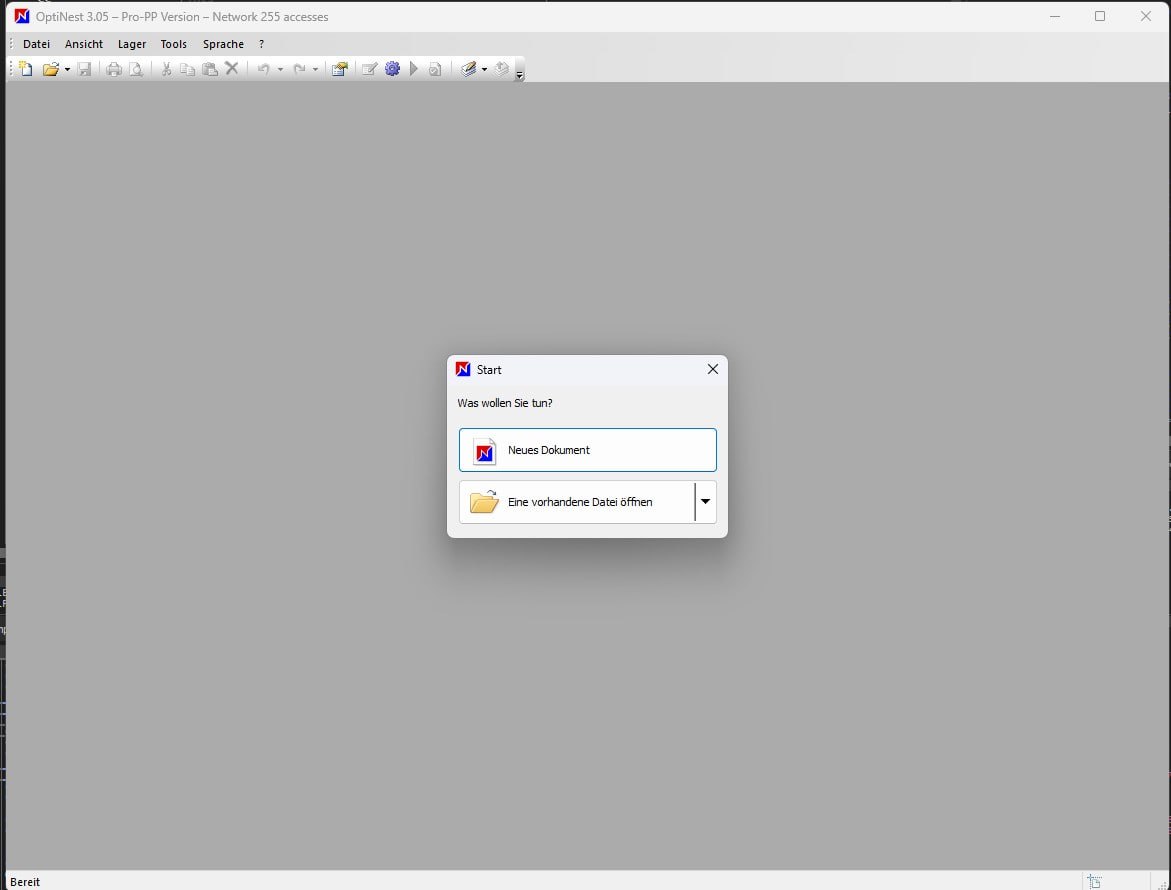
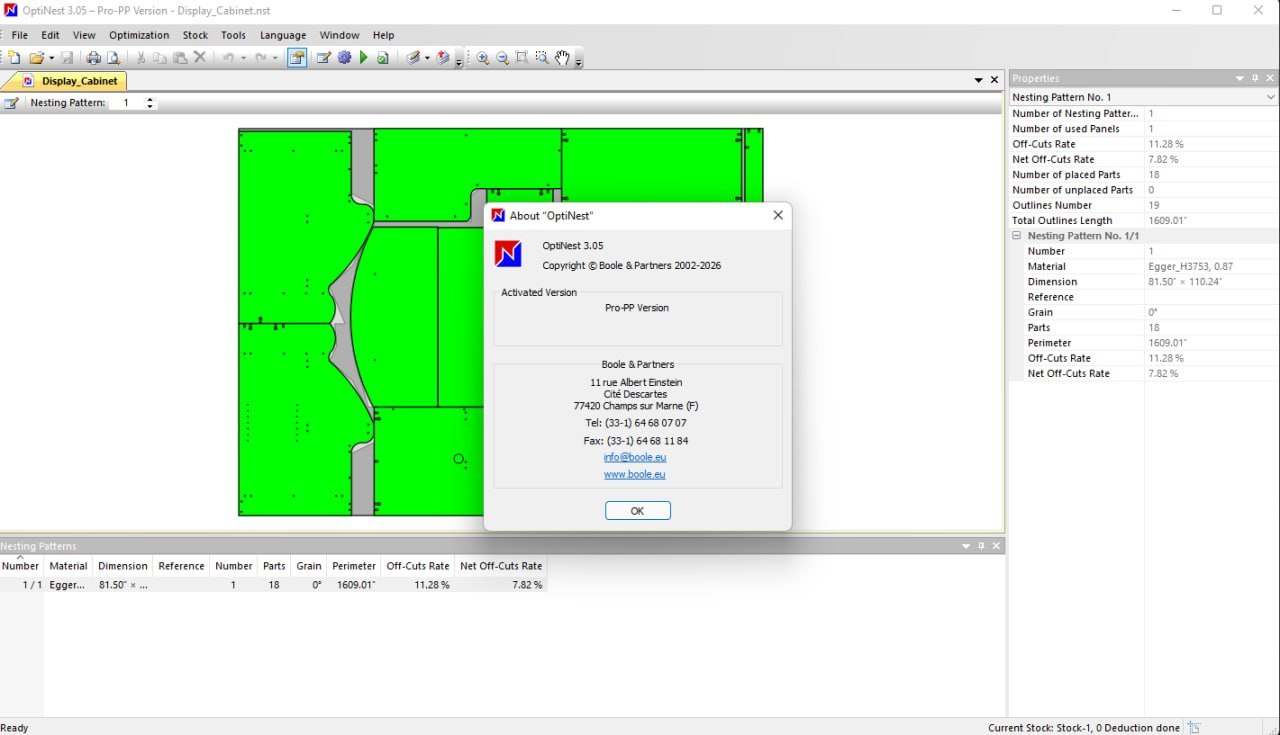
OptiNest Screenshot
Why Workshops Waste Expensive Material
Every workshop faces the same problem. You buy expensive sheets of material. Wood, acrylic, metal, composite. You cut parts from these sheets. After cutting, there is waste. Some waste is unavoidable. But much of it is not. Manual layout is inefficient. Parts are placed poorly. Large gaps remain between parts. Off-cuts are thrown away because they are too small or oddly shaped. Over a year, this waste adds up to thousands of dollars. It solves this problem. The software uses advanced algorithms to find the most efficient arrangement. Parts fit together like a puzzle. Gaps are minimised. Off-cuts are tracked and reused. The result is less waste and more profit.
True Shape Nesting
True shape nesting means the software understands the actual shape of each part. Not just rectangles. Any shape. Curves, angles, circles, complex polygons. The nesting algorithm considers cutting tool thickness. It accounts for panel trim cuts. It allows specific piece rotation and reversal capabilities. Parts can be rotated to fit better. Parts can be flipped if the material allows.
The “perfect grain” feature is especially important for woodworkers. It sets grain patterns to flow continuously across adjacent parts. This means doors and facades look consistent. The algorithm also handles drilled or bored parts. Holes are treated as specific tooling types. The software even recovers material freed by cut-outs and re-uses it for smaller parts.
What A New OptiNest User Experiences
You download OptiNest V3.05 from the Wood Designer website. You install it on your Windows computer. The installation is straightforward. You launch the software. The interface is clean and functional. The main workspace shows a blank sheet. On the left, you see the parts list. On the right, you see the nesting view. You can import DXF files directly. You can also draw parts using the built-in graphic editor.
You define your sheet size and material type. You add your parts. You click the Nest button. The software starts calculating. Within seconds, you see the arrangement. Parts are placed efficiently. You can rotate the view. You can see the cutting path. The 30 minutes pass quickly as you explore the features.
Can You Import DXF Parts And Create A Nesting Plan
Open this software. You have a folder of DXF parts for a cabinet project. Your goal is to create a nesting plan. Open it. Click Import DXF. Select your files. Define your sheet size. Enter the dimensions of your material. Set your cutting parameters. Tool thickness, trim cuts, rotation options. Click Nest. Review the nesting map. Parts are arranged efficiently. Check the waste percentage. Export the nesting map as DXF. Save it for your CAM software.
Where OptiNest V3.05 Makes Daily Workshop Work Easier
Here are the workflows that OptiNest V3.05 improves significantly:
-
Import DXF files with outlines, inner openings, and toolings
-
Create nesting plans with automatic part arrangement
-
Reduce material waste with true shape nesting algorithms
-
Track off-cuts and reintroduce them into future projects
-
Print customisable labels with QR codes and barcodes
-
Generate detailed cost and cutting reports
-
Export layered DXF outputs for CAM software
-
Handle drilled and bored parts with tooling management
-
Apply continuous grain patterns across adjacent parts
-
Group parts to create virtual pieces for better nesting
-
Propagate high volume parts along two axes for maximum efficiency
All of these workflows are faster and more efficient with OptiNest. The software handles both simple and complex nesting tasks.
How Woodworking Shops Use OptiNest
Cabinet Manufacturer: A mid-sized cabinet shop in the UK switched to OptiNest. They cut parts for custom kitchens. Before it, they wasted 15 percent of their material. After switching, waste dropped to 8 percent. Over a year, this saved them thousands of pounds.
Furniture Workshop: A furniture maker produces custom tables and chairs. They use expensive hardwoods. Every sheet counts. It helped them reduce waste from 20 percent to 10 percent. The off-cut tracking feature lets them reuse small pieces for smaller projects.
Sign Maker: A sign company cuts acrylic letters and shapes. The shapes are irregular. Manual layout was impossible. It handles complex shapes easily. The DXF export feeds directly into their CAM software. Production time dropped by 30 percent.
Custom Joinery: Tees Tech Joinery uses PolyBoard and OptiNest with SCM CNCs. The owner says: “I found this workflow amazingly user-friendly and great to pass all the manufacturing information down through production with ease. The visual aspects of both PolyBoard and OptiNest meant spotting mistakes before they could even happen.”
The Complete Design To Nesting Workflow
PolyBoard is a cabinetry design software. It exports parts lists directly to OptiNest for immediate layout and optimisation. This integration is seamless. You design your cabinet in PolyBoard. You group parts like door facades. You apply continuous grain across them. PolyBoard writes a post-processor report including the grain identifier. It reads this report. Parts are placed in sequence next to each other.
The result is perfect grain matching. The integrated workflow also handles double-sided machining. A nesting CNC is constrained to machining one side at a time. You can flip whole panels that require machining on both faces. Or you can perform additional tooling operations by placing single parts on the machine again. PolyBoard and OptiNest manage both solutions with a powerful filtering system.
DXF Output And CNC Integration
The nesting maps created by it can be exported in DXF format. These DXF files are transferred to your CAD/CAM software and then to your CNC machine. The DXF files include a series of layers. Each layer maps the machining operation for a specific tool. You can link the layer names to your specific tools. Tools are automatically chosen. No need to manually select the right tool each time.
All the data is included to cut your parts and machine them in a single manufacturing process. This is the key benefit of nested production. It is perfect for custom projects. Its outputs industry standard 2D DXF files with full cutting and machining details for every part. DXF files are accepted by virtually all CNC software. In addition, its outputs G-code directly for users who are proficient in this type of integration.
FAQ
Q1: What is OptiNest V3.05?
It is industrial-grade, true-shape nesting software developed by Boole & Partners. It minimises material waste for CNC routers by arranging parts on sheets.
Q2: What file formats does OptiNest support?
It imports DXF files with outlines, inner openings, and toolings. It exports layered DXF files for CAM software.
Q3: Does OptiNest work with PolyBoard?
Yes. PolyBoard exports parts lists directly to it for immediate layout and optimisation. The integration is seamless.
Q4: Can OptiNest handle drilled or bored parts?
Yes. Holes are treated as specific tooling types. The software also recovers material freed by cut-outs and re-uses it for smaller parts.
Q5: What is true shape nesting?
True shape nesting means the software understands the actual shape of each part. Any shape, not just rectangles. Parts fit together like a puzzle.
Q6: Is there a free demo of OptiNest?
Yes. You can register for a free demo version on the Wood Designer website. Test stock management and plan generation.
Q7: Does OptiNest support grain management?
Yes. The grain management feature works with PolyBoard. It sets grain patterns to flow continuously across adjacent parts.
Q8: Can OptiNest export G-code directly?
Yes. It outputs G-code directly for users who are proficient in this type of integration.
Q9: What are the system requirements for OptiNest?
It runs on Windows operating systems. Specific requirements are available on the Wood Designer website.