SparkoCam v3.2.1.0 Complete Guide For Advanced DSLR Webcam And Video Effects Software
Summary
SparkoCam v3.2.1.0 is a popular software application used to turn Canon and Nikon DSLR cameras into standard webcams for video conferencing, streaming, and recording. It also includes powerful live broadcasting features such as augmented reality effects, green screen background removal, and video recording. The software allows you to stream from various sources: you can use a regular USB web camera, Canon DSLR or Nikon DSLR camera, stream your desktop as a webcam, or import videos and photos from your computer and broadcast them like webcam feeds.
Whether you are a content creator, remote worker, online educator, or gamer, SparkoCam enhances the quality of your video calls, webinars, and live streams by utilizing DSLR camera benefits like improved image quality, better low-light performance, and the ability to blur the background for professional-looking video.
Use DSLR Camera As A Professional Webcam
SparkoCam eliminates the need for a hardware capture card by routing the camera feed directly through a virtual USB webcam driver. You connect your Canon or Nikon camera using a standard USB cable, power on the camera and switch it to video or live-view mode, then select your camera model in SparkoCam. The software provides extensive control over camera settings such as aperture, shutter speed, ISO, and white balance, giving you professional-grade image quality.
DSLR cameras have larger sensors compared to standard webcams, providing improved image quality, depth of field effect to blur the background, and better low-light performance with less noise. You can then select SparkoCam Video as your camera source in apps like Zoom, MS Teams, OBS, Google Meet, or any other video chat application.
Virtual Background And Green Screen Features
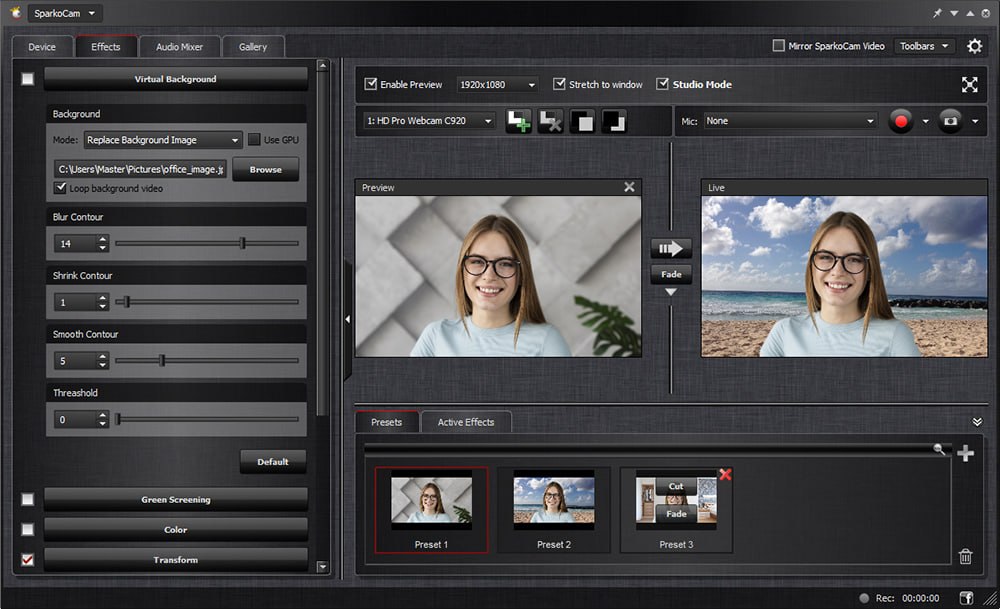
It includes powerful background replacement and green screening capabilities without requiring a physical green screen. Using new AI technology, you can blur or replace your webcam background with an image or video in one click, even without a green screen. The virtual background feature allows you to hide your messy room and create a professional-looking environment, with an adjustable blur slider to create a DSLR-style depth of field effect.
For those with a green screen, it automatically performs chroma keying during video conferences, web chats, and virtual meetings, replacing the green background with selected images or videos in real time. You can dynamically switch between different backgrounds to match your current topic during live video and adjust the parameters and accuracy of the background removal process using built-in controls.
Live Effects, Face Accessories, And Animated Objects
It makes video chats fun and engaging with a wide range of live effects and graphics. You can add face accessories to your face like eyeglasses, hats, hair, or masks, which are automatically placed in appropriate positions on the video using SparkoCam’s face tracking capability. Fun animated objects can be added to the video, or you can even create your own custom objects by importing PNG or GIF images from your hard disk.
The software also includes funny distortion effects, frames, and scenes where you can place your live video inside an image with an outdoor screen or billboard on it. Additional effects include overlay frames, your own logo, or custom watermarks on top of your webcam video, along with a 3D anaglyph effect for watching through anaglyph glasses.
Desktop Streaming And Screen Sharing
It allows you to show your desktop screen and broadcast what is going on through the webcam. This feature is ideal for sharing your screen during virtual meetings, demonstrating slides or other presentation materials in real time, running virtual classes or tutorials, delivering remote lectures, webinars, or training sessions, and broadcasting gameplay to online platforms like YouTube or Twitch.
You can share your desktop as a webcam source for your live streams, making it a versatile tool for educators, trainers, gamers, and business professionals. The desktop streaming feature integrates seamlessly with popular live streaming platforms and video conferencing applications.
Virtual Webcam And Multi-Camera Support
SparkoCam functions as a virtual webcam that can be used in multiple applications simultaneously. You can split your single webcam and use it simultaneously in several applications, record several webcams at the same time using picture-in-picture function, and instantly switch between different webcams or video sources during a live session.
This is particularly useful for streamers who need to switch between multiple camera angles or for professionals who need to present from different locations. The virtual webcam feature also allows you to share video clips with friends through various chat applications even without a real webcam. You can create webcam effects presets and smoothly switch between them during your broadcast.
Video Recording And Picture-In-Picture
SparkoCam includes professional video recording capabilities for creating tutorials, presentations, or reviews. You can record perfect-quality videos from your webcam, desktop screen, or Canon/Nikon camera, switch between different webcams or desktop screens during a recording session, and record several webcams at the same time using the picture-in-picture function.
The picture-in-picture feature allows you to add additional layers of video on top of your main screen, streaming your webcam on top of your desktop or another video source. You can also add text and image overlays, showing text, logos, or images on the webcam video. Quick access to recording is available using a keyboard shortcut, and the software supports recording from several microphones at the same time.
Custom Presets And Color Correction
This makes it easy to manage multiple video configurations with custom presets. You can set up your video presets with different webcams and effects and quickly activate the needed configuration with a single click. The software includes comprehensive color correction tools to adjust your webcam brightness, contrast, or white balance, ensuring you always look your best on camera. T
he ability to create and switch between presets is particularly useful for users who need different setups for different types of broadcasts, such as a professional look for business meetings and a more casual or fun look for live streams.
Supported Cameras And System Requirements
It supports a wide range of Canon and Nikon DSLR and mirrorless cameras. Supported Canon models include the Rebel series (XS, XSi, T1i through T8i, SL1 through SL3), EOS series (1D, 5D, 6D, 7D, 40D through 90D), M series (M50, M200, M6 Mark II), and R series (R, RP, R3, R5, R5 Mark II, R1, R6, R6 Mark II, R7, R8, R10, R50, R50V, R100).
Supported Nikon models include the D series (D90, D300 through D850, D500, D5, D6, D7000 through D780), Z series (Z5, Z6, Z6 II, Z7, Z7 II, Z8, Z9, Z50), and Nikon 1 V3 . The software runs on Windows operating systems and requires a USB connection to your camera. A free download is available to try the software before purchasing.
FAQ
Q1: What is SparkoCam v3.2.1.0 used for?
It is software that turns Canon and Nikon DSLR cameras into webcams for video conferencing, streaming, and recording, with live effects and green screen features.
Q2: Do I need a capture card to use my DSLR as a webcam?
No. It eliminates the need for a hardware capture card by routing the camera feed directly through a virtual USB webcam driver.
Q3: Which cameras are supported by SparkoCam?
It supports a wide range of Canon and Nikon DSLR and mirrorless cameras, including Canon Rebel, EOS, M, and R series, and Nikon D and Z series.
Q4: Can I use SparkoCam for green screen effects?
Yes. It automatically performs chroma keying to replace green background with selected images or videos in real time, even without a physical green screen.
Q5: Can I add effects to my webcam video?
Yes. You can add face accessories, animated objects, frames, logos, overlays, funny distortion effects, and even 3D anaglyph effects.
Q6: Can I share my desktop screen with SparkoCam?
Yes. It allows you to broadcast your desktop screen as a webcam source during live streams, meetings, or tutorials.
Q7: Does SparkoCam support multiple webcams at the same time?
Yes. You can split your single webcam and use it simultaneously in several applications, or record several webcams using picture-in-picture.
Q8: Is there a free trial of SparkoCam?
Yes. A free download is available to try the software before purchasing.