readyvoucher (2.19) Hotspot Voucher Printing Software for Powerful MikroTik Routers Download
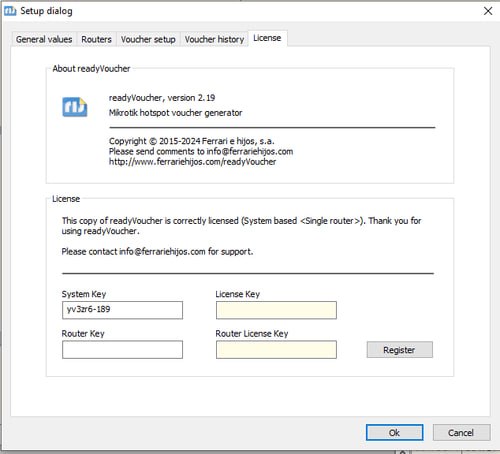
Download the readyvoucher (2.19) Hotspot Voucher Printing Software for Powerful MikroTik Routers from this link…

Summary
readyVoucher 2.19 is a software utility designed to generate random user-manager and regular hotspot users with specified profiles for MikroTik routers. Once created, readyVoucher can print vouchers to any Windows printer (including ticket printers) using fully customizable voucher designs. The software is compatible with RouterOS versions 4.x through 7.x and supports both user-manager (embedded RADIUS) and regular hotspot user management.
The software is ideal for internet service providers, hotels, cafes, airports, and any business that needs to sell or distribute Wi-Fi access vouchers. It works directly with MikroTik routers via the API service, automatically creating users, assigning profiles, and printing vouchers on demand. The software supports both standard office printers and POS ticket printers (like EPSON TM-T20II), with native barcode and QR code printing for automated login.
Key Features
1. User Management
Access to readyVoucher is user/password protected, independent from MikroTik credentials. Supports multiple login users with configurable access to setup parameters. User name creation is verified to prevent duplicates.
2. Router Compatibility
Compatible with RouterOS versions 4.x through 7.x. Supports Cloud Hosted Router (CHR) licensing. Multi-router capability allows connection to several configured routers.
3. User Creation Options
Supports both user-manager (embedded RADIUS) and regular hotspot user creation. Customizable user prefix, price currency, username length, and password length. Option to use only numbers for easier smartphone login. Option to create users without password.
4. Voucher Printing
Print vouchers to any Windows printer including POS ticket printers. Fully customizable voucher designs in registered version. Assign different voucher designs for each profile. Print directly to a printer without printer selection dialog.
5. Barcode and QR Code Support
Full barcode and QR code support for all printers in registered version. QR codes can contain automated login links: http://YOUR_HOTSPOT_DNS/login?username=${user}&password=${password}.
6. POS Mode
Special user interface designed for POS machines with tactile screens. Large profile buttons, numeric keypad for quantity entry, and voucher history for customer checkout.
7. Voucher History
Generated voucher history filtered by date and/or user in registered version. Voucher reprint from history list. Option to delete created users in history list.
8. User Expiration Management
HotSpot profiles require a script in the router to manage voucher expiration. Script is automatically transferred to the router by it. Scheduler interval configurable for precise expiration.
9. Voucher Serial Number
Vouchers are generated with a serial number, automatically incremented on generation. Customizable starting serial number.
10. Customizable Text Fields
Special text fields for voucher printing include ${user}, ${password}, ${profile}, ${price}, ${date}, ${time}, ${generator}, ${serial}, ${validity}, ${tilltime}, ${firstname}, ${lastname}, ${phone}, ${location}, ${comment}, and ${email}.
11. Username Database
Create your own username database so operators can select usernames from a list when creating vouchers.
12. Customer Data Collection
Collect customer data (first name, last name, email) to put into user-manager database. This information can be printed on vouchers and saved in history database.
13. MAC Binding
Option to enable MAC binding after first login, tying a voucher to a specific device.
What’s New in readyVoucher 2.19
- Version 2.19 includes a bug fix for RouterOS 7.10+ where the hotspot user expiration script was not working due to new ISO format in date strings.
- Version 2.18 added compatibility with RouterOS 7 user-manager.
- Version 2.17 solved black images problem when printing vouchers after automatic Windows Update and router/access passwords are now hidden on edit controls.
System Requirements
To run readyVoucher 2.19 effectively, your system should meet the following specifications.
Minimum Requirements:
-
Operating System: Windows XP, Vista, 7, 8, 8.1, or 10 (32-bit or 64-bit); also available for Raspberry Pi
-
Processor: Any Windows-compatible processor
-
RAM: 1 GB minimum
-
Storage: 50 MB free space
-
Printer: Windows-compatible regular printer or POS printer
-
Network: Connectivity to MikroTik router with API service enabled
MikroTik Router Requirements:
-
RouterOS versions 4.x, 5.x, 6.x, or 7.x
-
API service enabled
-
User-manager package (only for user-manager profiles)
Installation Guide
Follow these steps to install readyVoucher 2.19.
-
Download the Software: Download the readyVoucher ZIP file from the official website.
- Try Befor You Buy: Download Free Trial Version of readyVoucher from Official Website..
-
Extract the Files: Extract readyVoucher.exe to your preferred folder. No installation is required.
-
Run readyVoucher: Double-click readyVoucher.exe. Application data is stored in
%USERPROFILE%\AppData\Local\readyVoucher. -
Configure Router: Open Setup window. Add your MikroTik router with IP address, API port, username, and password.
-
Configure Profiles: Set up hotspot profiles or use user-manager profiles from the router.
-
Transfer Expiration Script: For hotspot users, transfer the expiration script to the router using the Transfer button.
-
Start Generating Vouchers: Log in to the voucher generator and start creating vouchers.
How to Use readyVoucher
Step 1: Configure Router Connection
Open Setup window. Click Add to add a router. Enter router name, IP address, API username, and password. Test the connection.
Step 2: Set Up Profiles
For hotspot users: create profiles with validity time and other limits in the Hotspot Profiles tab. For user-manager users: profiles are automatically retrieved from the router.
Step 3: Design Vouchers (Registered Version)
Go to Voucher Setup tab. Click Add graphic or Add item to create voucher design. Use special text fields like ${user}, ${password}, ${price}.
Step 4: Generate Vouchers
Select user profile from the left list. Enter number of vouchers. Click Generate. Users are created in the router.
Step 5: Print Vouchers
Select voucher design from the drop-down list. Click Print Vouchers. Select destination printer.
Step 6: Use POS Mode (Optional)
Click POS Mode button for touch-screen interface. Profile buttons and numeric keypad for quantity entry.
Best Use Cases
| Use Case | User Type | Key Benefit |
|---|---|---|
| Internet Cafes | Hotspot users | On-demand voucher printing, POS mode |
| Hotels and Resorts | User-manager | Session logging, activation on first login |
| Airports and Lounges | Hotspot users | Bulk voucher generation, QR code login |
| Public Wi-Fi | Hotspot or User-manager | Customizable designs, MAC binding |
| Events and Conferences | Hotspot users | Temporary access, expiration management |
| Small ISPs | User-manager | Centralized user database, multiple routers |
Advantages and Limitations
Advantages:
- It is compatible with RouterOS versions 4.x through 7.x. The software supports both user-manager and regular hotspot users.
- User name creation is verified to prevent duplicates. Automatic detection of user-manager profiles and customer.
- Fully customizable voucher designs in registered version with assignment per profile. POS mode is designed for tactile screens.
- Barcode and QR code support enables automated login. Voucher history with filtering and reprint capability in registered version.
- Multi-router capability allows connection to several configured routers. The software works with standard office printers and POS ticket printers.
- Optional MAC binding ties vouchers to specific devices. Customer data collection integrates with user-manager database.
Limitations:
- The unregistered version has limitations: voucher designs are not customizable, and some features (history, POS mode, barcode/QR code) require registration.
- The software requires API service to be enabled on the MikroTik router.
- User-manager resource usage can be high on lower-end routers.
- Hotspot user expiration script requires clock synchronization between readyVoucher and router.
Alternatives to readyVoucher
| Software | Best For | Key Difference from readyVoucher |
|---|---|---|
| MikroTik User Manager | Built-in user management | Free but no voucher printing |
| MikroTik Hotspot with manual users | Simple setups | No automation, manual user creation |
| Radius Manager | Enterprise RADIUS | More complex, higher cost |
| FreeRADIUS | Open-source RADIUS | Free but requires technical expertise |
| Manual Excel + script | Budget solutions | Time-consuming, error-prone |
Frequently Asked Questions
Q1. What is readyVoucher used for?
It is used to generate random user-manager and regular hotspot users for MikroTik routers and print vouchers with customizable designs.
Q2. What versions of RouterOS are compatible?
It is compatible with RouterOS versions 4.x, 5.x, 6.x, and 7.x.
Q3. What is the difference between user-manager and hotspot users?
User-manager is an embedded RADIUS server that controls voucher expiration and session logging. Hotspot users are created directly in the hotspot user list with expiration managed by a script.
Q4. Which user type should I choose?
Use hotspot users for RouterOS license levels L4 and L5. Use user-manager for L3 and L6. Use user-manager if you need session logging or activation on first login.
Q5. Does readyVoucher support barcode and QR code printing?
Yes. Registered version supports full barcode and QR code printing for all printers.
Q6. What is POS mode?
POS mode is a simplified interface designed for touch-screen POS machines with large profile buttons and a numeric keypad for quantity entry.
Q7. What are the licensing options?
Three options: System based (single-router, EUR 32.70), System based (multi-router, EUR 55.80), and Router based (linked to router, EUR 62.70). Volume discounts available.
Q8. Can readyVoucher connect to multiple routers?
Yes. Multi-router capability allows connection to several configured routers with router selection in the login window.
Q9. Does readyVoucher work on Raspberry Pi?
Yes. It is also available for the Raspberry Pi single board computer.
Q10. How do I enable QR code automated login?
Add a QR code containing http://YOUR_HOTSPOT_DNS/login?username=${user}&password=${password}. Enable HTTP PAP Login in the hotspot server profile.
Final Thoughts
The software delivers value across different deployment scenarios. For the cafe owner, POS mode on a touch-screen terminal prints vouchers instantly when customers pay. For the hotel IT manager, user-manager integration provides session logging and activation on first login. For the event organizer, bulk voucher generation with expiration management ensures temporary access.
What sets readyVoucher apart from manual methods is the complete workflow automation. The same software that creates users in the router prints vouchers with QR codes for automated login. The same platform that supports POS ticket printers also exports customer data to user-manager. The free trial makes it easy to test; registration unlocks full customization and advanced features.
Looking for full-version software without limitations? You’re in the right place. Instead of wasting time on unreliable or outdated sources, unlock a powerful bundle of 10k+ premium tools covering marketing, SEO, broadcasting, automation, and business productivity — all in one place at an affordable price. This collection is specially curated for freelancers, agencies, and business owners who want fast, real results with professional tools.
 Direct contact: Telegram ID :
Join Us For Update Telegram Group :
Join Us For Updated WhatsApp group:
You Can test through AnyDesk before Buying,
And When You Are Satisfied, Then Buy It.
Unlimited PCs/Users.
 Join today and upgrade your workflow with premium tools.