Elements ELite Playout V.5.7.2 (Broadcasting and Automation Software for TV Channels)
by admin · March 15, 2025
Download the Elements ELite Playout V.5.7.2 (Broadcasting and Automation Software for TV Channels) from this link…

Table of Contents
ToggleSummary
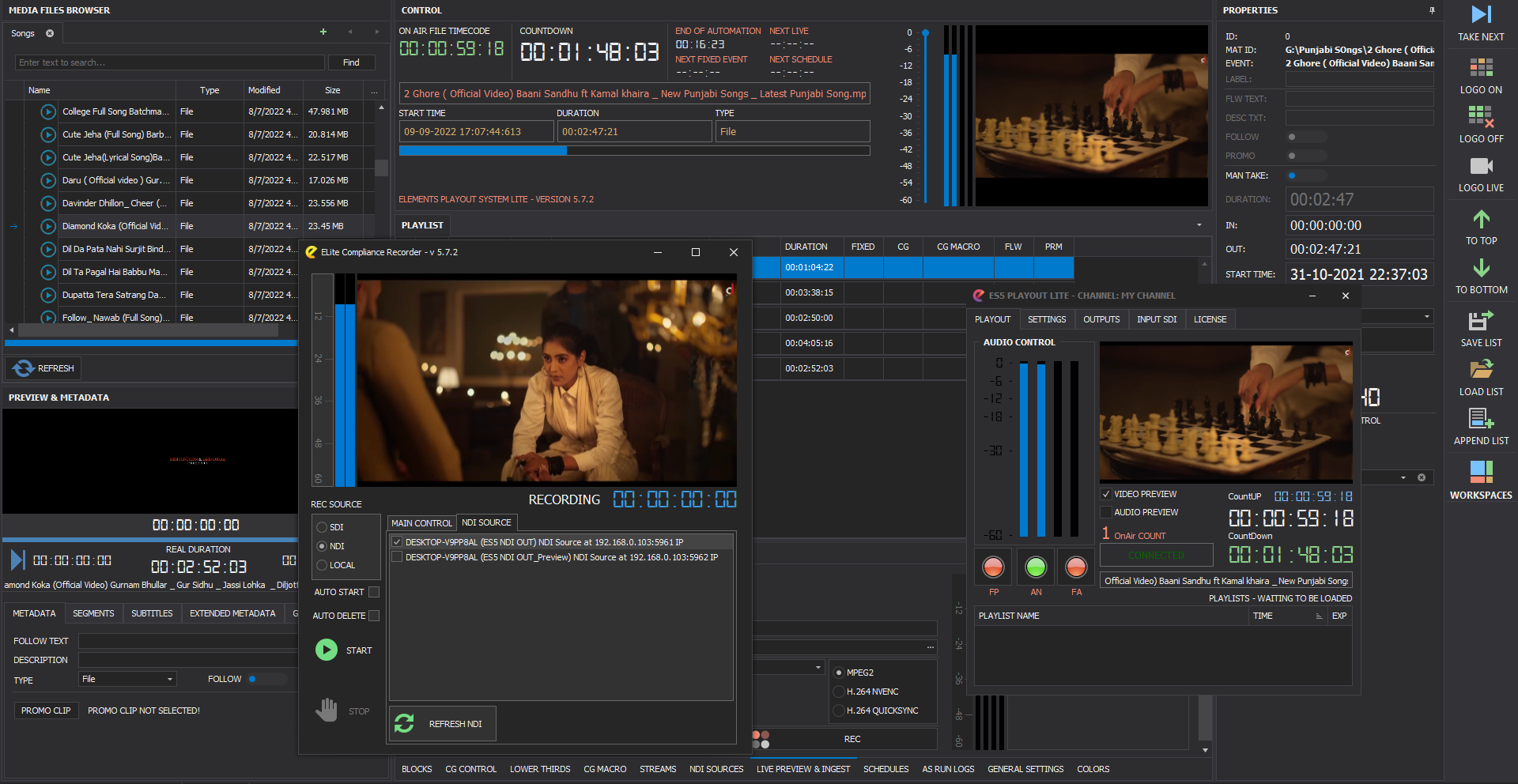
Elements ELite Playout V5.7.2 is a professional broadcasting and automation software designed for TV channels, broadcasters, and content distributors. Unlike basic media players that require constant manual intervention, ELite Playout provides a complete automation solution for 24/7 channel operation with support for 4K video, NDI 5.0, SRT streaming, and multi-format playback without transcoding.
The software is built for broadcasters who need reliable, unattended operation with advanced graphics capabilities. It includes a full suite of tools: playlist scheduling, CG editor for graphics and branding, multi-format input/output support, compliance recording, and remote browser access. The system handles MXF, MP4, MPG, TS, GXF, AVI, MOV, DNXHD, and ProRes formats natively, eliminating unnecessary conversions.
Key Features
- The application is fully licensed within seconds after purchase. Users can return the license if they need to replace their computer or update the operating system. The activation server allows for easy reassignment, minimizing downtime.
- Full drag-and-drop support enables quick media organization. Users can drag content from any source directly into the playlist. Playlist reordering is simple and intuitive, allowing for seamless adjustments.
- The flexible application workspace can be fully resized to fit user needs. The Remote and Scheduler Application offers a personalized layout experience. The Workspace Manager lets users save their favorite layouts and apply them instantly.
- An integrated database ensures efficient media organization. Entered metadata is used in automated processes for streamlined content handling. Features include metadata editing, video file trimming, multiple segments support, and quick access to frequently used assets.
- It supports multiple formats natively, allowing users to play content instantly without unnecessary conversions. Supported formats include MXF, MP4, MPG, TS, GXF, AVI, MOV, DNXHD, and ProRes.
- The software supports SDI 4K, 2K, HD, and SD output via Blackmagic DeckLink, Intensity, UltraStudio, and AJA cards. Streaming capabilities include DVB-compliant UDP multicast and unicast H.264/H.265 (requiring NVIDIA or Intel QuickSync), RTMP H.264 NVENC streaming, SRT (Caller or Listener mode), and NewTek NDI IP output for integration with vMix and TriCaster over Gigabit network.
- SDI SD, HD, 2K, and 4K input is available using Blackmagic or AJA cards. An included recorder (Ingest Engine) enables easy content capture. Additional input options include NDI input support for network-based workflows and stream sources in playlist with automatic reconnection for UDP, RTMP, and SRT.
- The included Scheduler tool enables easy broadcast scheduling. Users create a playlist, select the start time, and press Publish. The system analyzes all sent playlists and executes them according to the schedule. Automatic Playlist Loading and predefined streaming parameters simplify management.
- The CG Editor includes pre-defined CG templates ready for use. It supports PNG, JPG, and video files including MOV with transparency. Advanced branding features include crawls, text files dynamic link (monitoring TXT file changes with real-time on-air animation), PNG and JPG dynamic link for real-time updates, advanced channel branding options (watching now, next up, promos, music titles, lower thirds), multilayer CG playback, video squeeze triggered by CG templates, and macro CG commands for full automation.
- A 24/7 compliance recorder is included for continuous monitoring. Recording options include main program output or NDI and SDI sources. File recording can be split at adjustable intervals in minutes. Additional automated features include file split rounding for precise segmenting, clock and date/time overlay for accurate logging, automatic file deletion to manage storage efficiently, and recording auto-start for uninterrupted compliance recording.
- The system provides support for 4K and NDI 5.0, SRT streaming for reliable transmission, fixes for wrong durations at 29.97 and 59.94 FPS, and an engine built to avoid occasional failures with precise time management. Stream sources can be integrated into the playlist with automatic reconnection for uninterrupted broadcasting.
What’s New in Elements ELite Playout V5.7.2
- Version V5.7.2 introduces several enhancements focused on performance, graphics, and reliability.
- Improved performance includes faster playlist loading and smoother playback. NDI 5.0 support enables better IP-based workflows.
- SRT streaming enhancements improve reliability for remote contribution. CG overlays and PNG integration have been enhanced for better graphics quality.
- The stretch option in column view improves organization. Smart handling fixes include corrections for wrong duration detection at 29.97 and 59.94 FPS.
- The engine is built to avoid occasional failures ensuring precise time management. The Remote Browser allows easy access to media.
System Requirements
To run Elements ELite Playout V5.7.2 effectively, your system should meet the following specifications.
Minimum Requirements:
-
Operating System: Windows 10 or Windows 11 (64-bit)
-
Processor: Intel Core i5 or AMD equivalent (4 cores)
-
RAM: 8 GB minimum (16 GB recommended)
-
Graphics: NVIDIA GTX with 2 GB VRAM for GPU encoding; Intel QuickSync supported
-
Storage: 100 GB available space for software and cache (SSD required)
-
Network: Gigabit Ethernet for NDI and streaming
-
Capture Hardware: Blackmagic DeckLink, Intensity, UltraStudio, or AJA card (optional)
Installation Guide
Follow these steps to install Elements ELite Playout V5.7.2 on your broadcast server.
-
Obtain the Installer: Download the official Elements ELite Playout installer from Pinheiro Produtos or your authorized distributor.
-
Try Before You Buy: Contact the developer or distributor for trial or demo availability.
-
Verify System Compatibility: Ensure your workstation meets the recommended requirements, particularly graphics card for GPU encoding.
-
Close Other Applications: Close any other broadcast or video software to avoid conflicts.
-
Run as Administrator: Right-click the installer file and select “Run as Administrator” to ensure proper installation.
-
Follow the Setup Wizard: Complete license acceptance and installation directory selection.
-
Activate License: The application is fully licensed within seconds after purchase. Use the activation server for easy reassignment if needed.
-
Configure Hardware: Select your capture and playback hardware (Blackmagic, AJA) during configuration.
-
Set Up Workspace: Use Workspace Manager to save your favorite layouts for different tasks.
How to Use Elements ELite Playout
Step 1: Set Up Playlist
Launch ELite Playout. Drag and drop media files directly into the playlist from any source. Use drag-and-drop to reorder content as needed. The system supports MXF, MP4, MPG, TS, GXF, AVI, MOV, DNXHD, and ProRes formats without conversion.
Step 2: Schedule Broadcast
Open the Scheduler tool. Create a playlist and select the start time. Click Publish. The system analyzes all sent playlists and executes them according to the schedule. Use Automatic Playlist Loading for recurring content.
Step 3: Configure Outputs
Select output destination: SDI via Blackmagic or AJA cards, DVB UDP multicast or unicast, RTMP streaming, SRT (Caller or Listener), or NDI IP output. Set resolution (4K, 2K, HD, or SD) and encoding parameters.
Step 4: Add Graphics
Open CG Editor. Use pre-defined templates or create custom graphics. Add PNG, JPG, or MOV files with transparency. Set up crawls, lower thirds, music titles, and channel branding. Use macro CG commands for full automation.
Step 5: Set Up Compliance Recording
Configure 24/7 compliance recorder. Select source (main program output, NDI, or SDI). Set file split intervals in minutes. Enable auto-start recording and automatic file deletion for storage management.
Step 6: Monitor and Manage
Use Remote Browser for easy media access. Monitor playback status, audio levels, and system performance. Adjust playlist in real-time if needed.
Best Use Cases
| Use Case | Application | Key Benefit |
|---|---|---|
| Terrestrial TV Channel | Full suite with SDI output | 24/7 automation, compliance recording, professional graphics |
| Web TV / OTT Platform | RTMP/HLS streaming | Multi-format output, SRT for reliable streaming |
| Corporate TV / Internal Channel | NDI output + scheduler | Integration with vMix/TriCaster, easy scheduling |
| Religious or Community Channel | Automated playlist + CG | Affordable solution, easy to operate |
| Sports Broadcasting | Multiple inputs + graphics | Live input integration, real-time graphics |
| Music Channel | Advanced branding + CG | Music titles, lower thirds, now/next displays |
Advantages and Limitations
Advantages:
- It offers native multi-format playback without conversion, saving time and preserving quality.
- The drag-and-drop interface and automatic playlist loading make operation simple.
- The Scheduler allows week-ahead broadcast planning with automatic execution.
- The software supports 4K, NDI 5.0, and SRT streaming for modern broadcast workflows.
- Broadcast-quality CG editor with pre-defined templates enables professional branding.
- Multilayer CG playback and video squeeze effects enhance visual presentation.
- 24/7 compliance recorder with automatic file deletion ensures regulatory compliance.
- Flexible workspace customization with saved layouts improves efficiency for different operators.
- The licensing process is quick with easy license return for computer replacement or OS updates.
Limitations:
- It requires Windows operating system with no native Linux or macOS support.
- Professional broadcast hardware (Blackmagic or AJA cards) is recommended for SDI output, adding to system cost.
- GPU encoding (H.264/H.265) requires NVIDIA or Intel QuickSync.
- Some advanced features may require additional configuration or training.
- Full 4K workflow requires high-performance storage and network infrastructure.
Alternatives to Elements ELite Playout
| Software | Best For | Key Difference from ELite Playout |
|---|---|---|
| PlayBox Neo | Broadcast playout | Similar features, different interface and pricing |
| Just Broadcast | Multi-channel playout | More output options, higher cost |
| Axel XTV Suite | Complete broadcast suite | More comprehensive but more complex |
| vMix | Live production | Stronger live switching, weaker scheduled playout |
| OBS Studio | Budget streaming | Free but lacks broadcast-grade features |
| CasparCG | Technical users | Free and open-source but requires extensive configuration |
Frequently Asked Questions
Q1. What video formats does ELite Playout support?
The software supports MXF, MP4, MPG, TS, GXF, AVI, MOV, DNXHD, and ProRes formats natively without conversion.
Q2. What output options are available?
It supports SDI 4K/2K/HD/SD via Blackmagic and AJA cards, DVB UDP multicast/unicast H.264/H.265, RTMP H.264 NVENC, SRT (Caller or Listener), and NewTek NDI IP output.
Q3. Does ELite Playout include graphics and branding tools?
Yes. The CG Editor includes pre-defined templates and supports PNG, JPG, and MOV files with transparency. Features include crawls, lower thirds, music titles, multilayer CG, video squeeze, and macro CG commands.
Q4. What is compliance recording?
The 24/7 compliance recorder continuously records output from the main program or NDI/SDI source. Files can be split at adjustable intervals with clock/date overlay. Automatic file deletion manages storage.
Q5. Can I schedule broadcasts in advance?
Yes. The Scheduler tool allows users to create playlists, select start times, and publish. The system automatically executes playlists according to the schedule.
Q6. What hardware is required for SDI output?
It works with Blackmagic Design DeckLink, Intensity, UltraStudio, and AJA video cards for SDI input and output.
Q7. Does ELite Playout support NDI?
Yes. The software supports NewTek NDI IP output for seamless integration with vMix, TriCaster, and other NDI-compatible systems over Gigabit network. NDI input is also supported.
Q8. How does the licensing process work?
The application is licensed within seconds after purchase. Users can return the license if they need to replace their computer or update the operating system. The activation server allows easy reassignment.
Q9. What is SRT streaming and why is it important?
SRT (Secure Reliable Transport) is a streaming protocol designed for reliable transmission over unreliable networks like the public internet. It supports SRT in both Caller and Listener modes.
Q10. What are the system requirements for 4K playback?
4K playback requires Windows 10/11 64-bit, Intel Core i7 or higher, 32GB RAM, NVIDIA RTX with 8GB+ VRAM, NVMe SSD storage, and 10GbE network for IP workflows.
Final Thoughts
Elements ELite Playout V5.7.2 is a professional, feature-rich broadcast automation solution that balances power and usability. For broadcasters needing reliable 24/7 operation with advanced graphics and multi-format support, it delivers the essential tools without unnecessary complexity.
The software excels in several areas. For the program director, the Scheduler enables week-ahead planning with automatic execution. For the graphic designer, the CG Editor provides professional branding with crawls, lower thirds, and multilayer graphics. For the engineer, multi-format output including SDI, NDI, SRT, and RTMP ensures compatibility with any distribution chain. For compliance, the 24/7 recorder provides continuous logging with automatic file management.
If you want to Purchase KeyGen Activator / Cracked Version /License Key
Contact Us on our Telegram ID :
Join Us For Update Telegram Group :
Join Us For Updated WhatsApp group:
Crack Software Policies & Rules:
You Can test through AnyDesk before Buying,
And When You Are Satisfied, Then Buy It.
Lifetime Activation, Unlimited PCs/Users.