MultiKeyboard Macros V2.28 (Smart Programmable Keyboard Software for Multiple USB Keyboards) Download
Download the MultiKeyboard Macros V2.28 (Smart Programmable Keyboard Software for Multiple USB Keyboards) from this link…

Summary
MultiKeyboard Macros V2.28 is a programmable keyboard software that allows Windows to recognize and differentiate between multiple USB or wireless keyboards connected to the same computer. Unlike standard Windows behavior where all keyboards perform the same functions, MultiKeyboard Macros lets you define separate macros, shortcuts, and key redefinitions for each individual keyboard.
The software solves a common problem for professionals using complex applications like drawing software, 3D modeling tools, video editing suites, audio production workstations, and music applications. In these environments, your hands are often occupied with a stylus, mouse, music keyboard, or controller. Reaching for the main keyboard to type a shortcut like CTRL+U can be distracting and inefficient.
Key Features
1. Multiple Keyboard Differentiation
Windows normally treats all keyboards as a single input device. MultiKeyboard changes this by detecting each keyboard separately. You can define different macros for the same physical key on different keyboards. For example, the letter “P” on your main keyboard types normally, but on a secondary keyboard it can trigger a paste operation.
2. Simple Shortcut Definition
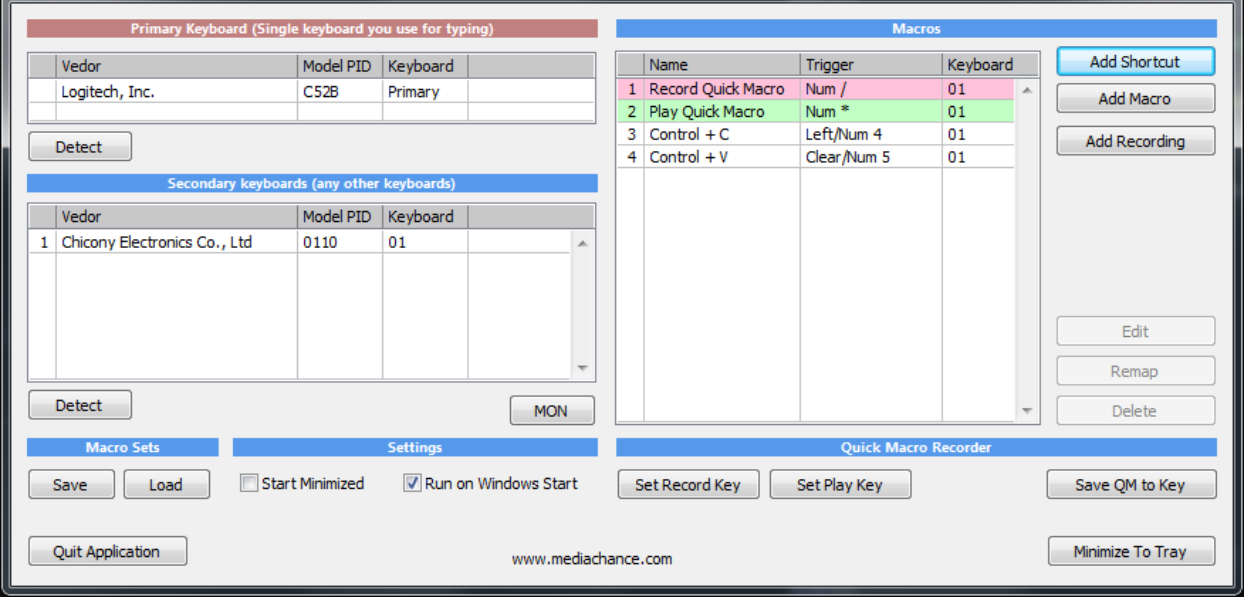
Define simple shortcuts triggered by pressing a key on a specific keyboard. For example, pressing 4 on a secondary numeric keyboard can send CTRL+C (copy). Pressing 5 can send CTRL+V (paste). These shortcuts work only on the designated keyboard, leaving your primary keyboard unchanged.
3. Complex Macros with Sequences
Create macros that execute whole sequences of shortcuts. A single key press can trigger: CTRL+C, followed by three right arrow presses, followed by CTRL+V. This is useful for repetitive tasks like copying and pasting data between specific locations.
4۔ Mouse Click Simulation
Macros can simulate mouse clicks including left click, right click, double click, and mouse movement. This allows you to control both keyboard and mouse functions from a single macro key.
5. Text Typing
Type whole text strings by pressing a single key. Common uses include inserting signatures, email greetings, standard responses, code snippets, or frequently used phrases without retyping.
6. Application Launching
Launch applications, open folders, open files, or open web pages from a macro key. This turns a numeric keypad into a dedicated application launcher.
7. Keystroke Recording and Playback
Record a sequence of keystrokes and play them back as a macro. This is similar to macro recording features found in software development tools and advanced text editors.
8۔ Full Scripting Language (Version 2)
Version 2 introduces a full scripting language for advanced users. You can process clipboard content, implement custom keyboard logic, and create macros that go far beyond simple key sequence recording.
9. No Special Drivers Required
It works with standard HID keyboards that use Windows inbox drivers. There are no special drivers to install, and your keyboards will not become obsolete when Windows updates.
What’s New in MultiKeyboard Macros V2.28
- Version 2.28 continues the evolution of this programmable keyboard software.
- The full scripting language introduced in Version 2 has been refined with additional commands and improved stability.
- Key improvements include enhanced clipboard processing capabilities, better handling of multiple keyboard detection, improved macro recording accuracy, expanded scripting commands for custom keyboard logic, and compatibility updates for Windows 10 and Windows 11.
System Requirements
To run MultiKeyboard Macros V2.28 effectively, your system should meet the following specifications.
Minimum Requirements:
-
Operating System: Windows 10 or Windows 11 (32-bit or 64-bit); Windows 7, Windows 8, Windows 8.1 also supported
-
Processor: Any Intel or AMD processor
-
RAM: 1 GB minimum (2 GB recommended)
-
Storage: 50 MB free space
-
USB Ports: One additional USB port for each extra keyboard
Hardware Requirements:
-
Primary Keyboard: Any standard USB or wireless keyboard
-
Additional Keyboards: Any standard USB or wireless keyboard (numeric keypads work well)
-
No special drivers required: Uses standard Windows HID drivers
Installation Guide
Follow these steps to install MultiKeyboard Macros V2.28 on your Windows system.
-
Download the Installer: Obtain the official MultiKeyboard Macros installer from the developer’s website or an authorized source.
-
Try Before You Buy: A trial version is available for evaluation. Test multiple keyboard differentiation and macro creation before purchasing.
-
Verify System Compatibility: Ensure your Windows version is supported. The software works on Windows 7 through Windows 11.
-
Close Other Applications: Close any other keyboard or macro software to avoid conflicts.
-
Run the Installer: Double-click the downloaded file. Administrator privileges may be required.
-
Follow the Setup Wizard: Complete license acceptance and installation directory selection.
-
Connect Additional Keyboards: Plug in your secondary USB keyboards or numeric keypads.
-
Launch MultiKeyboard Macros: Open the software from the desktop shortcut or start menu.
-
Activate License: Enter your license key. Trial users can begin immediately.
How to Use MultiKeyboard Macros
Step 1: Connect Additional Keyboards
Plug your secondary keyboards or numeric keypads into available USB ports. Windows will detect them automatically. MultiKeyboard will recognize each keyboard as a separate device.
Step 2: Launch MultiKeyboard Macros
Open the software. The interface displays all connected keyboards. Each keyboard is listed separately with its device ID.
Step 3: Select a Keyboard
Choose which keyboard you want to program. Select it from the device list. Your primary keyboard can be left unprogrammed for normal typing.
Step 4: Define a Simple Shortcut
Select a key on the chosen keyboard. In the action field, choose “Send Shortcut.” Enter the shortcut combination (e.g., CTRL+C). Click Save.
Step 5: Create a Macro
Select a key. Choose “Create Macro.” Record or enter a sequence of actions: shortcuts, text, mouse clicks, or application launches. Save the macro.
Step 6: Record Keystrokes
Select a key. Choose “Record Keystrokes.” Press the keys you want to record. Stop recording. The software will save the sequence as a macro.
Step 7: Use Scripting (Advanced)
For advanced users, open the scripting editor. Write custom scripts to process clipboard content or implement complex logic. Save and assign to a key.
Step 8: Test Your Configuration
Press the programmed keys on your secondary keyboard. Verify that shortcuts, macros, and scripts execute correctly without affecting your primary keyboard.
Best Use Cases
| Use Case | Application | Key Benefit |
|---|---|---|
| Graphic Design | Photoshop, Illustrator shortcuts on numeric keypad | One-hand shortcuts while other hand holds stylus |
| Video Editing | Premiere Pro, DaVinci Resolve macros | Playback controls, timeline navigation, effects shortcuts |
| 3D Modeling | Blender, 3ds Max, Maya macros | Viewport controls, transform shortcuts, tool switching |
| Audio Production | Ableton, Cubase, Pro Tools shortcuts | Transport controls, mixing shortcuts, plugin parameters |
| CAD Design | AutoCAD, SolidWorks macro keypad | Command shortcuts, dimension tools, view controls |
| Office Productivity | Excel, Word, Outlook text insertion | Signatures, formulas, frequently used phrases |
| Programming | Code snippets and IDE shortcuts | Insert code blocks, run scripts, compile commands |
Advantages and Limitations
Advantages:
- It allows you to use inexpensive USB numeric keypads as dedicated macro boards, saving hundreds of dollars compared to specialized macro keyboards.
- The software works with standard HID keyboards that require no special drivers, ensuring long-term compatibility even after Windows updates.
- You can leave your primary keyboard for normal typing while programming secondary keyboards for application-specific shortcuts.
- Each key can trigger simple shortcuts, complex macro sequences, text insertion, application launching, or mouse clicks.
- The keystroke recording feature makes macro creation simple without programming knowledge.
- The full scripting language in Version 2 provides advanced capabilities for power users.
- The software works with any number of additional keyboards limited only by available USB ports.
Limitations:
- It is Windows-only with no native macOS or Linux version.
- The software requires additional physical keyboards or numeric keypads, which take up desk space and USB ports.
- Some very old or non-standard keyboards may not be detected correctly.
- The scripting language requires programming knowledge for advanced use.
- The trial version may have limitations on number of macros or active keyboards.
Alternatives to MultiKeyboard Macros
| Software | Best For | Key Difference from MultiKeyboard Macros |
|---|---|---|
| AutoHotkey | Advanced scripting | Free, more powerful scripting, but cannot differentiate multiple keyboards |
| HID Macros | Multiple keyboard detection | Free, similar concept, less polished interface |
| LuaMacros | Scripting with multiple keyboards | Free, Lua-based scripting, steeper learning curve |
| SharpKeys | Simple key remapping | Free but limited to single keyboard, no macros |
| Dedicated Macro Keyboards | Hardware solution | Expensive, requires special drivers, risk of obsolescence |
| Logitech Options | Logitech devices only | Free but limited to Logitech hardware |
Frequently Asked Questions
Q1. What is MultiKeyboard Macros used for?
It allows Windows to recognize multiple keyboards separately and define different macros and shortcuts on each one. This lets you use inexpensive numeric keypads as dedicated macro boards for specific applications.
Q2. How many keyboards can I use simultaneously?
You can use as many keyboards as your computer has available USB ports. Each keyboard is detected and programmed separately.
Q3. Can I use a numeric keypad as a macro board?
Yes. Numeric keypads are ideal because they are small, inexpensive, and have enough keys for common shortcuts. Many users purchase 18-key or 22-key numeric keypads for this purpose.
Q4. What is the difference between a shortcut and a macro?
A shortcut sends a single key combination like CTRL+C. A macro sends a sequence of multiple actions like CTRL+C, then right arrow three times, then CTRL+V.
Q5. Can I simulate mouse clicks with macros?
Yes. Macros can simulate left click, right click, double click, and mouse movement. This allows complete keyboard and mouse control from a macro key.
Q6. What is the scripting language for?
The scripting language in Version 2 allows advanced users to process clipboard content, implement conditional logic, and create custom keyboard behavior beyond simple key sequences.
Q7. Does this software work with my existing macro keyboard?
Yes, but the primary use case is converting standard keyboards into macro keyboards. If you already have a dedicated macro keyboard, MultiKeyboard can still work alongside it.
Final Thoughts
MultiKeyboard Macros V2.28 is a practical, cost-effective solution for professionals who need dedicated macro keys without investing in expensive specialized hardware. By allowing standard USB numeric keypads to function as programmable macro boards, the software saves money while providing flexibility that dedicated macro keyboards cannot match.
The software delivers clear value across multiple professions. For the graphic designer, a numeric keypad programmed with Photoshop shortcuts keeps one hand on the stylus. For the video editor, transport controls and timeline shortcuts on a secondary keyboard speed up editing. For the 3D artist, viewport and transform shortcuts become one-button operations. For the programmer, code snippets and IDE commands are always one key away.
Looking for full-version software without limitations? You’re in the right place. Instead of wasting time on unreliable or outdated sources, unlock a powerful bundle of 10k+ premium tools covering marketing, SEO, broadcasting, automation, and business productivity — all in one place at an affordable price. This collection is specially curated for freelancers, agencies, and business owners who want fast, real results with professional tools.
 Direct contact: Telegram ID :
Join Us For Update Telegram Group :
Join Us For Updated WhatsApp group:
You Can test through AnyDesk before Buying,
And When You Are Satisfied, Then Buy It.
Unlimited PCs/Users.
 Join today and upgrade your workflow with premium tools.