Pacestar LanFlow (V7.51.2221) Create Advanced LAN, WAN and Network Diagrams in Minutes
Download the Pacestar LanFlow (V7.51.2221) Create Advanced LAN, WAN and Network Diagrams in Minutes from this link…

Summary
Pacestar LanFlow V7.51.2221 is a network diagramming tool designed to create professional LAN, internet, telecommunications, and computer network diagrams with minimal effort. Unlike complex diagramming applications like Visio or CAD that require extensive training, LanFlow focuses on simplicity and speed. Within minutes, users can plan and document a network, show cabling and wiring, and communicate flows and processes.
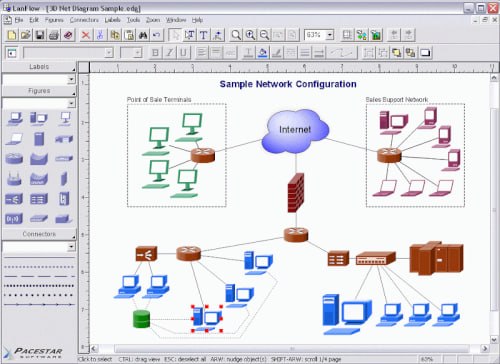
The software includes hundreds of pre-defined symbols including 2D and 3D common networking symbols, outline symbols, and basic block diagramming symbols. Users can also add clip-art to represent specific network equipment from their environment. The diagram model is simple: add network elements, connect them with lines and cables, add descriptive text. The program handles the rest by keeping lines attached properly and managing associations between shapes, lines, and text.
Key Features
1. Easy to Learn and Use
It can create network diagrams with minimal effort. Users become productive immediately with no prior training. The intuitive drag-and-drop interface allows dropping components like computers, workstations, and servers, then connecting them with various types of lines and cables.
2. Hundreds of Pre-Defined Symbols
The software includes hundreds of pre-defined shapes and symbols including 3D gray, black and white, and outline symbol sets. Symbol sets are organized into templates for different diagramming purposes. Outline symbols are native to the software, allowing customization of fill color, border color, border thickness, and descriptive text.
3. Multiple Symbol Styles
Simple outline symbols are ideal for diagrams requiring high performance and small storage size. Three-dimensional symbols based on coordinated clipart images provide a professional appearance for presentations and proposals. The “presentation” symbol set contains 3D grayscale graphic symbols. The “documentation” symbol set is identical but in black and white for standard ink printers.
4. Connectors and Cables
Connectors can have many different line styles, colors, curves, patterns, end symbols (arrows), and designs. Users can choose from straight connectors, rounded connectors, curved connectors, and smoothed connectors. Flow symbols allow connectors whose path is defined by a repeating pattern of symbols rather than a simple line.
5. Jogs for Line Routing
When any two connectors overlap but do not connect, a jog (crossover) is drawn to clearly indicate that the intersection is not intended as a junction. Users can control whether jogs are used and how large they appear.
6. Labels and Text Options
Users can add simple text labels for descriptions, titles, and notes. Specialty labels include connector labels (attached to connector lines), flow labels (attached to the end of connectors where they meet figures), and figure labels (attached to figures). Labels can be rotated 90 degrees for vertical labeling and can contain any combination of fonts, size, color, bold, italic, underline, subscript, and superscript.
7. Hyperlinks
Hyperlinks allow linking any object in a diagram to another diagram, web page, or document. Double-clicking on a linked figure opens the link. This enables constructing hierarchies of diagrams showing different levels of detail. Figures can also be defined as buttons to navigate among diagrams within a project.
8. Containers
Container symbols show groupings within diagrams. A container is designed to have other symbols within its borders without interfering with editing those symbols. When moving, copying, or deleting a container, all contained objects are moved, copied, or deleted as well.
9. Export and Integration
Diagrams can be copied or exported to other programs such as Microsoft Word using OLE. Export formats include WMF, EMF, BMP, and JPG. Hyperlinked diagrams translate instantly to image-mapped hierarchically-linked HTML web pages. External graphics and clip-art can be imported in EMF, WMF, BMP, and JPG formats.
10. Alignment and Arrangement Tools
In addition to standard aligning, centering, and spacing features, the program performs subtle behind-the-scenes steps to keep diagrams organized. Snap grid for precise placement can be visible or invisible, enabled or disabled, or customized to different sizes.
11. Auto-Save and Auto-Backup
Users can choose to save backup versions whenever saving a file or have a backup file saved periodically. This feature is fully programmable.
12. Attach and Detach from Flows
Drop a symbol onto a connector line, and the symbol merges into the flow automatically. New connectors form to accommodate the symbol. Detaching the symbol returns the flow to its original state.
13. Connection Points
Lines can connect to a symbol at the center, at a connection point, or at any chosen point. Users can control the location of connection points with the connection point tool. Holding down the SHIFT key while creating a connector makes it terminate where clicked.
14. Multi-Page Posters
Create large multi-page wall posters. Pages can be managed separately or cropped and attached to create a poster.
15. Flowchart Templates
It includes a complete set of professional flowcharting templates for block diagrams, flowcharts, and design notes within network diagrams.
What’s New in LanFlow V7.51.2221
- Version V7.51.2221 includes updated compatibility with Windows 11 and Windows 10.
- Enhanced export capabilities for PNG, JPEG, and PDF formats.
- Improved hyperlink functionality for web page generation.
- Bug fixes and stability improvements.
- Updated symbol libraries with additional networking equipment icons.
- Enhanced connector routing algorithms for complex diagrams.
System Requirements
To run Pacestar LanFlow V7.51.2221 effectively, your system should meet the following specifications.
Minimum Requirements:
-
Operating System: Windows XP, Vista, 7, 8, 10, or 11
-
Processor: Pentium class or better
-
RAM: 500 MB minimum (1 GB recommended)
-
Storage: 20 MB free disk space
-
Display: 1024 x 768 resolution
Installation Guide
Follow these steps to install Pacestar LanFlow V7.51.2221 on your Windows system.
-
Download the Installer: Obtain the official LanFlow installer from the Pacestar Software website. The download file size is approximately 6.1 MB.
-
Try Before You Buy: A free trial version is available with full features for a limited period.
-
Verify System Compatibility: Ensure your Windows version is supported.
-
Close Other Applications: Close any other diagramming or office software to avoid conflicts.
-
Run the Installer: Double-click the downloaded file. Administrator privileges may be required.
-
Follow the Setup Wizard: Complete license acceptance and installation directory selection.
-
Launch LanFlow: Open the software from the desktop shortcut or start menu.
-
Select Template: Choose a template (block diagram, flowchart, general purpose, or net diagram) when creating a new project.
-
Activate License: Enter license key if purchased. Trial users can begin immediately.
How to Use LanFlow
Step 1: Select a Template
When creating a new project, select a template from the Open dialog. Choose between block diagram, flowchart, general purpose diagram, or net diagram. The selected template determines which symbols are available.
Step 2: Set Initial Preferences
Choose default colors, shadow effects, gradient fills, and font settings. These can be changed later for individual symbols.
Step 3: Add Symbols
Drag diagram elements from the style bar on the left side of the screen. Drop them into your diagram. Symbols are organized by category based on the selected template.
Step 4: Connect Symbols
Choose a connector style from the style bar. Click on the start object, then click on the end object. The connector automatically attaches to both symbols.
Step 5: Add Labels
Use the text tool to edit text directly on the screen. Add connector labels, flow labels, or figure labels as needed. Labels reposition automatically when associated objects move.
Step 6: Customize Appearance
Select any symbol or connector. Adjust colors, line thickness, patterns, and end symbols (arrowheads). For outline symbols, fill color and border color can be customized.
Step 7: Add Hyperlinks (Optional)
Link any figure to another diagram, web page, or document. Double-clicking on the figure opens the link. This creates hierarchies of diagrams with different detail levels.
Step 8: Export or Print
Export diagrams as WMF, EMF, BMP, JPG, PNG, JPEG, or PDF. Create web pages from diagrams in a single step. Copy and paste into Microsoft Word or other OLE-enabled programs.
Best Use Cases
| Use Case | Application | Key Benefit |
|---|---|---|
| Network Documentation | Document existing LAN/WAN infrastructure | Clear visualization, easy updates |
| Network Planning | Design new network layouts | Drag-and-drop symbols, auto-routing connectors |
| Cisco Certification Training | Create practice network diagrams | Same notation as Cisco course materials |
| IT Proposals | Present network designs to clients | Professional 3D symbols, export to Word/PDF |
| Troubleshooting | Map network issues and solutions | Hyperlink diagrams to detailed documentation |
| Flowcharting | Document processes and procedures | Complete flowchart templates included |
Advantages and Limitations
Advantages:
- It is extremely easy to learn and use. Most users can create their first professional diagram within ten minutes without reading the manual.
- The software includes hundreds of pre-defined symbols organized by template, so users only see relevant symbols for their diagram type.
- Connectors automatically attach to symbols and stay attached when symbols move.
- Jogs (crossovers) clarify line routing when connectors overlap. Multiple label types (connector, flow, figure) reposition automatically when associated objects move.
- Hyperlinks allow creating hierarchies of diagrams. A simple box in one diagram can link to a detailed diagram of internal workings.
- Web page creation is one-step with image-mapped hyperlinks. Export formats include WMF, EMF, BMP, JPG, PNG, JPEG, PDF, and Visio XML.
- The software is lightweight (6.1 MB download) with low system requirements.
- It runs on Windows XP through Windows 11. The trial version has no feature limitations other than time.
Limitations:
- It is Windows-only with no native macOS or Linux version.
- The trial version is time-limited.
- Customization options for 3D symbols (fill color, border width) are limited compared to outline symbols.
- Very complex diagrams with hundreds of symbols may require more powerful hardware.
- Some users may prefer the broader symbol libraries of more expensive competitors.
Alternatives to LanFlow
| Software | Best For | Key Difference from LanFlow |
|---|---|---|
| Microsoft Visio | Professional diagramming | More expensive, steeper learning curve, more features |
| Lucidchart | Cloud-based diagramming | Subscription-based, browser-only, collaboration features |
| Draw.io (diagrams.net) | Free diagramming | Free but requires internet, different interface |
| SmartDraw | Business diagramming | More templates, higher cost |
| Dia | Open-source diagramming | Free but dated interface, fewer symbols |
| ConceptDraw DIAGRAM | Professional diagramming | More expensive, cross-platform |
Frequently Asked Questions
Q1. What is LanFlow used for?
It is used to create network diagrams, flowcharts, organizational charts, process diagrams, and other visual representations of LAN, internet, and telecommunications networks.
Q2. Is LanFlow easy to use?
Yes. It is designed to be user-friendly with a drag-and-drop interface. Most users can become productive immediately with no prior training.
Q3. What operating systems does LanFlow run on?
It runs on Windows XP, Vista, 7, 8, 10, and 11. It does not have native macOS or Linux versions.
Q4. What symbol sets are included?
It includes hundreds of symbols in multiple styles: 3D gray, black and white, and outline symbol sets. Symbols represent computers, printers, servers, routers, hubs, bridges, phones, modems, gateways, cables, and more.
Q5. Can I import external graphics?
Yes. It supports importing EMF, WMF, BMP, and JPG files for use as custom symbols.
Q6. What export formats are supported?
Export formats include WMF, EMF, BMP, JPG, PNG, JPEG, PDF, and Visio XML. Diagrams can also be copied and pasted directly into Microsoft Word and other OLE-enabled programs.
Q7. Can I create web pages from my diagrams?
Yes. It creates image-mapped, hyper-linked HTML web pages from diagrams in a single step.
Q8. What are jogs in LanFlow?
Jogs (also called crossovers or jumps) are visual indicators drawn when two connectors overlap but do not connect. They clearly show that the intersection is not a junction.
Q9. Is there a free trial available?
Yes. A free trial version is available for download from the Pacestar Software website. The trial has no feature limitations other than time.
Q10. What are the system requirements for LanFlow?
Windows XP or later, 500 MB RAM, 20 MB free disk space, Pentium class processor. Very low requirements make it run on older hardware.
Final Thoughts
Pacestar LanFlow V7.51.2221 is a focused, practical tool for network professionals who need to create clear diagrams without spending hours learning complex software. The emphasis on simplicity and speed makes it ideal for IT administrators, network engineers, and students who need to document networks, plan layouts, or prepare for certification exams.
The software delivers value through its intuitive approach. For the network administrator documenting an existing infrastructure, drag-and-drop symbols and auto-routing connectors save hours. For the IT consultant preparing client proposals, professional 3D symbols and export to Word/PDF create polished deliverables. For the Cisco certification student, symbol notation matching course materials makes study efficient.
Looking for full-version software without limitations? You’re in the right place. Instead of wasting time on unreliable or outdated sources, unlock a powerful bundle of 10k+ premium tools covering marketing, SEO, broadcasting, automation, and business productivity — all in one place at an affordable price. This collection is specially curated for freelancers, agencies, and business owners who want fast, real results with professional tools.
 Direct contact: Telegram ID :
Join Us For Update Telegram Group :
Join Us For Updated WhatsApp group:
You Can test through AnyDesk before Buying,
And When You Are Satisfied, Then Buy It.
Unlimited PCs/Users.
 Join today and upgrade your workflow with premium tools.