HX-Recovery V4.4.12 (Professional DVR Data Recovery Software for Surveillance Video Restoration) Download
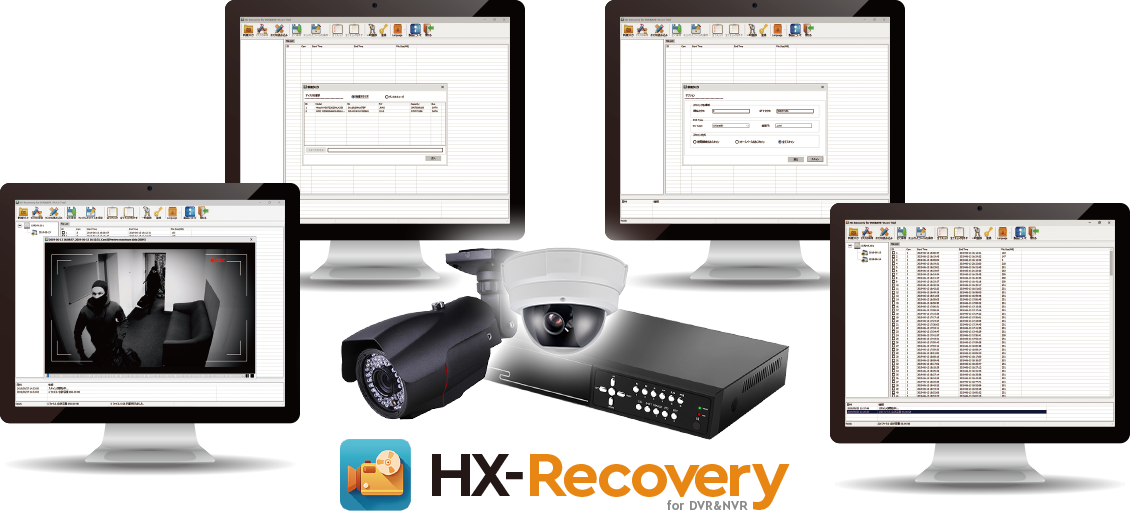
Download the HX-Recovery V4.4.12 (Professional DVR Data Recovery Software for Surveillance Video Restoration) from this link…

Summary
HX-Recovery V4.4.12 is a professional data recovery software specifically designed for DVR (Digital Video Recorder) and CCTV surveillance systems. Unlike general-purpose file recovery tools that struggle with proprietary DVR file systems, HX-Recovery specializes in restoring lost, deleted, or corrupted surveillance footage from hard drives used in security recording systems. The software is carefully designed to handle various DVR formats and provides restoration capabilities even when drives have bad sectors, index corruption, or timestamp loss.
The software addresses a critical need in the security industry. Surveillance footage often serves as evidence in investigations, insurance claims, and legal proceedings. When this footage is lost due to accidental deletion, system crashes, hard drive damage, or misoperation, the consequences can be severe. It provides a reliable solution to recover this critical data, supporting over 50+ DVR types across major brands including Hikvision, Dahua, Lorex, Avtech, Bosch, SWANN, and many others.
Key Features
- It is purpose-built for surveillance systems. It recovers deleted, lost, or corrupted video files from DVR and NVR hard drives. The software handles footage that has been overwritten, affected by system crashes, or lost due to misoperation.
- The software supports an extensive range of manufacturers including Hikvision, Dahua, Lorex, Avtech, Jovision, Bosch, SWANN, ZHILING, HYAV, Tiandy, Eagle, BlueSky, D-max, and many others. File systems supported include WFS0.4, RSFS, KSF, DHFS, UCLINUX, and proprietary formats from brands like Uware8K, FHDRH, icatch, Juanvison, MCG, and Keeper.
- When hard drives develop bad sectors, standard recovery tools often fail or crash. It is designed to handle damaged drives, working around bad sectors to extract recoverable data without causing further damage.
- When the DVR’s file index is broken or the timestamp is lost, the software can rebuild the index structure. This allows recovery of footage even when the recorder cannot display or access the files.
- The software automatically recognizes connected drives and DVR file systems. Users can perform quick scans or deep scans depending on the level of damage. Custom scanning parameters allow targeting specific areas of the drive.
- Users can define specific time ranges for recovery, focusing only on footage from relevant dates. Custom area filtering allows targeting specific camera channels or sectors of the drive, saving time when only a portion of the footage is needed.
- The software can create a file image of the damaged drive, allowing recovery operations to be performed on the image rather than the original drive. This preserves the original evidence and prevents further damage during recovery attempts.
- Before committing to full recovery, users can preview recoverable files to verify that the correct footage can be restored. This saves time and ensures that only needed files are recovered.
- The interface is clean, neat, and understandable even for beginners. Large icons, simple navigation, and clear log tables help users manage the recovery process efficiently. A free version allows users to determine if files can be recovered before purchasing the full version.
What’s New in HX-Recovery V4.4.12
- Version 4.4.12 includes several enhancements focused on expanded device support, improved bad sector handling, and faster scanning algorithms.
- The software now supports additional DVR models from newer manufacturers.
- The save file fix addresses specific issues where recovered files were not saving correctly in certain scenarios.
- The scanning engine has been optimized for faster processing of large surveillance drives.
- Support for additional proprietary file systems has been added based on user feedback.
System Requirements
To run HX-Recovery V4.4.12 effectively, your system should meet the following specifications.
Minimum Requirements:
-
Operating System: Windows 2000, XP, Vista, Windows 7, Windows 8, Windows 10, Windows Server 2000/2003/2008 (32-bit or 64-bit)
-
Processor: Any Intel or AMD processor
-
RAM: 1 GB minimum
-
Storage: 50 MB for software installation plus additional space for recovered files
-
Display: 1024 x 768 resolution with 256 colors
-
Connection: SATA, USB, or IDE connection for target drive
Installation Guide
Follow these steps to install HX-Recovery V4.4.12 on your Windows system.
-
Download the Installer: Obtain the official HX-Recovery installer from the authorized source. The software is available as a free download for evaluation.
-
Try Before You Buy: A free version is available that allows you to scan and determine if files can be recovered. Purchase the paid version for full recovery access.
-
Verify System Compatibility: Ensure your Windows version is supported. The software works on Windows 2000 through Windows 10 and Windows Server versions.
-
Close Other Applications: Close any other disk utilities or recovery software to avoid conflicts.
-
Run the Installer: Double-click the downloaded file. Administrator privileges may be required.
-
Follow the Setup Wizard: Complete license acceptance and installation directory selection.
-
Launch HX-Recovery: Open the software from the desktop shortcut or start menu.
-
Connect Target Drive: Connect the DVR hard drive via SATA, USB, or directly to the computer.
-
Start Scanning: Select the target drive and begin scanning. The free version will show recoverable files; the paid version allows full recovery.
How to Use HX-Recovery V4.4.12
Step 1: Connect the DVR Hard Drive
Remove the hard drive from the DVR and connect it to a Windows computer using a SATA connection, USB adapter, or external enclosure. Ensure the drive is detected by Windows.
Step 2: Launch HX-Recovery
Open the software. The interface displays available drives and partitions. Select the target DVR drive.
Step 3: Choose Recovery Mode
Select automatic recognition for standard recovery or custom scanning for damaged drives. For drives with bad sectors, use the advanced scanning options.
Step 4: Configure Scan Parameters
Set time filters to focus on specific dates. Define custom area selection to target specific sectors or camera channels. Create a file image of the drive if working with damaged media.
Step 5: Start Scanning
Begin the scan process. The software will analyze the drive and identify recoverable video files. Progress is displayed in the log table.
Step 6: Preview Recoverable Files
Review the list of recoverable files. Preview footage to verify that the correct videos can be restored.
Step 7: Recover Selected Files
Select the files to recover. Choose a destination folder on a healthy drive. Execute recovery. The software will restore the files to the specified location.
Step 8: Verify Recovered Footage
Open recovered video files to confirm successful restoration. For surveillance footage, verify that timestamps and video quality are intact.
Best Use Cases
| Use Case | Application | Key Benefit |
|---|---|---|
| Accidental Deletion | User mistakenly deleted important surveillance footage | Recover deleted videos before they are overwritten |
| DVR System Crash | Recorder unable to access disk due to file system corruption | Extract footage from inaccessible drives |
| Bad Sector Damage | Hard drive has physical damage causing read errors | Work around bad sectors to recover salvageable data |
| Index Corruption | DVR index structure broken, timestamps lost | Rebuild index and recover footage |
| Format Recovery | DVR drive was accidentally formatted | Restore data from formatted devices |
| Legal Evidence Recovery | Footage needed for investigation or court | Recover critical evidence from damaged systems |
Advantages and Limitations
Advantages:
- It is specifically designed for DVR and CCTV systems, unlike general recovery tools that struggle with proprietary formats.
- The software supports over 50 DVR brands and multiple file systems including WFS0.4, RSFS, KSF, DHFS, and UCLINUX. It handles bad sectors effectively, working around damage that would cause other tools to fail.
- The software offers index reconstruction when the DVR’s file system is corrupted.
- Time filtering and custom area selection allow targeted recovery, saving time when only specific footage is needed.
- File image creation preserves original evidence and prevents further damage during recovery attempts.
- The interface is user-friendly with large icons and simple navigation.
- A free version allows users to verify recoverability before purchasing. The software runs on older Windows versions down to Windows 2000, making it compatible with legacy DVR systems.
Limitations:
- It is Windows-only with no macOS or Linux versions.
- The free version only allows scanning and preview; full recovery requires purchase.
- Success depends on the extent of drive damage and whether files have been overwritten.
- DVRs that use hardware encryption may have additional recovery challenges.
- The software requires physical access to the DVR hard drive; remote recovery over network is not supported.
Alternatives to HX-Recovery
| Software | Best For | Key Difference from HX-Recovery |
|---|---|---|
| Photorec | General file recovery | Free but not DVR-specific, less user-friendly |
| EaseUS Data Recovery | General data recovery | Broader file support but less DVR format expertise |
| Recuva | Basic file recovery | Free but limited DVR format support |
| GetDataBack | Drive recovery | Good for NTFS/FAT but not specialized for DVR |
| DMDE | Partition and file recovery | Powerful but complex, not DVR-focused |
| Disk Drill | General recovery | User-friendly but limited DVR format support |
Frequently Asked Questions
Q1. What is HX-Recovery used for?
It is professional data recovery software specifically designed for DVR and CCTV surveillance systems. It recovers deleted, lost, or corrupted video footage from hard drives used in security recorders.
Q2. What DVR brands does HX-Recovery support?
The software supports over 50 brands including Hikvision, Dahua, Lorex, Avtech, Jovision, Bosch, SWANN, ZHILING, HYAV, Tiandy, Eagle, BlueSky, D-max, and many others.
Q3. Can HX-Recovery recover footage from a drive with bad sectors?
Yes. The software is designed to handle damaged drives with bad sectors, working around the damage to extract recoverable data.
Q4. Is there a free version available?
Yes. A free version allows users to scan drives and determine if files can be recovered. The paid version is required for full recovery.
Q5. What file systems does HX-Recovery support?
The software supports proprietary DVR file systems including WFS0.4, RSFS, KSF, DHFS, UCLINUX, D-max, Eagle, BlueSky, and Tiandy formats.
Q6. Can I recover footage from a formatted DVR drive?
Yes. It can restore data from formatted devices, provided the footage has not been overwritten.
Q7. Does HX-Recovery work with network video recorders (NVRs)?
The software works with DVR and NVR systems that store footage on hard drives that can be physically connected to a Windows computer.
Q8. What should I do if my DVR cannot access the disk?
If the recorder shows damage or initialization errors, remove the hard drive and connect it to a Windows computer. Run HX-Recovery to scan and recover footage directly from the drive.
Q9. How do I prevent further data loss after accidental deletion?
Stop using the DVR immediately. Continued recording can overwrite deleted footage. Remove the hard drive and connect it to a recovery computer as soon as possible.
Q10. What are the system requirements for HX-Recovery?
The software runs on Windows 2000 through Windows 10, Windows Server versions, with 1 GB RAM, 50 MB disk space, and 1024 x 768 display resolution.
Final Thoughts
HX-Recovery V4.4.12 is a specialized, purpose-built solution for a critical need in the security industry. Surveillance footage often serves as irreplaceable evidence, and when it is lost due to accidental deletion, system crashes, or drive damage, the consequences can be severe. General-purpose recovery tools frequently fail with proprietary DVR formats, leaving users with no options.
The software delivers exceptional value for security professionals, system integrators, and business owners who manage surveillance systems. For the security manager, recovering footage after an incident is essential for investigations. For the IT technician, supporting multiple DVR brands from a single recovery tool simplifies workflows. For the small business owner, protecting critical surveillance data without expensive forensic services is achievable.
If you want to Purchase KeyGen Activator / Cracked Version /License Key
Contact Us on our Telegram ID :
Join Us For Update Telegram Group :
Join Us For Updated WhatsApp group:
Crack Software Policies & Rules:
You Can test through AnyDesk before Buying,
And When You Are Satisfied, Then Buy It.
Lifetime Activation, Unlimited PCs/Users.