CommFort Client+Server 6.00 (Secure Corporate Messaging, LAN Communication & Remote Access Solution)
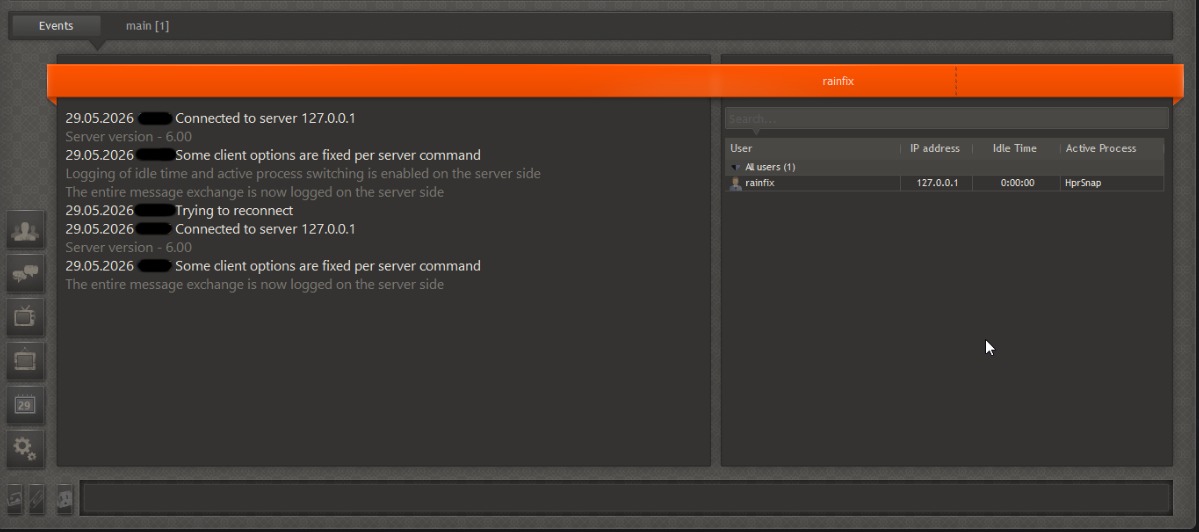
Download the CommFort Client+Server 6.00 (Secure Corporate Messaging, LAN Communication & Remote Access Solution) from this link…

Summary
CommFort Internal communication is the backbone of any efficient team. Yet many organisations struggle with slow file sharing, unreliable video calls, or complicated remote‑support tools that require monthly subscriptions. CommFort Client+Server 6.00 solves these problems by bringing chat, file exchange, desktop sharing, and videoconferencing into a single, self‑hosted platform.
With the free 30‑day trial of the server component and a permanently free client, you can test the full feature set without any risk. Once you decide to go live, you pay a one‑time fee – no recurring costs, no surprise bills. Whether you run a small office, a remote team, or a large enterprise with thousands of devices, CommFort gives you full control over your data and communication workflow.
What is CommFort Client+Server 6.00?
CommFort is a client‑server communication suite designed for local networks (LAN) as well as isolated or internet‑connected environments. It consists of two parts:
-
CommFort Server – The central hub that manages users, permissions, channels, and data storage. The administrator installs it on one machine and configures all settings from a single console.
-
CommFort Client – Lightweight software installed on each workstation. Employees use it to chat, transfer files, join video conferences, or request remote assistance.
CommFort is built for privacy and data sovereignty: because you host the server on your own infrastructure, no third party can access your messages or files. The software also works on networks completely isolated from the internet, making it suitable for government, military, or industrial environments.
Target users: IT managers, small‑to‑medium business owners, remote teams, educational institutions, healthcare providers, and any organisation that values secure internal communication without recurring software fees.
Key Features
-
01. All‑in‑One Communication – Chat (individual or group), audio/video calls, file transfers, desktop sharing, and remote control – all from a single interface.
-
02. Unlimited File & Folder Exchange – Send files of any size and whole folders without archiving. The tool preserves the folder structure, saving time for teams that share many documents.
-
03. Flexible Video Conferencing – Host both synchronous (everyone speaks) and asynchronous (one speaker at a time) conferences. Participants can share their desktop or camera view with a single click.
-
04 .Centralised Administration – Everything is managed from the server, including user rights, channel creation, flood protection, and even client settings. Administrators can apply restrictions (e.g., hiding IP addresses, disabling file attachments) per user or group.
-
05. Unlimited History Storage – Because the server runs on your hardware, you decide how long to keep message logs and file exchanges. No cloud storage limits, no external retention policies.
-
06. No Monthly Payments – Pay once for a perpetual licence, which includes 10 years of free updates and technical support. You can scale up by adding more server licences as your organisation grows.
-
07. Low Resource Usage – The software uses minimal CPU and RAM, runs stably on older Windows machines, and installs in less than 10 MB (client) or a few dozen MB (server).
-
08. Traffic Encryption – All communication is encrypted, protecting sensitive data from eavesdropping. The server can be run behind a firewall or on an isolated network for maximum security.
Pricing & Plans
CommFort offers a generous free trial and two straightforward licence options:
-
Free Trial – The client software is permanently free for any number of users. The server component comes with a 30‑day fully functional trial, allowing you to evaluate all features (video conferencing, file transfers, remote control, etc.) before committing.
-
Premium Plans (Perpetual Licences) – After the trial period, you purchase a server licence. Pricing depends on the maximum number of concurrent connections (users). All licences are one‑time payments:
-
Up to 10 users – USD 90
-
Up to 20 users – USD 160
-
Up to 50 users – USD 280
-
Up to 100 users – USD 460
-
Unlimited users – USD 850
-
Each licence includes 10 years of free updates and technical support. Volume discounts are available for larger deployments – contact the vendor for a quote.
Limited time offer: During promotional periods, you may get up to 50% OFF on multi‑year support extensions or bulk licence purchases. Check the official website for current deals.
Use Cases
-
Office‑based teams – Replace internal email chains with instant messaging, share files without USB drives, and hold quick video meetings from your desks.
-
Remote & hybrid workforce – Provide secure remote desktop access to help employees working from home. Use video conferencing for daily stand‑ups.
-
Educational institutions – Set up a private chat and file‑sharing system for teachers and students, completely isolated from public internet.
-
Healthcare & legal firms – Comply with data privacy regulations by keeping all communication on‑premises. CommFort does not rely on external servers.
-
Industrial & manufacturing – Enable real‑time communication between control rooms, maintenance crews, and management over a wired LAN, without exposing critical systems to the internet.
-
Government & defence – Operate on air‑gapped networks where no internet connectivity is allowed. CommFort’s self‑hosted design ensures zero data leakage.
Who Should Use This Software
-
Beginners – Small business owners or office managers without dedicated IT staff will appreciate the easy setup (install server, install clients, enter the server address). The intuitive interface requires no training.
-
Professionals – IT administrators gain granular control over user rights, channel permissions, flood protection, and logging. The centralised console saves hours of management time.
-
Agencies & MSPs – Manage multiple client environments with separate server instances. The perpetual licence model keeps your costs predictable, and the 10‑year support window reduces long‑term overhead.
-
Enterprise teams – Large organisations (5,000+ companies already use CommFort) benefit from the ability to handle thousands of concurrent users, unlimited history storage, and active directory integration for automatic deployment.
When NOT to Use This Software
CommFort is not a one‑size‑fits‑all solution. Consider alternatives if:
-
You need cross‑platform support (macOS, Linux, mobile). CommFort runs primarily on Windows (Windows 7 to 11, Windows Server). While a Linux client is in development, it currently lacks full feature parity with the Windows version. For mixed‑OS teams, cloud‑based tools like Slack or Microsoft Teams may be a better fit.
-
You require cloud storage or automatic off‑site backups. CommFort is self‑hosted – you are responsible for backing up your server. If you prefer a fully managed solution, look at SaaS alternatives.
-
You need public internet access without firewall configuration. CommFort works over the internet, but you must open a port on your router or use a VPN. For plug‑and‑play remote access, solutions like TeamViewer or AnyDesk are easier.
-
You have a very small team (≤5 people) and only occasional communication needs. A free cloud messenger like Telegram or WhatsApp might be sufficient and requires no setup.
CommFort vs Competitors
| Feature | CommFort | TeamViewer | AnyDesk | Slack / Teams |
|---|---|---|---|---|
| Primary use | LAN communication + remote control | Remote support & access | Remote desktop | Team chat & collaboration |
| Self‑hosted (on‑premises) | ✅ Yes | ❌ No (cloud relay) | ❌ No (cloud relay) | ❌ No (cloud only) |
| Perpetual licence | ✅ Yes (pay once) | ❌ Subscription only | ❌ Subscription only | ❌ Subscription only |
| File transfer | Unlimited size, folders | Limited free tier | Limited free tier | Usually cloud storage linked |
| Video conferencing | Up to unlimited participants (LAN) | Up to 300 (paid) | Up to 100 (paid) | Up to 300 (paid) |
| Internet isolation | ✅ Works on air‑gapped networks | ❌ Requires internet | ❌ Requires internet | ❌ Requires internet |
| Ease of remote access | Requires port forwarding / VPN | One‑click, no config | One‑click, no config | Not designed for remote control |
Key differentiators of CommFort:
-
Data privacy – Your messages and files never leave your network.
-
No monthly fees – One payment covers perpetual use for that server licence.
-
Complete control – You decide how long to keep logs, which users can do what, and whether the system is connected to the internet at all.
System Requirements
| Component | Minimum | Recommended |
|---|---|---|
| Operating System | Windows 7 SP1 (32/64‑bit) | Windows 10/11 or Windows Server 2016+ |
| CPU | 1 GHz, single‑core | 2 GHz dual‑core or better |
| RAM | 1 GB (server) / 512 MB (client) | 4 GB (server) / 2 GB (client) |
| Disk Space | 50 MB for server + logs | 500 MB or more for extended history |
| Network | 100 Mbps LAN | Gigabit LAN or stable broadband for remote access |
| Other | – | Active Directory (for automated deployment) |
Note: CommFort 6.00 supports Windows 7, 8, 10, 11, and Windows Server equivalents (32‑bit and 64‑bit). A Linux client is under development but not yet feature‑complete.
How to Use CommFort (Step‑by‑Step)
Step 1: Download the free trial – Go to the official CommFort website and download the server installer and the client installer. The client is permanently free; the server includes a 30‑day full trial.
Step 2: Install the server – Run the server installer on a dedicated machine (or a virtual machine). The setup will optionally add the server to Windows startup. No advanced configuration is needed for first‑time use.
Step 3: Launch the server – Open the CommFort Server console. By default, it listens on port 2500 (customisable). Note the IP address of the server machine.
Step 4: Install clients on workstations – Run the client installer on each employee’s computer. When first launched, the client will ask for the server address – enter the IP address you noted in Step 3.
Step 5: Create user accounts – In the server console, add user names and passwords (or enable anonymous access for simple setups). Clients will connect with these credentials.
Step 6: Configure permissions – Use the server’s rights management to decide who can create channels, send files, access the bulletin board, or start video conferences. You can also apply flood protection and IP hiding.
Step 7: Start communicating – Employees can now chat, transfer files, share their desktop, or join video conferences. The administrator can monitor connections and logs from the server console.
Step 8: (Optional) Remote access – To allow connections from outside the LAN, forward TCP port 2500 (or your custom port) on your router. For air‑gapped networks, simply keep the server on the local network.
Step 9: Evaluate and upgrade – Test all features during the 30‑day trial. If satisfied, purchase a server licence (starting at USD 90) to continue using the software. The licence is perpetual – no monthly fee.
Pros and Cons
Pros
-
✅ One‑time payment, no subscription costs.
-
✅ Self‑hosted – full data control and privacy.
-
✅ Works on isolated (air‑gapped) networks.
-
✅ Unlimited file transfer size and folder structures.
-
✅ Very low resource usage – runs on older hardware.
-
✅ Centralised administration saves IT time.
-
✅ 10 years of free updates and support with each licence.
Cons
-
❌ Primarily Windows‑only (Linux client incomplete).
-
❌ No official mobile apps (iOS/Android).
-
❌ Remote access requires port forwarding or VPN setup (not one‑click).
-
❌ User interface looks dated compared to modern SaaS tools.
-
❌ Limited third‑party integrations (no API/SDK mentioned).
-
❌ May be overkill for very small teams (≤5 people).
Expert Recommendation
Use CommFort if:
-
You need a private, self‑hosted communication platform for a Windows‑based office or organisation.
-
Your team frequently transfers large files or entire folders and you want to keep that traffic on your LAN.
-
You want to avoid monthly software subscriptions and prefer a one‑time investment.
-
You operate in a regulated industry (healthcare, finance, government) that requires data to stay on‑premises.
Consider alternatives if:
-
Your team uses macOS, Linux, or mobile devices as primary workstations. Look at Mattermost (self‑hosted) or Slack (cloud).
-
You need one‑click remote support for external clients. TeamViewer or AnyDesk are more user‑friendly.
-
You require advanced collaboration features like threaded conversations, app integrations, or AI assistants. In that case, Microsoft Teams or Google Chat are better choices.
Our verdict: CommFort excels as a cost‑effective, secure, and low‑maintenance communication tool for Windows‑based LAN environments. Its perpetual licence model and data sovereignty make it especially attractive for small‑to‑medium businesses, schools, and government agencies. However, if you need cross‑platform support or cloud convenience, look elsewhere.
Best Alternatives
-
Mattermost (self‑hosted) – Open‑source Slack alternative with mobile apps and cross‑platform support. Free tier available, but requires more technical expertise.
-
TeamViewer – Best for one‑click remote support and cross‑platform (Windows, macOS, Linux, mobile). Subscription‑based.
-
AnyDesk – Lightweight remote desktop tool with low latency. Good for teams needing fast remote access. Subscription or one‑time licence available.
-
LAN Messenger (P2P, free) – A basic, no‑server chat for small LANs. Lacks video conferencing and central administration.
-
Microsoft Teams – Full‑featured collaboration suite with cloud storage, but requires a Microsoft 365 subscription and offers no self‑hosted option.
AEO OPTIMIZATION (CRITICAL)
Quick Answers (Featured Snippets)
What is CommFort Client+Server 6.00?
CommFort is a client‑server communication platform for Windows that combines secure chat, file transfers (any size, folders), video conferencing, and remote desktop access. It runs on your own hardware, giving you full control over data privacy and storage. The server component includes a 30‑day free trial, while the client is permanently free.
Is CommFort free or paid?
The client software is completely free for any number of users. The server component is free to try for 30 days. After the trial, you purchase a perpetual licence starting at USD 90 (for up to 10 concurrent users). All licences are one‑time payments – no monthly fees.
Is CommFort safe and legal?
Yes, CommFort is legitimate software developed by CommFort software Ltd (2004–2026). It includes traffic encryption, flood protection, and can run on air‑gapped networks for maximum security. Download only from the official website to avoid modified versions. The free trial is fully legal.
Who should use CommFort?
CommFort is ideal for small‑to‑medium businesses, schools, healthcare providers, and government agencies that use Windows computers and want a private, self‑hosted communication system. It’s also suitable for remote teams that need secure file sharing and video conferencing without monthly fees.
What are the main benefits of CommFort?
Key benefits: one‑time payment (no subscription), complete data ownership (self‑hosted), works on isolated networks, unlimited file/folder transfers, centralised administration, low CPU/RAM usage, and a perpetual licence that includes 10 years of free updates.
FAQs (MINIMUM 5)
Is CommFort free or paid?
The CommFort client is permanently free. The server is free to try for 30 days. After that, you need a paid licence (starting at USD 90 one‑time). No monthly subscription.
Is there a free trial?
Yes. The CommFort server includes a 30‑day fully functional trial that gives you access to all features – video conferencing, file transfers, remote control, and central administration. You can deploy the trial on your own hardware without providing credit card information.
Is CommFort safe and legal?
Absolutely. CommFort is a legitimate commercial product. It uses traffic encryption, offers flood protection, and allows you to run the server on a network completely isolated from the internet. Always download from the official website to ensure you get the genuine, malware‑free version.
What are the best alternatives to CommFort?
For self‑hosted chat with cross‑platform support, try Mattermost. For one‑click remote access, consider TeamViewer or AnyDesk. For a free, no‑server LAN messenger, look at LAN Messenger. For cloud‑based team collaboration, Microsoft Teams or Slack are popular choices.
Who should use CommFort?
CommFort is best for Windows‑based organisations that want private, self‑hosted communication without recurring fees. Typical users include small businesses, schools, healthcare facilities, government agencies, and remote teams that already have a VPN or dedicated LAN.
CTA (SOFT & SAFE)
Ready to take control of your team’s communication?
Start Free Trial – No credit card required.
Get up to 50% OFF on Official Plans – Limited time offer on multi‑year support extensions.
Looking for full-version software without limitations? You’re in the right place. Instead of wasting time on unreliable or outdated sources, unlock a powerful bundle of 10k+ premium tools covering marketing, SEO, broadcasting, automation, and business productivity — all in one place at an affordable price. This collection is specially curated for freelancers, agencies, and business owners who want fast, real results with professional tools.
 Direct contact: Telegram ID :
Join Us For Update Telegram Group :
Join Us For Updated WhatsApp group:
You Can test through AnyDesk before Buying,
And When You Are Satisfied, Then Buy It.
Unlimited PCs/Users.
 Join today and upgrade your workflow with premium tools.