Blender 4 Dental V5.0 (B4D) The Complete Guide For Dental Labs Ready To Move Beyond Exocad
Summary
Blender 4 Dental V5.0 (B4D) serves as a powerful, budget-friendly alternative to Exocad and 3Shape by transforming the free, open-source Blender software into an advanced digital dental laboratory. Running smoothly on a standard 32GB RAM workstation with an SSD, it grants technicians absolute freedom to sculpt complex free-form restorations and easily patch broken intraoral scans without restrictive software barriers.
While the system demands a steep two-to-four-week learning curve and relies entirely on community-based support, it delivers blazing-fast workflows capable of finalizing a complete crown from an STL scan in under five minutes. Furthermore, it supports universal file formats (STL, OBJ, PLY) and allows users to continuously build an extensive, reusable library from every completed case, completely eliminating expensive annual licensing fees.
The Name That Sounds Like Gaming Software But Belongs In Your Lab
You search online for dental design software. You see familiar names. Exocad. 3Shape. Dental Wings. Then you see something strange. Blender 4 Dental. The name makes you pause. Blender is for artists. Not dental technicians. But you click anyway. You learn that Blender 4 Dental is not a separate software. It is a plugin that runs inside Blender. Blender itself is completely free. Open source. Used by millions of artists worldwide.
The plugin adds dental specific tools. Margin detection. Crown design. Bridge design. Implant library. Articulation. The current version is V5.0. The developer has been improving it for years. What started as a hobby project is now used in real dental labs producing real restorations. The name B4D is shorter. Easier to remember. B4D V5.0. This is the version where dental tools became truly professional.
Can It Run Blender 4 Dental Without Burning
You are excited. Free software sounds great. But you worry about your computer. Blender is known for 3D rendering. Rendering needs power. Dental modeling is different. You are not rendering animations. You are manipulating meshes. The requirements are lower. Here is what you actually need. Windows 10 or 11. MacOS also works but the dental plugin has better Windows support.
A processor from the last five years. Intel Core i5 or AMD Ryzen 5 minimum. i7 or Ryzen 7 recommended. RAM is the most important for dental work. 16 GB is the absolute minimum for single crowns. 32 GB is required for bridges and full arch cases. 64 GB is recommended if you work with large implant cases or high resolution scans. The graphics card matters but less than you think. Any dedicated GPU from NVIDIA or AMD works.
Integrated graphics on laptops will struggle with complex models. Storage is where you can save money. Blender itself needs 5 GB. Your cases need space. An SSD is mandatory. A mechanical drive will make loading scans painfully slow. Your current dental computer probably meets these requirements already.
What A Dental Technician Actually Sees On Screen
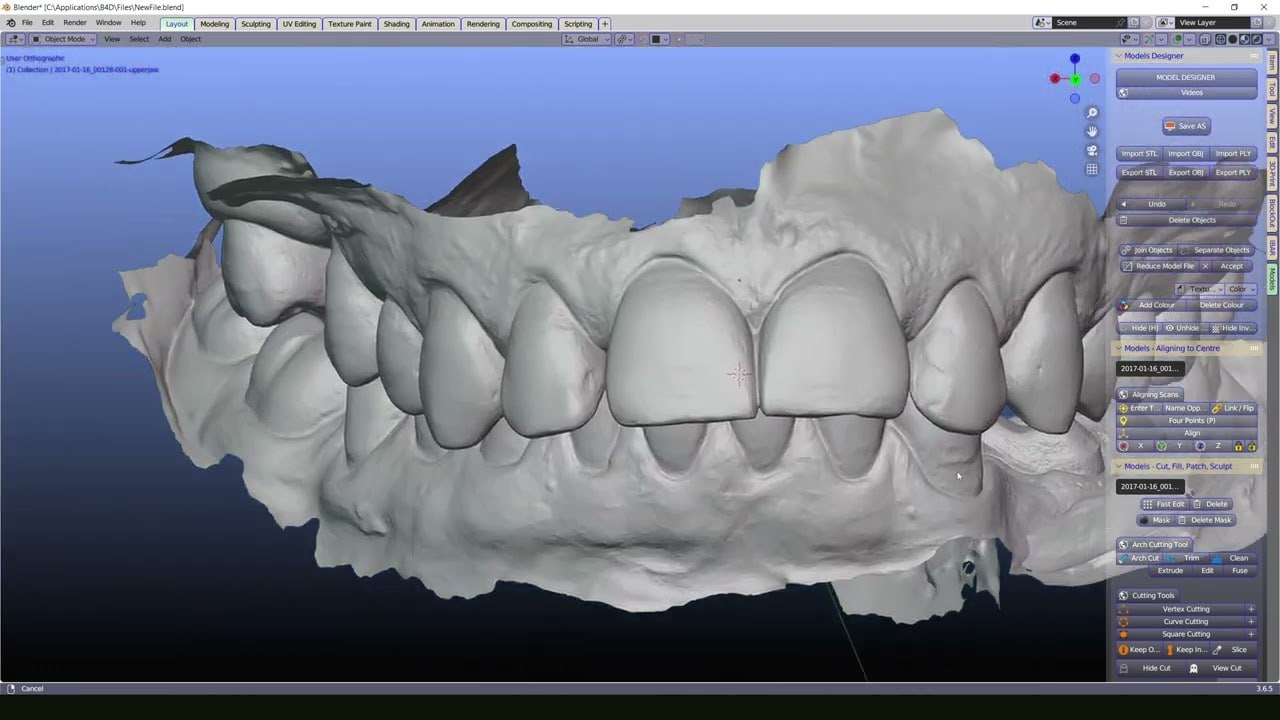
You have installed Blender. You have installed B4D V5.0. You double click the icon. Blender opens. The interface looks nothing like Exocad. There are no dental specific buttons yet. This is the moment many technicians give up. They see a general 3D software and feel lost. But the B4D add on is enabled.
You press N on your keyboard. A sidebar appears. You see a new tab labeled B4D. You click it. Now you see dental tools. Margin selection. Crown generation. Bridge connector. Implant placement. You import your first STL file. A scan of a prepared tooth appears. You select the margin detection tool.
You click around the preparation margin. The software finds the boundary. This feels similar to Exocad. But you notice something different. You have full control. You can move individual vertices. You can sculpt the restoration manually. You are not limited to what the software thinks is correct. This is the moment technicians understand why B4D exists.
Can You Go From STL To Finished Restoration
Set a timer for five minutes. Open Blender with B4D V5.0. Import an STL scan of a prepared tooth. Your goal is to create a complete crown ready for export. Start by detecting the margin. Use the B4D margin tool. Click points along the preparation boundary. The software connects them. This takes thirty seconds. Next, generate the crown. Use the crown generation tool. The software creates a basic crown shape. This takes ten seconds. Next, adjust the occlusion. The opposing tooth scan should already be imported. Adjust the crown height until contact feels right.
This takes one minute. Next, smooth the surface. Use Blender sculpting tools. Remove any sharp edges or irregularities. This takes one minute. Next, add the connector if this is part of a bridge. This takes thirty seconds. Next, export as STL. This takes ten seconds. Total time. Just over three minutes. An experienced Exocad user might take eight minutes for the same crown. The beginner in B4D takes five minutes on their tenth attempt. Speed improves with practice.
Honest Problems Dental Users Complain About
B4D V5.0 is powerful but not perfect. Users complain about specific issues. The first complaint is the learning curve. Blender is complex software. Learning Blender while also learning dental tools takes time. Expect two to four weeks before feeling productive. The second complaint is the documentation. The developer provides documentation but it is not as polished as Exocad manuals. You will watch YouTube videos. You will ask questions in forums. The third complaint is the implant library. B4D has implant libraries but they are not as extensive as Exocad.
You may need to create your own implants. The fourth complaint is articulation. Jaw movement simulation works but is less refined than dedicated dental software. The fifth complaint is support. There is no phone support. There is no on site training. You rely on community forums and email. These complaints are real. But users consistently say the freedom and cost savings outweigh the frustrations.
Problems You Did Not Know Could Be Solved In Hours
You have been living with certain limitations for so long that you stopped noticing them. B4D V5.0 solves problems you did not even know could be solved. Problem one is complex free form design. In Exocad, creating an anatomically shaped custom abutment takes workarounds. In B4D, you sculpt it like clay. Problem two is mesh repair. Scans from some intraoral scanners have holes and errors. Exocad struggles with these. B4D has powerful mesh repair tools built into Blender. Problem three is cost.
Exocad licenses cost thousands per year. B4D costs a fraction of that. Blender is free. You only pay for the dental plugin. Problem four is customization. Exocad decides how tools work. B4D lets you customize everything. You can create your own keyboard shortcuts. You can write your own scripts using Python. Problem five is file compatibility. Exocad prefers specific file formats. B4D works with any mesh format Blender supports. STL, OBJ, PLY, 3MF, and many more.
Why Having 10,000 Dental Models Changes Everything
Every dental technician builds a library. Teeth shapes. Crown forms. Bridge connectors. Implant abutments. In Exocad, your library is limited. You add models manually. The process is slow. In B4D V5.0, your library is any Blender file you save. You build a crown that works perfectly for posterior molars. You save it. Next week, you need a similar crown. You open your library. You import the saved crown. You adjust it to the new scan. The base shape is already there. You save thirty minutes.
Over a year, this adds up to hundreds of hours saved. The library moment happens when you realize you are no longer starting from zero on every case. You have ten thousand dental models. Not really ten thousand. But it feels like it. Every case you complete adds to your library. Every custom design becomes reusable. This is the hidden power of B4D. The software does not limit how you organize your work.
How B4D Plays With Exocad, 3Shape, And HyperDENT
Your lab already has tools. A scanner. A mill. Maybe Exocad or 3Shape for some cases. B4D does not need to replace everything. It needs to work alongside them. B4D exports standard STL and 3MF files. Your scanner software exports STL. Your mill software imports STL. B4D sits in the middle. You scan in your usual software. You export STL. You open STL in B4D. You design the restoration.
You export STL. You import STL into your mill software. The workflow is seamless. If you keep Exocad for some cases, that is fine. B4D does not require you to abandon your existing tools. It adds capability. For the cases where Exocad feels limiting, you open B4D. For the cases where Exocad is faster, you stay there. Many labs use both. The best tool for each case.
What B4D Users Still Love
Ask someone who has used B4D for six months. They will tell you what they still love and what they still open other software for. They still love the freedom. No software telling them how to design. They still love the cost. No annual maintenance fees. They still love the library. Every case adds to their collection of reusable models. They still love the mesh repair tools. Scans that Exocad rejects open fine in B4D. They still open Exocad for one thing. Speed on simple crowns.
For a single posterior crown with no complexity, Exocad is still faster. They still open 3Shape for implant planning. The dedicated implant tools in 3Shape are more refined. They still open Meshmixer for quick fixes. Sometimes a simple task needs a simple tool. But for complex cases, custom abutments, free form designs, and cases where they want full control, they open B4D. The love grows with each difficult case.
Should You Learn Blender Just For Dental Work
This is the honest question you must answer. Blender is complex software. Learning it takes time. Is that time worth it for dental work only? If you design ten crowns per week, maybe not. The learning curve may not pay off. If you design fifty crowns per week and half are complex cases, yes. The time saved on complex cases pays for the learning time. If you are a lab owner training multiple technicians, yes. One license of B4D costs much less than one license of Exocad. Multiply that by five technicians.
The savings are real. If you enjoy learning and want more control over your work, yes. B4D is more satisfying to use once you learn it. If you want software that works predictably and never surprises you, maybe stay with Exocad. B4D gives you freedom. Freedom means responsibility. You must decide. The honest question has no wrong answer. Only the answer that fits your lab.
Frequently Asked Questions
Q1: What is Blender 4 Dental V5.0?
Blender 4 Dental V5.0 is a plugin that adds dental design tools to the free open source 3D software Blender. It is used for crown design, bridge design, implant abutments, and other dental restorations.
Q2: Do I need to pay for Blender?
No. Blender is completely free and open source. You only pay for the B4D dental plugin.
Q3: Is B4D V5.0 easier to learn than Exocad?
No. Exocad is easier for beginners. B4D has a steeper learning curve because Blender is complex software. But the freedom and cost savings attract many users.
Q4: What file formats does B4D support?
B4D works with any mesh format that Blender supports. This includes STL, OBJ, PLY, 3MF, and many others.
Q5: Can B4D open Exocad files?
B4D opens STL and OBJ files. If your Exocad case is exported as STL, B4D can open it. Native Exocad project files are not supported.
Q6: What are the system requirements for B4D V5.0?
Windows 10 or 11, Intel Core i5 or AMD Ryzen 5 minimum, 16 GB RAM minimum (32 GB recommended), dedicated graphics card, SSD storage.
Q7: Is there a free trial of B4D V5.0?
Check the official B4D website for trial availability. The developer typically offers trial versions with some limitations.
Q8: Does B4D work with my 3D printer or mill?
B4D exports STL and 3MF files. Any printer or mill that accepts these files will work with B4D designs.
Q9: Can I use B4D alongside Exocad?
Yes. Many labs use both. Exocad for simple cases. B4D for complex free form cases or when they want full control.
Q10: Where can I buy Blender 4 Dental V5.0?
Purchase from the official B4D website. Always buy licensed software. Do not use cracked or pirated versions.
Technical Specifications
| Specification | Details |
|---|---|
| Software Name | Blender 4 Dental V5.0 (B4D) |
| Category | Dental CAD Plugin |
| Host Software | Blender (free and open source) |
| Dental Features | Margin detection, crown generation, bridge design, implant library, articulation |
| Operating System | Windows 10, Windows 11 (MacOS works but plugin support is better on Windows) |
| Minimum RAM | 16 GB (32 GB recommended for bridges and full arch) |
| Processor | Intel Core i5 or AMD Ryzen 5 (i7 or Ryzen 7 recommended) |
| Graphics | Dedicated GPU recommended (NVIDIA or AMD) |
| Storage | SSD required, 5 GB for software plus case files |
| File Formats | STL, OBJ, PLY, 3MF, and many more |
| License Type | Commercial (plugin license, Blender is free) |
| Legal Compliance | Licensed software only. No cracks, torrents, or keygens. |