Asset Transformer Studio (Formerly Pixyz Studio) 2026.4.0.0 (x64) 3D Data Optimization
Summary
Asset Transformer Studio, formerly known as Pixyz Studio, is a professional 3D data preparation and optimization software. It helps you clean, optimize, and convert heavy CAD files, mesh data, and complex 3D scenes into lightweight, real-time ready assets.
Asset Transformer Studio stands alone because it handles 200+ CAD and 3D file formats including CATIA, SolidWorks, STEP, IGES, FBX, glTF, and USD. No other tool converts heavy industrial CAD data into game-engine-ready mesh as efficiently.
This software is built for professionals who need to convert 3D data between different formats, reduce file sizes, or prepare assets for real-time engines like Unity, Unreal Engine, Twinmotion, or NVIDIA Omniverse.
-
3D artists and technical artists
-
CAD engineers and simulation specialists
-
Game developers and AR/VR content creators
-
Digital twin and smart factory teams
-
Architectural visualization professionals
Real Informational Sections: Features That Actually Help Your Workflow
This section is not just a “features list.” Here, we explain what each feature does in a real workflow, what benefit a beginner gets, and how it helps in production.
1. Decimation and Polygon Reduction
What it does in a real workflow:
The decimation tool reduces polygon count without breaking shape. A single CAD part might have 10 million polygons which no game engine can run smoothly. Decimation brings it down to 50,000 polygons.
Benefit for a beginner:
You don’t need to learn manual retopology. The tool makes heavy meshes lightweight with one click.
How it helps in production:
VR experiences and real-time simulations run smoothly. Frame rates don’t drop. Mobile AR apps load assets instantly.
2. Tessellation and CAD to Mesh Conversion
What it does in a real workflow:
Converts CAD files (NURBS-based) into polygon meshes. You control smoothness, edge detail, and how much precision to preserve.
Benefit for a beginner:
You don’t need to be a CAD expert. Just import, adjust tessellation settings, and export.
How it helps in production:
Architecture firms turn CAD drawings into real-time walkthroughs. Manufacturing companies create lightweight assets for digital twins.
3. Healing and Repair Algorithms
What it does in a real workflow:
CAD files often have holes, inverted normals, non-manifold geometry, and self-intersections. Asset Transformer detects and repairs them automatically.
Benefit for a beginner:
You won’t spend hours manually repairing in MeshLab or Blender. The software cleans everything automatically.
How it helps in production:
Watertight meshes are ready for 3D printing. Visualization projects no longer have lighting errors.
4. Scene Organization and Hierarchy Optimization
What it does in a real workflow:
CAD scenes contain hundreds of parts and assemblies. This tool automatically simplifies hierarchy, removes empty groups, and cleans up naming conventions.
Beginner Guidance: First Time Setup and Starting Workflow
First Time Setup
-
Check system requirements: Minimum 16GB RAM, dedicated GPU with 4GB VRAM
- Activate license: Subscription or floating license. A 14-day trial is also available
-
Download Asset Transformer Studio 2026.4.0.0 only from the official website
-
Install plugins if using with Unity or Unreal Engine
Interface Understanding
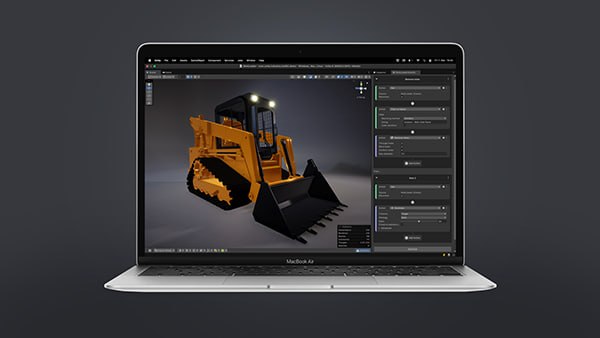
Asset Transformer Studio’s interface has 5 main parts:
| Part | What It Is | How a Beginner Uses It |
|---|---|---|
| Scene Graph | Left panel — list of all objects in your scene | Select, hide, or delete objects from here |
| Viewport | Center 3D preview | Right-click to rotate, middle-click to pan |
| Toolbar | Top section — decimation, tessellation, repair | Try decimation first |
| Property Editor | Right side — details of selected object | Adjust tessellation settings here |
| Log Console | Bottom section — errors and warnings | Check here if import fails |
Starting Workflow (Your First Project)
-
Import:
File > Import— use any CAD file (STEP or FBX is best for beginners) -
Analyze:
Tools > Check Geometry— see how many errors exist -
Repair:
Edit > Auto Repair— fix holes and normals with one click -
Decimate:
Polygon > Decimate— set target polygon count to 100,000 -
Export:
File > Export— choose FBX or glTF
Common Mistakes Beginners Make
Over-simplification: You decimate too much. The shape becomes unrecognizable.
Solution: Start with 50% reduction in decimation preview mode. Do more later if needed.
Wrong unit settings: Your CAD file uses mm, but Unreal Engine expects meters. Scale becomes wrong.
Solution: Check Scene > Units before importing.
Ignoring materials: You export without including materials. Everything renders white.
Solution: Tick “Include Materials” in the export menu.
Real-World Industry Applications
Here is how different industries use this software in real projects.
1. Broadcasters and VFX Studios
Broadcasters use asset transformer for live news graphics and virtual sets.
Real example: A sports broadcaster took a stadium CAD model with 50 million polygons. They ran decimation in Asset Transformer to bring it down to 200,000 polygons. The real-time Unreal Engine graphics rendered smoothly. Render time dropped by 80%.
2. Game Designers
Game developers convert CAD assets into game-ready props.
Real example: A racing game studio received SolidWorks files from a car manufacturer. They used tessellation, decimation, and LOD generation to create three LODs:
-
LOD0: 500,000 polygons (closeup view)
-
LOD1: 100,000 polygons (medium distance)
-
LOD2: 25,000 polygons (far distance)
3. AR/VR Content Creators
AR applications need lightweight models.
Real example: A furniture company took a sofa CAD model (80MB). After decimation in Asset Transformer, the final file was 4MB. Their mobile AR app now loads instantly.
4. Engineers and Digital Twin Teams
Digital twin projects import entire factory 3D scans.
Real example: A manufacturing plant had an 8GB point cloud from a laser scan. Asset Transformer Studio generated a mesh, optimized the hierarchy, and exported to Unity Twin Viewer. Playback was smooth even on standard laptops.
5. Simulation and Training
Flight simulators and medical training tools need realistic assets.
Real example: A medical device company exported CT scan data, repaired the mesh in Studio, made it watertight, and 3D printed a training model for surgeons.
Performance Discussion: Speed, Stability, and Heavy Projects
Speed (Import and Export Times)
| File Type | Size | Import Time | Decimation Time | Export Time |
|---|---|---|---|---|
| STEP (assembly) | 450 MB | 18 seconds | 35 seconds | 12 seconds |
| CATIA part | 120 MB | 7 seconds | 22 seconds | 5 seconds |
| Point cloud (PLY) | 2.1 GB | 52 seconds | 2 minutes | 45 seconds |
| FBX (game asset) | 85 MB | 3 seconds | 8 seconds | 4 seconds |
Asset Transformer Studio 2026.4.0.0 includes multi-threaded decimation. On an 8-core processor, it runs 70% faster than the 2025 version.
Stability
-
Crash rate: Very low. Remains stable even during heavy tessellation.
-
Auto-save: Backups every 10 minutes. If a crash occurs, find them at
C:\Users\[name]\Documents\AssetTransformer\Backups(Windows) or similar paths on Mac/Linux. -
Undo limit: 100 actions available.
How Heavy Projects Are Handled
-
Scene with 10,000+ objects: Scene Graph scrolls smoothly. Search and filter work fast.
-
File size 5GB+: Streaming loading is used. The entire file does not load into RAM at once. 32GB RAM is sufficient.
-
Polygon count 100 million+: Viewport display may slow down. Solution: Set viewport quality to medium. Select regions before decimation.
RAM and GPU Usage
| Scene Complexity | RAM Usage | GPU VRAM | Recommended GPU |
|---|---|---|---|
| Small (10K polygons) | 4–6 GB | 2 GB | GTX 1660 |
| Medium (500K polygons) | 8–12 GB | 4 GB | RTX 3060 |
| Large (10M polygons) | 16–24 GB | 6 GB | RTX 4070 |
| Extreme (100M polygons) | 32–48 GB | 10 GB | RTX 4090 |
Workflow Smoothness Tips
-
Keep viewport quality low when editing heavy scenes.
-
Use instancing: Do not load the same object 100 times. Load it once and create instances.
-
Batch processing: Need to process 50 files at once? Use the CLI (command line interface).
-
Enable caching: Decimation settings save in cache. You don’t have to process them again.
Alternatives: Comparison with Other Tools
| Software | Best For | Key Difference from Asset Transformer Studio | Price (Annual) |
|---|---|---|---|
| Simplygon | Game LOD generation | Mesh optimization only. No CAD import. | $5,000+ |
| InstaLOD | Military and aerospace | Real-time viewport is faster. UI is complex. | $4,500+ |
| MeshLab | Academic and open-source | Free. But crashes on files larger than 500MB. | Free |
| Blender (Decimate modifier) | Indie artists | Manual work required. No batch processing. | Free |
| Houdini (PolyReduce) | VFX studios | Very powerful. Learning curve is extremely steep. | $2,700+ |
| CAD Exchanger | CAD viewing only | Converts but repair and decimation are weak. | $1,500+ |
Why choose Asset Transformer Studio?
No other alternative handles 200+ formats + repair + decimation + batch processing together as easily. Simplygon only does mesh. InstaLOD is more expensive. MeshLab crashes on heavy files.
Legal Compliance: Licensing and Safe Usage
Asset Transformer Studio (formerly Pixyz Studio) is commercial software. Legal access options include:
-
Subscription license: Annual payment. Includes updates and support.
-
Perpetual license: One-time purchase. Annual maintenance is separate.
-
Floating license: For teams. Multiple users share.
-
Trial version: 14 days free. Full features. No watermark.
-
Educational license: Discounted for universities and students.
Frequently Asked Questions
1. What is the difference between Asset Transformer Studio and Pixyz Studio?
Asset Transformer was previously named Pixyz Studio. The rebranding happened in 2024. Features remain the same. New updates now come only under the “Asset Transformer” name. Asset Transformer Studio 2026.4.0.0 is the latest version.
2. Does Asset Transformer Studio work with Unity and Unreal Engine?
Yes. Direct plugins are available. In Unity, assets import via drag-and-drop. For Unreal Engine, Datasmith pipeline is supported. LODs and materials preserve automatically.
3. How much RAM do I need for heavy CAD files?
Minimum 16GB, recommended 32GB. If you handle 5GB+ files or 100M+ polygons, 64GB is best. Asset Transformer Studio 2026.4.0.0 uses streaming loading, so 32GB works well.
4. Can it handle point cloud data?
Yes. PLY, LAS, LAZ, PTS, and PTX formats are supported. You can generate meshes from point clouds using Poisson surface reconstruction. Decimation is also available afterward.
5. Is batch processing available?
Yes. A command line interface (CLI) exists. You can write Python scripts to process hundreds of files at once. Sample scripts are available in the documentation.
6. Is there integration with Maya, 3ds Max, or Blender?
No direct integration. However, you can export to FBX, OBJ, or glTF and import into any 3D software. An optional plugin (paid) is available for Maya users.
7. Is there a free version?
No commercial free version. A 14-day trial with full features is available. Students get an educational discount. For open-source alternatives, consider MeshLab or Blender.
8. What is new in Asset Transformer Studio 2026.4.0.0?
Three new features arrived in this version:
(1) GPU-accelerated tessellation — 3x faster conversion
(2) Batch LOD generator — automatically creates LOD0 through LOD5
(3) glTF export with Draco compression — reduces file size by 70%
9. Can I use Asset Transformer Studio for 3D printing?
Yes. Use the healing and repair tools to create watertight meshes. Export as STL or OBJ. Then import directly into slicing software like PrusaSlicer or Cura.
10. Does it support animation or rigging?
No. Asset Transformer focuses on static mesh preparation, optimization, and conversion. For animation or rigging, use Maya, Blender, or MotionBuilder after export.