ARES Electrical (v2027.0 Build 27.0.1.1139 SP1) Best Electrical CAD Software for Panel Layouts and Project Automation
Summary
ARES Electrical 2027.0 is a professional electrical CAD software designed specifically for electrical engineers, panel builders, control system designers, and industrial automation professionals. Built on the proven ARES Commander platform, this specialized version combines the familiarity of a classic CAD environment with powerful electrical-specific automation tools. Unlike generic drafting software that requires manual placement of every symbol and wire, it automates repetitive tasks, enforces standardization, and manages component libraries so engineers can focus on design rather than drafting.
The software serves as a complete electrical design ecosystem. From schematic creation and panel layout to bill of materials generation and documentation, ARES Electrical streamlines every stage of electrical project development. What sets it apart is its ability to manage over 7,000+ components and symbols from integrated libraries, its project wizard for rapid setup, its configurator tools for automated circuit generation, and its cloud-based collaboration capabilities through the Graebert ecosystem (desktop, mobile, and browser access).
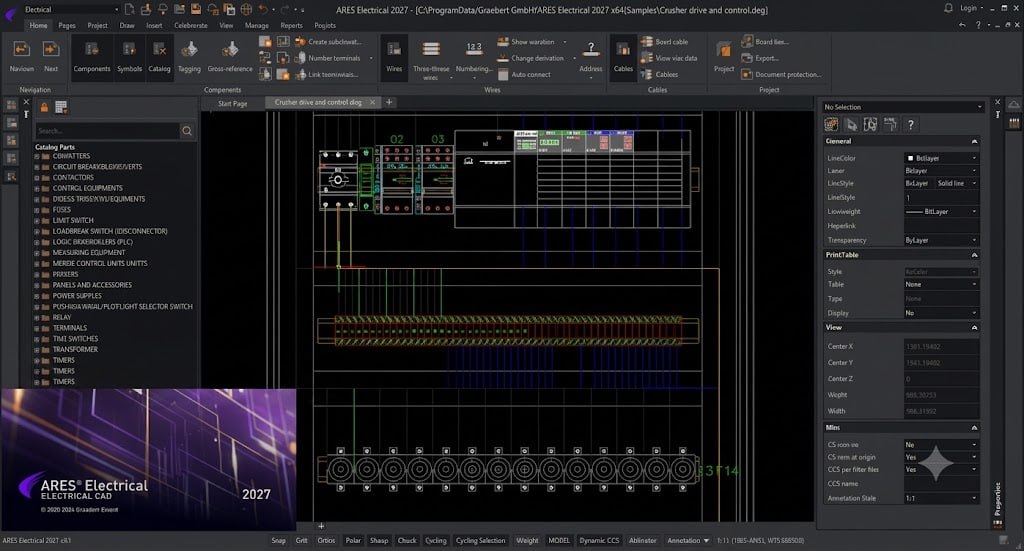
ARES Electrical Screenshot
Key Features
-
Choose from international standards (IEC, ANSI, GB, etc.)
-
Align with company rules and client requirements
-
Predefined components, wires, terminals, and panels
-
Avoid manual drawing from scratch
-
Reusable project configurations for consistent deliverables
-
7,000+ components and symbols from integrated libraries
-
Rapid block, circuit, and sub-circuit placement
-
Pre-defined parts with correct specifications
-
Store company-specific components, blocks, and cables
-
Embedded information for global updates across drawings
-
Tags, codes, and component names: Fully customizable
-
Cable lengths and wiring paths: Adjustable parameters
-
Diagram appearance: Modify for different project stages
-
Motors, panels, and control circuits: Customize behavior per component type
What’s New in ARES Electrical 2027.0
Version 2027.0 introduces several significant enhancements focused on automation, collaboration, and usability.
- Enhanced Configurator Tools: The configurator for automated schematic creation has been expanded. Spreadsheet integration now supports more complex data structures, and diagram regeneration is faster for large projects.
- Improved Cloud Collaboration: ARES Kudo integration has been deepened. Real-time synchronization is more reliable, and page locking prevents conflicts during parallel editing sessions.
- Expanded Component Library: The library now includes over 7,000+ components with additional manufacturer-specific symbols. Search and insertion tools have been optimized for faster access.
- Smart Error Prevention Enhancements: The error-checking system now flags additional potential issues, including terminal size mismatches, wire gauge violations, and cross-reference inconsistencies.
- Performance Optimizations: Large project handling has been optimized. Opening, saving, and regenerating complex schematics is noticeably faster than in previous versions.
- Extended Export Formats: Additional export options have been added for BOMs and technical documentation, including direct integration with procurement systems.
System Requirements
To run ARES Electrical 2027.0 effectively, your system should meet the following specifications.
Minimum Requirements:
-
Operating System: Windows 10 or Windows 11 (64-bit)
-
Processor: Intel Core i3 or AMD equivalent (2.0 GHz or faster)
-
RAM: 4 GB minimum
-
Graphics: Integrated graphics with support for DirectX 11
-
Storage: 2 GB for application plus additional space for project files
-
Display: 1366 x 768 resolution or higher
-
Internet: Required for cloud collaboration (ARES Kudo) and activation
Installation Guide
Follow these steps to install ARES Electrical 2027.0 on your Windows system.
-
Obtain the Installer: Download the official ARES Electrical installer from the Graebert website or your authorized reseller portal.
-
Try Before You Buy: A free trial version is available for evaluation purposes. You can test project setup, configurator tools, library access, and BOM generation before purchasing a subscription.
-
Verify System Compatibility: Confirm that your workstation meets the minimum system requirements, particularly RAM for larger projects.
-
Close Other Applications: Close any other CAD or design software to avoid conflicts during installation.
-
Run as Administrator: Right-click the installer file and select “Run as Administrator” to ensure proper registry configuration.
-
Select Installation Type: Choose between a standalone installation or a network deployment based on your organizational needs.
-
Follow the Setup Wizard: The wizard will guide you through license acceptance, installation directory selection, and component choices.
-
Activate Your License: Launch ARES Electrical. Sign in with your Graebert account. Enter your subscription license key if not already associated.
-
Configure Project Preferences: Set default standards (IEC, ANSI, etc.), component naming conventions, and library paths before starting your first project.
-
Set Up Cloud Collaboration (Optional): Configure ARES Kudo access for team-based workflows.
How to Use ARES Electrical 2027.0
Mastering ARES involves understanding the workflow from project setup to final documentation.
Step 1: Launch the Project Wizard
Start a new project using the integrated Project Wizard. Select applicable standards (IEC, ANSI, GB, etc.). Define project-specific rules and company standards. The wizard creates the initial layout with predefined components, wires, terminals, and panels.
Step 2: Insert Components from Libraries
Access the library of 7,000+ components. Search for specific symbols by name, type, or manufacturer. Insert blocks, circuits, and sub-circuits using drag-and-drop or search-and-insert. The system automatically applies standard naming conventions.
Step 3: Configure Circuits Using Configurator
Use the configurator tool to automate schematic creation. Define wire paths, tags, and cross-referenced numbers. For complex circuits, use spreadsheet integration to edit data and regenerate diagrams. The system enforces standardization across all sheets.
Step 4: Customize Tags, Names, and Properties
Modify component tags, codes, and names as needed. Adjust cable lengths, wiring paths, and diagram appearance. For panels, customize terminal blocks, wire strips, and cable duct placement. All changes apply globally or locally based on your selection.
Step 5: Generate BOM and Technical Documents
Run the automatic BOM generation feature. The software reads components, cables, terminals, and sub-circuits. Generate organized lists with manufacturer descriptions, codes, and references. Export to spreadsheets, PDFs, or procurement systems.
Step 6: Collaborate with Team Members
Save projects to ARES Kudo for cloud access. Share files with colleagues (Ferreira, Robert, etc.). Lock pages to prevent conflicting edits. Track version changes and compare design stages. Access and modify files from desktop, mobile, or browser.
Step 7: Update Libraries and Apply Global Changes
When components are updated by manufacturers or company standards change, update the master library. ARES applies changes across all documents, diagrams, and drawings in one operation. No need to redraw or manually update each sheet.
Step 8: Export and Deliver
Export final drawings in required formats (DWG, DXF, PDF). Generate panel layout drawings for manufacturing. Provide BOMs and connection lists to procurement and assembly teams. Archive projects for future reference or modification.
Best Use Cases
It serves multiple electrical engineering and industrial automation applications.
- Panel builders use it to design control panels for industrial machinery, HVAC systems, and building automation. The software automatically places cable ducts and wire strips based on safety and efficiency rules. Terminal blocks are numbered automatically, and wire paths are optimized.
- Electrical engineers create schematic diagrams for power distribution, motor control, lighting systems, and safety circuits. The configurator automates wire tagging and cross-referencing, ensuring consistency across multi-page projects.
- Machine builders design electrical systems for CNC equipment, packaging machinery, conveyor systems, and robotic cells. The software manages complex interconnections between motors, drives, sensors, and controllers.
- Consultants design electrical systems for commercial buildings, hospitals, schools, and industrial facilities. It handles power distribution, lighting control, fire alarm systems, and emergency power.
- Engineering firms with decades of legacy DWG files use it to modernize their libraries. The software recognizes existing components, catalogs them into centralized libraries, and applies current standards.
- Distributed teams (different offices, remote workers, external contractors) use ARES Kudo for real-time collaboration. Multiple engineers work on the same project simultaneously with page locking to prevent conflicts.
Advantages and Limitations
Understanding the strengths and constraints of ARES helps organizations make informed decisions.
Advantages:
-
Electrical-Specific Automation: Unlike generic CAD, it automates wire tagging, cross-referencing, component naming, and BOM generation tasks that consume hours in standard drafting software.
-
7,000+ Component Library: A vast built-in library eliminates the need to create common symbols from scratch. Search, insert, and go.
-
Configurator and Spreadsheet Integration: Create and modify schematics using spreadsheet data. Regenerate diagrams automatically, ideal for repetitive or parametric designs.
-
Project Wizard: Rapid project setup with predefined standards, components, and layouts. Hours saved on every new project.
-
Centralized Library with Metadata: Store components, blocks, and cables in a searchable library. Metadata enables global updates across all drawings.
-
Real-Time Collaboration: ARES Kudo integration enables team-based workflows with version control, page locking, and cross-device access.
-
BOM Automation: Eliminates manual parts lists. Reduces errors, prevents duplicate ordering, and ensures procurement accuracy.
-
Legacy DWG Compatibility: Import and modernize old drawings without redrawing from scratch.
-
Familiar CAD Interface: ARES Commander users transition seamlessly. The interface feels familiar but adds electrical-specific power.
Limitations:
-
Windows Only: ARES requires Windows 10 or 11. No native macOS or Linux version (though ARES Kudo provides browser access for viewing).
-
Niche Focus: Designed specifically for electrical schematics and panel layouts. Not a general-purpose mechanical CAD platform.
-
Learning Curve for Electrical Features: While the CAD basics are familiar, mastering configurators, library management, and automation requires dedicated learning.
-
Subscription Model: ARES is subscription-based (no perpetual license), which may not suit all budget preferences.
Alternatives to ARES Electrical
Depending on your specific needs, budget, and preferred workflow, several alternatives exist in the electrical CAD space.
| Software | Best For | Key Difference from ARES Electrical |
|---|---|---|
| AutoCAD Electrical (Autodesk) | Large enterprises with an existing Autodesk ecosystem | More established, but higher cost and steeper learning curve |
| EPLAN | Complex industrial automation | Extremely powerful but expensive and complex |
| SolidWorks Electrical | Mechanical+electrical integrated design | Best for SolidWorks users, but requires a SolidWorks license |
| See Electrical (IGE+XAO) | Mid-range electrical CAD | Similar features but different interface philosophy |
| QElectroTech | Budget-conscious users | Free and open-source, but with fewer features and no commercial support |
| ARES Commander (base) | Users who only need drafting | No electrical automation; manual symbol placement only |
Each alternative has merit, but ARES distinguishes itself through the balance of power and affordability, a familiar CAD interface, 7,000+ component library, configurator automation, and cloud collaboration capabilities.
Frequently Asked Questions
Q1. What is the difference between ARES Commander and ARES Electrical?
ARES Commander is a general-purpose 2D/3D CAD platform. It adds electrical-specific features, including the Project Wizard, configurator tools, 7,000+ component library, automatic BOM generation, wire tagging, cross-referencing, and panel layout automation.
Q2. Is there a free trial available?
Yes. A free trial version is available for evaluation. You can test project setup, configurator tools, library access, and BOM generation before purchasing a subscription.
Q3. What standards does ARES Electrical support?
It supports major international standards, including IEC, ANSI, GB (Chinese), and others. Standards can be selected during project setup via the Project Wizard.
Q4. How many components are in the library?
The library contains over 7,000 components and symbols, including manufacturer-specific parts. Users can also create custom libraries for company-specific components.
Q5. Can ARES Electrical generate bills of materials automatically?
Yes. The software automatically reads components, cables, terminals, and sub-circuits from the schematic and generates organized BOMs with manufacturer descriptions, codes, quantities, and references.
Q6. Does ARES Electrical support real-time collaboration?
Yes through ARES Kudo, the Graebert cloud platform. Team members can access files from desktop, mobile, or browser. Page locking prevents conflicting edits, and changes sync in real time.
Q7. Can I import legacy DWG files into ARES Electrical?
Yes. It imports legacy DWG files, recognizes existing components, and can catalog them into centralized libraries. This enables the modernization of old drawings without redrawing.
Q8. What is the configurator tool?
The configurator automates the creation and modification of electrical schematics. It generates wires, tags, and cross-referenced numbers. With spreadsheet integration, users can edit data in table format and regenerate diagrams automatically.
Q9. Does ARES Electrical include panel layout tools?
Yes. The software includes automatic placement of cable ducts, wire strips, and terminal blocks based on safety and efficiency rules. Panel layouts are integrated with schematic data.
Q10. What file formats can ARES Electrical export?
It exports to DWG, DXF, PDF, and spreadsheet formats (CSV, XLSX) for BOMs and connection lists.
Final Thoughts
ARES Electrical 2027.0 represents a compelling solution for electrical engineers and panel builders who need professional CAD capabilities without the complexity and cost of enterprise platforms. By building on the familiar ARES Commander foundation and adding electrical-specific automations, Graebert has created a tool that feels both comfortable and powerful.
The software delivers exceptional value across multiple dimensions. For the solo engineer, the Project Wizard and configurator tools eliminate hours of repetitive drafting. For the small firm, the 7,000+ component library and automatic BOM generation reduce errors and accelerate delivery. For the distributed team, ARES Kudo cloud collaboration enables real-time coordination across locations. For the organization with legacy drawings, import and modernization tools protect past investments.