Glasswire V3.8.1033 – Personal Firewall & Smart Network Monitor – Latest 2026
Summary
GlassWire V3.8.1033 is a personal firewall and network monitoring software designed to give Windows users complete visibility into their computer’s network activity. Unlike the built-in Windows Firewall, which works silently in the background without showing users what is happening, GlassWire transforms complex network data into beautiful, easy-to-understand visual graphs.
The software serves two primary purposes. First, it acts as a network monitor that shows every application connecting to the internet in real time. Second, it provides firewall controls that allow users to block suspicious applications from accessing the network. This combination makes GlassWire particularly valuable for users who want to detect hidden threats that traditional antivirus software might miss. It is developed by GlassWire, a cybersecurity company known for its visual approach to network security.
Who should use GlassWire? The software is ideal for Windows users who want more control and visibility over their internet traffic. It is particularly useful for:
-
Users who suspect malware on their system and want to see what applications are communicating online
-
Professionals handling sensitive data who need to verify that no unauthorized programs are transmitting information
-
Users with metered internet connections who want to monitor bandwidth usage
-
Anyone who finds the Windows Firewall interface confusing and wants a more visual alternative
The software is famous for transforming complex network security into an accessible, visual experience. Instead of reading confusing log files or technical reports, users see colorful graphs showing exactly what their computer is doing online at any moment.
Key Features
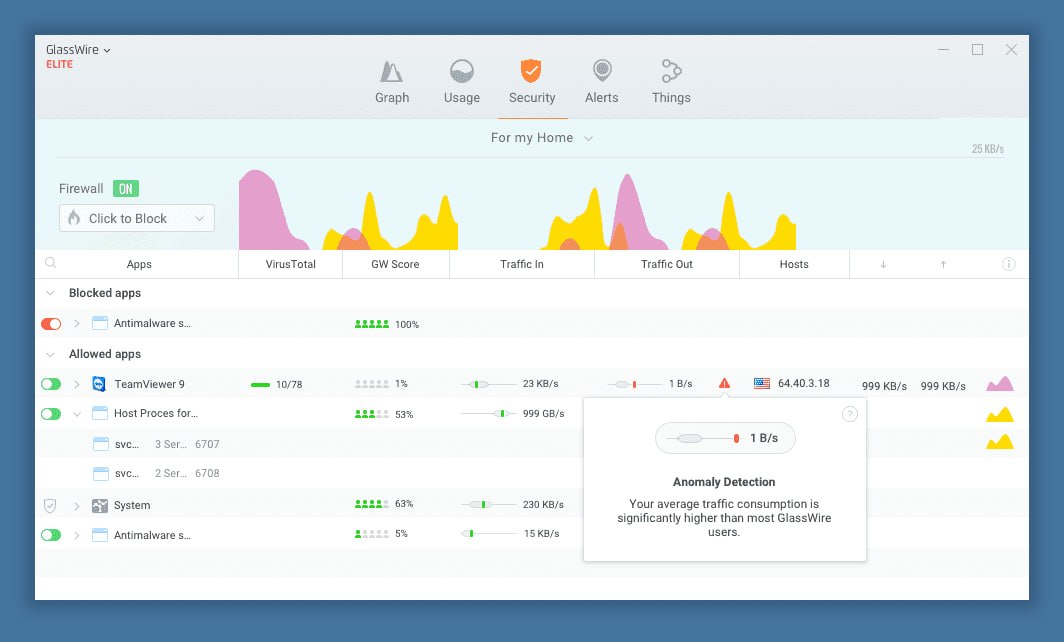
Real-Time Network Monitoring is the core of GlassWire. The software displays network activity on a live graph that updates in real time, showing upload and download traffic by application, traffic type, and destination. Users can instantly see which applications are using their internet connection and how much bandwidth they are consuming.
The Visual Graph Interface makes GlassWire unique. Network activity appears as color-coded areas on a timeline graph, with different colors representing different types of traffic or different applications. This visual approach allows users to spot unusual activity at a glance. A sudden spike in data transfer when the computer is idle could indicate malware communicating with a remote server.
Firewall Control provides bidirectional firewall management, allowing users to block or allow incoming and outgoing connections for individual applications. Users can block any application from accessing the internet with a single click, creating custom security profiles for different scenarios, and enabling “Ask to Connect” mode, which prompts for permission whenever a new application attempts internet access.
Smart Alerts notify users about suspicious activity without being annoying. It alerts you when a new application accesses the internet for the first time, when applications change (which could indicate malware infection), when unusual traffic spikes occur, and when known threat indicators are detected. The system prevents redundant alerts, so users are not bombarded with repeated notifications.
Bandwidth Usage Monitor tracks data consumption over time, showing which applications are using the most bandwidth. This is valuable for users with metered internet connections who need to stay under data caps. The usage tab provides detailed statistics by application, host, and traffic type.
Remote Server Monitoring allows users to monitor multiple computers or servers from a single GlassWire installation. This feature is particularly valuable for IT administrators who need to oversee remote systems. Users can see network activity on remote devices and receive alerts about suspicious behavior.
Network Time Machine lets users go back in time up to 30 days (depending on version) to see what network activity occurred. This historical view helps investigate past incidents or identify patterns in network usage.
VirusTotal Integration allows users to scan suspicious files with over 60 antivirus engines directly from the GlassWire interface. When it detects a potentially harmful application, users can instantly check it against VirusTotal’s database of known threats.
What’s New in the Latest Version
GlassWire V3.8.1033 is the latest stable release as of 2026. Key updates include:
Firewall Stability Fixes: Version 3.8 focuses primarily on stabilizing firewall behavior and resolving “Ask to Connect” issues. Previous versions had problems where applications could become blocked without showing a prompt, or notifications would not appear when expected. These issues have been addressed.
Improved Windows Compatibility: The software now uses the latest Windows Kernel Driver API, improving compatibility with Windows 10 and Windows 11 updates. This ensures GlassWire runs smoothly on the latest operating system versions.
Hardware Resource Feature: A new feature showing per-application usage of hardware resources has been added, expanding monitoring visibility beyond just network activity.
UI Improvements: Apps without traffic are now hidden in the GlassWire Protect view, and the Inactive Apps group has been restored for better clarity. This makes the interface less cluttered and easier to navigate.
Multiple Bug Fixes: Various crashes and UI issues have been resolved, making the software more stable and reliable for everyday use.
System Requirements
To run GlassWire V3.8.1033 effectively, your system should meet the following specifications.
Minimum Requirements:
-
Operating System: Windows 8, Windows 10, or Windows 11 (x86 or x64)
-
Processor: Intel Celeron 2GHz or equivalent
-
RAM: 1 GB
-
Storage: 100 MB free space
Additional Considerations:
-
It runs as a background service and has minimal impact on system performance when configured correctly
-
The software works alongside Windows Defender Firewall rather than replacing it, adding an extra layer of visibility and control
Installation Guide
Follow these steps to install GlassWire V3.8.1033 on your Windows system.
-
Download the Installer: Visit the official GlassWire website and download version 3.8.1033. The installer size is approximately 82.8 MB.
-
Run as Administrator: Double-click the downloaded installer file. Windows may prompt for administrator permission click Yes to proceed.
-
Follow the Setup Wizard: The installation process takes approximately 2-3 minutes. Accept the license agreement and choose the installation location (default is recommended).
-
Complete Installation: After installation completes, it will prompt for a system restart. Restart your computer to ensure all drivers load correctly.
-
Launch GlassWire: After restart, it will start automatically and begin monitoring network activity. You can access it from the system tray or start menu.
-
Configure Initial Settings (Optional): For first-time users, the default settings provide solid protection. Advanced users can access Settings to adjust alert preferences, enable “Ask to Connect” mode, or configure remote monitoring.
Pro Tip: No uninstallation of previous versions is required when upgrading. You can install version 3.8 directly over your current version to preserve settings and configurations .
How to Use GlassWire
Step 1: Understanding the Dashboard
When you launch it, the main dashboard displays a real-time graph at the top showing network activity. The graph uses different colors to represent various types of traffic downloads appear in one color, uploads in another. Below the graph, you will see a list of applications currently using the network, along with their upload and download speeds.
Step 2: Monitoring Network Activity
Click on any point on the graph to see what was happening at that specific time. The software shows which applications were active and which servers they were communicating with. To see historical data, use the timeline controls to go back hours, days, or weeks (up to 30 days depending on version) .
Step 3: Blocking Suspicious Applications
Navigate to the Firewall tab. You will see a list of all applications that have attempted network access. To block an application, simply click the flame icon next to it. The icon will change to indicate that the application is now blocked. To allow it again, click the icon again.
Step 4: Using “Ask to Connect” Mode
Enable “Ask to Connect” mode in Settings. In this mode, whenever a new application tries to access the internet, it will display a popup asking whether to allow or block it. This gives you complete control over what software communicates online.
Step 5: Checking Bandwidth Usage
Go to the Usage tab to see bandwidth statistics. You can view usage by application, by remote host, or by traffic type. This helps identify which applications are consuming the most data and whether any unusual activity is occurring.
Step 6: Scanning Suspicious Files
If GlassWire alerts you to a suspicious application, right-click the application in the list and select “Scan with VirusTotal.” it will upload the file hash (not the file itself) to VirusTotal and show you results from over 60 antivirus engines.
Best Use Cases
| Use Case | Application | Key Benefit |
|---|---|---|
| Malware Detection | Real-time monitoring + VirusTotal integration | Identify hidden threats your antivirus missed |
| Bandwidth Management | Usage monitor + per-app controls | Stay under data caps and identify data-hungry apps |
| Privacy Protection | Firewall + Ask to Connect mode | Prevent unauthorized data transmission |
| Remote Server Management | Remote monitoring feature | Watch multiple servers from one dashboard |
| Network Troubleshooting | Historical graph + Time Machine | Pinpoint when network issues occurred |
| Parental Control | Firewall blocking | Block gaming or social media apps during work hours |
Advantages and Limitations
Advantages:
- It transforms complex network data into beautiful, easy-to-understand visual graphs.
- The real-time monitoring shows exactly what applications are doing online, making it accessible even for users without technical backgrounds.
- The software works alongside Windows Defender Firewall rather than replacing it, adding an extra layer of visibility and control.
- Users can block suspicious applications with a single click, and the VirusTotal integration allows instant scanning of unknown files.
- The free version provides substantial functionality including real-time monitoring, bandwidth tracking, and basic alerts.
- The software is lightweight and has minimal impact on system performance when configured correctly.
Limitations:
- The free version has significant limitations. Firewall functionality and the ability to block applications are only available in the paid Pro version.
- Free users essentially get a network monitor without active protection.
- This is a notable change from earlier versions where firewall features were included for free.
- The Pro version is subscription-based at $24 per year, which may be a barrier for some users.
- Additionally, it is Windows-only, with no official macOS or Linux versions.
- Some users report that GlassWire consumes more system resources than lighter alternatives like Windows Firewall Control or CurrPorts. However, this is the trade-off for the visual interface.
Alternatives to GlassWire
| Software | Key Features | Pricing | Best For |
|---|---|---|---|
| GlassWire | Visual graphs, real-time monitoring, VirusTotal integration | Free / $24/year | Users wanting visual network insights |
| Windows Defender Firewall | Built-in, basic protection, inbound/outbound rules | Free (included) | Basic protection, budget-conscious users |
| Comodo Firewall | HIPS, auto-sandbox, advanced controls | Free | Advanced users, maximum protection |
| ZoneAlarm | Identity protection, antivirus integration | Freemium | Comprehensive security suite users |
| Windows Firewall Control | Simple Windows Firewall frontend | Free | Users wanting easier Windows Firewall management |
| CurrPorts | Lightweight, shows open ports and connections | Free | Technical users, lightweight monitoring |
Choosing the Right Alternative:
-
Stick with Windows Firewall if you want basic protection and don’t need advanced monitoring it is already installed and configured.
-
Choose Windows Firewall Control if you want more control over Windows Firewall without paying for additional software.
-
Choose Comodo Firewall if you are an advanced user who wants maximum protection and does not mind a steeper learning curve.
-
Choose GlassWire if you value visual insights and want to see exactly what your computer is doing online.
Frequently Asked Questions
Q1. Is GlassWire a true firewall?
It adds a user-friendly interface and firewall management capabilities on top of the Windows Firewall. It does not replace the Windows Firewall but rather enhances it with better visibility and easier control. When you block an application in GlassWire, it creates a rule in Windows Firewall .
Q2. What is the difference between GlassWire Free and Pro?
The free version provides network monitoring, real-time graphs, bandwidth usage tracking, and basic alerts. The Pro version adds firewall controls (ability to block applications), “Ask to Connect” mode, remote server monitoring, longer graph history (30 days), and additional skins and themes .
Q3. Will GlassWire slow down my computer?
It has minimal impact on system performance when configured correctly. The software uses very little CPU and memory during normal operation. However, some users on older hardware may notice a slight performance impact due to the real-time graphing features .
Q4. How do I enable “Ask to Connect” mode?
Open it, go to Settings, and locate the Firewall section. Enable “Ask to Connect” mode. When enabled, GlassWire will prompt for permission whenever a new application attempts to access the internet for the first time .
Q5. Can GlassWire detect malware?
It detects suspicious network activity that may indicate malware infection, such as unusual outbound connections or unexpected data transfers. It then alerts you and allows you to block the connection. However, GlassWire is not a replacement for antivirus software; it works best alongside a traditional antivirus solution .
Q6. How do I uninstall GlassWire completely?
Use the standard Windows uninstaller (Settings > Apps > GlassWire > Uninstall). After uninstallation, restart your computer. For complete removal, delete the leftover folder at C:\ProgramData\GlassWire .
Q7. Is there a mobile version of GlassWire?
It is currently available only for Windows desktops and servers. There is no official iOS or Android version, but the web interface can be accessed from mobile browsers for remote monitoring .
Final Thoughts
GlassWire V3.8.1033 is an excellent tool for Windows users who want to see exactly what their computer is doing online. The visual interface transforms complex network data into something anyone can understand, making it accessible for beginners while still providing the depth that advanced users need.
What sets GlassWire apart from competitors is the visual approach to security. Instead of reading through confusing log files or technical reports, users see colorful graphs showing exactly what is happening. This transparency builds trust and helps users understand their computer’s behavior in ways that traditional security software does not.
For any Windows user concerned about privacy, security, or simply wanting to understand their computer’s network activity, it provides the visibility, control, and peace of mind needed to browse with confidence. The free version makes it easy to try, and the Pro version adds the active protection that security-conscious users need.