GstarCAD 2027 Professional (x64) DWG-Compatible Smart CAD Software for 2D/3D Design
by Ali Haider · September 8, 2026
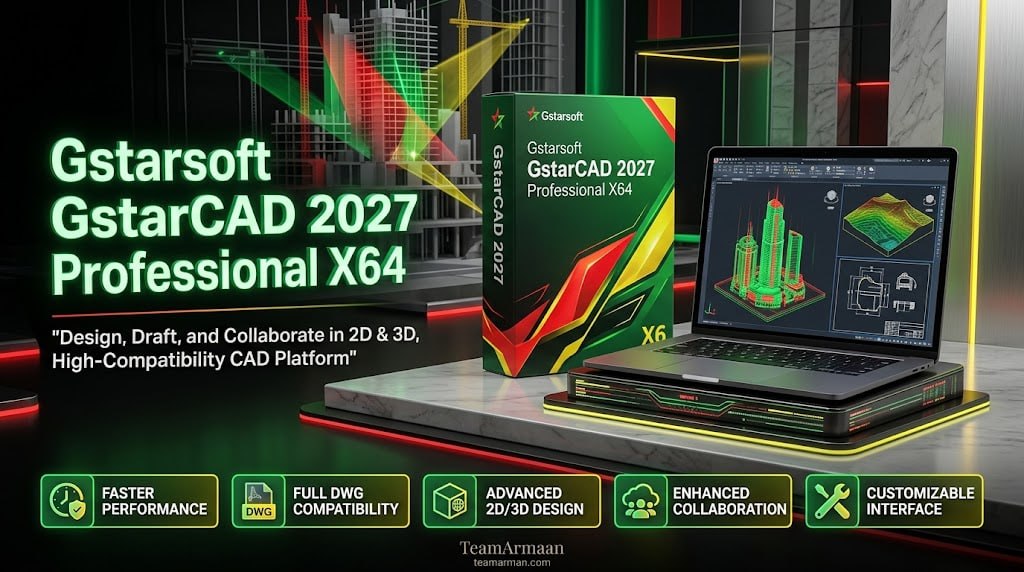
Table of Contents
ToggleSummary
GstarCAD 2027 Professional is a powerful CAD (Computer-Aided Design) platform developed by Gstarsoft, designed to be highly compatible with the industry-standard AutoCAD DWG file format. Unlike other alternatives that rely on complex file conversions or offer limited feature sets, GstarCAD operates natively with DWG, supporting versions from R14 to the latest 2026 formats. This ensures seamless collaboration with architects, engineers, and contractors who use Autodesk products, eliminating the risk of data loss or format errors.
The software is designed for professionals in architecture, mechanical engineering, civil design, electrical engineering, and general product design. Whether you are drafting floor plans, mechanical components, or electrical schematics, GstarCAD provides the tools necessary to create precise 2D drawings and robust 3D models. It is particularly popular among small to medium-sized enterprises (SMEs) looking for a permanent license option that avoids the recurring subscription fees associated with other CAD giants.
Key Features in GstarCAD 2027 Professional
- Performance Enhancements: Rebuilt memory pool management makes routine commands (like Zoom, Pan, Move, Copy, and Regen) over 10% faster, and file-closing speeds are over 8 times faster.
- Floating Drawing Windows: Drag drawing tabs outside the main interface to compare files side-by-side or across dual monitors.
- Dynamic Block Parametric Constraints: Links geometry dimensions and positions precisely for rapid, accurate design iterations.
- Cross-Application Copy & Paste: Customizes object formats, colors, and scales when transferring data between different software environments.
- Point Cloud Support: Integrated Undet tools allow seamless import and management of laser-scanned or drone-captured point cloud data.
What’s New in GstarCAD 2027 Professional
- The 2027 update focuses on performance optimization and stability.
- The file reading and writing speeds for large DWG files have been significantly optimized, reducing the time spent waiting for heavy drawings to load.
- Additionally, the rendering quality for 2D graphics has been enhanced, resulting in smoother panning and zooming even in densely detailed floor plans.
- There are also updates to the “Tool Palettes” and “Design Center,” improving the management of standard blocks and components.
System Requirements
To run GstarCAD 2027 Professional smoothly, ensure your system meets the following specifications.
- Operating System: Windows 11, Windows 10 (64-bit recommended), Windows 8.1, Windows 7 (SP1).
- Processor: Intel Pentium 4 or AMD Athlon Dual Core, 3.0 GHz or higher (Intel Core i7/i9 or AMD Ryzen recommended for 3D modeling).
- Memory (RAM): 4 GB minimum (16 GB or more recommended for large 3D models).
- Hard Disk Space: 2 GB free space for installation (SSD recommended for faster load times).
- Graphics Card: 1 GB VRAM minimum, supporting DirectX 11 or OpenGL 3.3 (Dedicated GPU recommended).
- Resolution: 1024 x 768 display (1920 x 1080 recommended).
Installation Guide
Follow these steps to install GstarCAD 2027 Professional on your Windows system.
-
Download the Installer: Download the official GstarCAD 2027 Professional installer from the Gstarsoft website or your authorized reseller portal.
-
Close Other Applications: Close any other CAD or design software to avoid conflicts during the installation process.
-
Run the Installer: Right-click the downloaded
.exefile and select “Run as Administrator” to ensure proper system access. -
Select Language: Choose your preferred language for the installation wizard.
-
Accept License Agreement: Read and accept the End User License Agreement (EULA).
-
Choose Installation Type: Select “Standard” for a full installation or “Custom” to manually select specific components (such as license manager or migration tools).
-
Select Installation Path: Choose the destination folder for the software. The default path is recommended.
-
Install: Click the “Install” button. The process will copy necessary files and register the application.
-
Launch and Activate: Once complete, launch GstarCAD. Choose “Activate” to enter your serial number and product key, or click “Trial” to evaluate the software for a limited period.
How to Use the Software
Beginner Level: Starting a Drawing
-
Setting Units: Type
UNITSin the command line. Select the appropriate format (Decimal, Architectural, etc.) and precision. -
Drawing Tools: Use the “Draw” panel (Line, Circle, Rectangle, Polyline) located on the Ribbon Home Tab. Click points in the drawing area or type exact coordinates in the Command Line.
-
Selection & Erase: Click objects to select them. Use the
Deletekey to erase, or typeE(Erase) and press Enter.
Intermediate Level: Precision and Editing
-
Object Snaps (OSNAP): Enable
OSNAP(F3). Right-click the OSNAP button to set “Endpoint,” “Midpoint,” and “Intersection” snap modes. This ensures precision when connecting lines. -
Modify Tools: Use “TRIM” (Cut unwanted lines), “EXTEND” (Lengthen lines to borders), and “OFFSET” (Create parallel lines) to refine geometry.
-
Layers: Open the “Layer Properties Manager” (Type
LAYER). Create layers for different elements (e.g., Walls, Text, Dimensions) and assign different colors to improve drawing clarity.
Advanced Level: Blocks and Attributes
-
Create Block: Draw a reusable object (e.g., a door or valve). Type
BLOCK(orB), select the object, specify a base point, and name the block. -
Insert Block: Type
INSERTto place your saved block into the drawing. -
Attributes (ATTDEF): For intelligent blocks like title blocks, use
ATTDEFto define text fields (e.g., “DATE”, “SCALE”). When you insert the block, you will be prompted to fill in these values.
Best Use Cases
| Use Case | Industry | Key Benefit |
|---|---|---|
| Architectural Floor Plans | AEC | Precise layer management, dimensioning, and support for large Xrefs. |
| Mechanical Parts | Manufacturing | 3D solid modeling and parametric constraints. |
| Electrical Schematics | Engineering | Extensive library of electrical symbols and PLC I/O utilities. |
| Site Plans & Surveying | Civil | Handling large coordinate systems and raster image management (Geo-reference). |
| Furniture Design | Interior Design | 2D drafting for elevations and 3D visualization for client presentations. |
Advantages and Limitations
Advantages:
-
Cost-Effective: Offers a one-time purchase (perpetual license) option and lower annual subscription costs compared to major competitors.
-
Seamless Compatibility: Reads and writes native DWG files flawlessly, supporting versions up to AutoCAD 2026.
-
Familiar Interface: The transition is smooth for AutoCAD users, supporting standard command aliases and workflows.
-
Lightweight Performance: Generally requires less hardware resource consumption than some newer CAD versions, running smoothly on standard office PCs.
-
Wide Range of Tools: Includes almost all necessary tools for professional 2D drafting and basic 3D modeling.
Limitations:
-
3D Modeling Depth: While capable of 3D solid modeling, it lacks the advanced surface sculpting, mesh editing, and rendering engines found in specialized tools like SolidWorks or Rhino.
-
Plugin Ecosystem: It has a significantly smaller third-party plugin market compared to AutoCAD, which may affect users reliant on specific vertical applications (e.g., advanced piping or structural analysis).
-
Industry Recognition: Some large enterprises or government contracts may specifically require native Autodesk file creation, though GstarCAD files are universally readable.
Alternatives to GstarCAD
| Software | Best For | Key Difference from GstarCAD |
|---|---|---|
| AutoCAD | Industry Standard | More expensive (Subscription only); Larger plugin ecosystem. |
| DraftSight | 2D Drafting | Limited 3D capabilities in lower tiers; Different pricing model. |
| ZWCAD | DWG Compatibility | Similar feature set and pricing; Classic menu style. |
| BricsCAD | Advanced 3D/Parametric | Stronger 3D parametric modeling; Higher learning curve. |
| NanoCAD | Budget Free Tier | Free version available, but limited professional support/tools. |
| LibreCAD | Open Source 2D | Free, but lacks 3D capabilities and DWG compatibility reliability. |
Frequently Asked Questions
Q1. Can I open and edit AutoCAD 2026 files in GstarCAD 2026?
Yes. GstarCAD 2026 supports native DWG file reading and writing, maintaining full compatibility with AutoCAD versions from R14 up to the latest 2026 release.
Q2. Does GstarCAD support LISP routines?
Yes. GstarCAD Professional supports LISP, VBA, .NET, and ZRX (ARX-compatible) APIs. You can load and run custom LISP routines used in AutoCAD to automate tasks.
Q3. What is the difference between GstarCAD Standard and Professional?
The Standard version focuses primarily on 2D drafting and basic 3D viewing. The Professional version includes advanced 3D solid modeling tools, more complex rendering options, and often support for specific industry modules.
Q4. Is there a free trial available?
Yes, Gstarsoft typically offers a 30-day fully functional free trial of GstarCAD Professional. You can request a trial license or download a time-limited evaluation version from the official website.
Q5. Can I export GstarCAD files to PDF?
Absolutely. You can use the EXPORT or PLOT command to publish your drawings as high-quality PDF files, either as a single sheet or multiple sheets combined.
Final Thoughts
GstarCAD 2027 Professional is a compelling choice for professionals and firms looking to reduce software overhead without sacrificing the power of native DWG drafting. It offers a high-fidelity alternative to the industry giant, allowing teams to remain productive without relearning core commands.
The software is ideal for small to medium-sized design firms, freelancers, and educational institutions that need full CAD functionality but operate under tighter budgets. While it may not replace the advanced vertical applications of Autodesk for every specialized engineering niche, it excels as a daily driver for general 2D drafting, 3D modeling, and sheet documentation.
If you are looking for an affordable, permanent, and reliable CAD solution that speaks the universal language of DWG, GstarCAD is a robust candidate worth your consideration.